Upgrade & Secure Your Future with DevOps, SRE, DevSecOps, MLOps!
We spend hours scrolling social media and waste money on things we forget, but won’t spend 30 minutes a day earning certifications that can change our lives.
Master in DevOps, SRE, DevSecOps & MLOps by DevOps School!
Learn from Guru Rajesh Kumar and double your salary in just one year.
Introduction
Apple’s iOS 27 has arrived, bringing a familiar question to the surface: does my iPhone support it, and should I even bother updating? The answer is more nuanced than a simple yes or no. While iOS 27 runs on the same devices as iOS 26, the features you actually get depend heavily on which iPhone model you own.
This guide walks you through iOS 27 compatibility, the practical differences between “supported” and “fully featured,” and several essential iPhone tasks that every owner should know. Whether you are setting up a new device, troubleshooting a connection issue, or simply trying to decide whether an update is worth it, the information below is designed to be clear, practical, and beginner-friendly. You will also find guidance on macOS 27 compatibility for Mac users and a useful Mac screen recording tip.
Understanding iOS 27 Compatibility
Which iPhones Can Install iOS 27?
Apple has kept the compatibility list unchanged from iOS 26. If your iPhone ran iOS 26, it can run iOS 27. The supported models begin with the iPhone 11 series and extend through the latest iPhone 18 lineup.
The complete list of iOS 27 compatible iPhones includes:
- iPhone 18 Pro, iPhone 18 Pro Max, iPhone Duo
- iPhone 17, iPhone 17 Pro, iPhone 17 Pro Max, iPhone 17e, iPhone Air
- iPhone 16, iPhone 16 Plus, iPhone 16 Pro, iPhone 16 Pro Max, iPhone 16e
- iPhone 15, iPhone 15 Plus, iPhone 15 Pro, iPhone 15 Pro Max
- iPhone 14, iPhone 14 Plus, iPhone 14 Pro, iPhone 14 Pro Max
- iPhone 13, iPhone 13 mini, iPhone 13 Pro, iPhone 13 Pro Max
- iPhone 12, iPhone 12 mini, iPhone 12 Pro, iPhone 12 Pro Max
- iPhone 11, iPhone 11 Pro, iPhone 11 Pro Max
- iPhone SE (2nd generation and later)
The Critical Difference: Compatibility vs. Features
Here is where many users get confused. An iPhone 11 can install iOS 27, but it cannot use Apple Intelligence or the new Siri AI features. Those require an iPhone 15 Pro or newer with the A17 Pro chip and at least 8GB of RAM.
If you are asking yourself “should I update to iOS 27,” the answer depends on what you expect. If you own an iPhone 11 through iPhone 14, you will receive security updates and general system improvements, but you will not gain access to the headline AI features. If you own an iPhone 15 Pro or later, the update unlocks the full Apple Intelligence experience.
One practical note: Apple Intelligence features can require significant on-device storage—up to 8GB on many eligible iPhones and up to 14GB on newer models like the iPhone Air and iPhone 17 Pro. Before updating, check that you have enough free space.
How to Set Up a New iPhone
Before You Begin
Setting up a new iPhone is straightforward if you prepare ahead. Have your Apple ID credentials ready, connect to a stable Wi-Fi network, and if you are switching from an old iPhone, keep it nearby and charged. If you are moving from Android, you will need the Move to iOS app from Google Play.
Step-by-Step Setup
- Turn on your iPhone and swipe up on the Hello screen. Select your language and region.
- Choose your setup path. If you have an old iPhone nearby, Quick Start transfers data automatically. If you are switching from Android, select “Move Data from Android” at the Apps & Data screen. For a fresh start, choose “Set Up Manually”.
- Connect to Wi-Fi and set up Face ID or Touch ID, followed by a six-digit passcode.
- Sign in with your Apple ID or create one if you are new to Apple.
- Transfer your data. Options include from iCloud backup, from another iPhone, from Mac or PC, or from Android.
- Finish setup by choosing settings for Siri, Screen Time, and automatic updates.
How to Set Up a New iPhone When Switching from Android
If you are moving from Android, the transfer process is more capable than it once was. On your new iPhone’s setup screen, choose “From Android.” On your Android device, open the Move to iOS app, enter the code shown on your iPhone, and select what to transfer—contacts, messages, photos, calendars, and even some app data. A USB-C cable connection speeds things up considerably compared to wireless transfer.
Transfer Data from Android to iPhone: What to Expect
The phrase “transfer data from Android to iPhone” covers more ground than most people realize. The Move to iOS app handles the essentials, but some content requires manual steps.
What transfers automatically: Contacts, message history, photos and videos, calendars, email accounts, and browser bookmarks.
What needs manual attention: Apps themselves do not transfer, but most are available in the App Store. Music may need to be re-downloaded or synced. WhatsApp chats can transfer through the app’s own migration feature, but you must initiate it separately.
What does not transfer: Anything stored exclusively in a proprietary Android format or tied to a specific manufacturer’s ecosystem may not come across.
For the smoothest experience, use a USB-C cable between the two phones during transfer. Keep both devices plugged in and close together until the process completes.
iPhone Won’t Connect to Wi-Fi: Practical Troubleshooting
A Wi-Fi connection failure is one of the most common iPhone complaints. The cause is usually simple, and the fix often takes less than a minute.
Start with the basics. Toggle Airplane Mode on and off to reset the wireless radios. Restart your iPhone. Move closer to the router. These steps resolve a surprising number of cases.
If those do not work, forget the network and reconnect. Go to Settings > Wi-Fi, tap the “i” icon next to the network name, and select Forget This Network. Then rejoin by entering the password again. This clears stale credentials that may no longer match the router’s current settings.
A more thorough step is resetting network settings. Navigate to Settings > General > Transfer or Reset iPhone > Reset > Reset Network Settings. Be aware that this erases all saved Wi-Fi passwords and VPN configurations, so you will need to re-enter them.
If your iPhone won’t connect to Wi-Fi on a specific network but works elsewhere, the problem likely lies with that router rather than the phone. A router restart or firmware update may be necessary.
Essential iPhone Settings Guide
The Settings app can feel overwhelming, but a few key areas are worth understanding. This iPhone settings guide covers the most practical sections.
Wi-Fi and Bluetooth: Manage networks and connected accessories. If a device is not pairing, forgetting it and reconnecting often helps.
Notifications: Control which apps can send alerts. Reducing notification noise improves focus and battery life.
Privacy & Security: Review app permissions for location, camera, and microphone. Revoke access for apps that do not genuinely need it.
General > Software Update: This is where iOS updates appear. Enable automatic updates here if you prefer to stay current without manual checks.
Display & Brightness > Auto-Lock: Adjust how long your screen stays on before locking. A shorter duration saves battery.
The search bar at the top of Settings is often the fastest way to find a specific option. Type “passcode” or “Wi-Fi” and jump directly to the relevant section.
iPhone Security Settings Checklist
Security is not a one-time setup task. This iPhone security settings checklist covers the essentials that every user should verify.
Use a strong passcode. A six-digit code is the minimum; alphanumeric codes are stronger. Avoid obvious patterns.
Enable Find My iPhone. This allows you to locate, lock, or erase a lost device remotely.
Turn on two-factor authentication for your Apple ID. This prevents unauthorized access even if your password is compromised.
Review app permissions regularly. Go to Settings > Privacy & Security and check which apps have access to location, contacts, photos, and microphone. Revoke anything unnecessary.
Keep iOS updated. Security patches are included in system updates. Delaying updates leaves known vulnerabilities unpatched.
Enable Stolen Device Protection if your iPhone supports it. This feature adds a layer of security when the device is away from familiar locations.
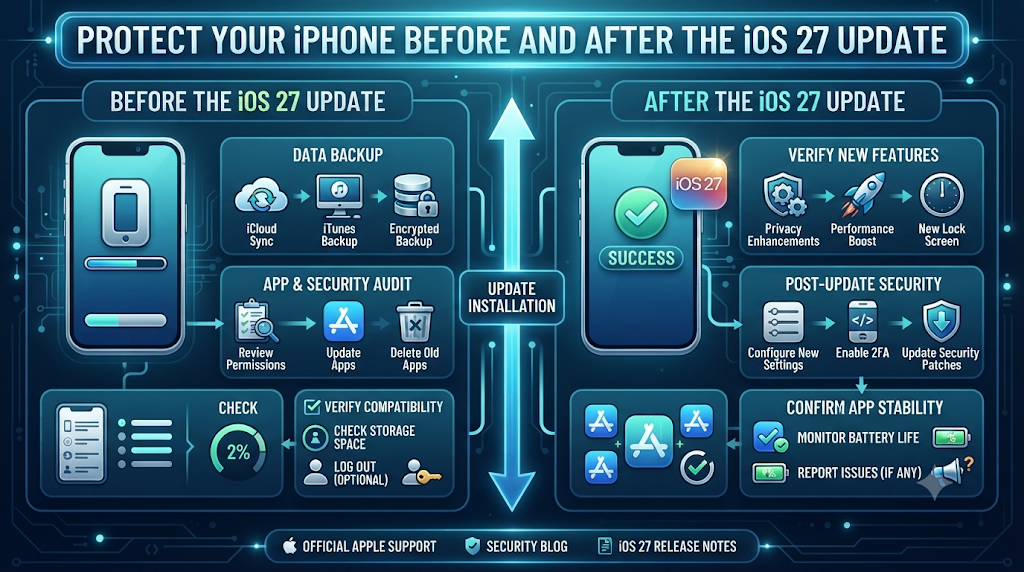
How to Back Up an iPhone
A backup is your safety net. There are two primary methods, and understanding the difference matters.
iCloud backup happens automatically when your iPhone is connected to Wi-Fi, charging, and locked. To back up manually, go to Settings > [your name] > iCloud > iCloud Backup and tap Back Up Now. The free tier includes only 5GB, which fills quickly with photos and videos.
Computer backup via Finder (Mac) or Apple Devices app (Windows) stores a local copy on your computer. Connect your iPhone, select it in Finder, and click Back Up Now. This method does not depend on iCloud storage limits, but it requires manual action and a computer with sufficient free space.
For most users, a combination works best: iCloud for daily automatic protection, and a periodic computer backup for a complete local archive.
macOS 27 Compatible Macs: What You Need to Know
If you are also a Mac user, the macOS 27 compatibility question has a clear answer. macOS 27 Golden Gate runs exclusively on Apple silicon Macs. All Intel Macs have been dropped from support.
The macOS 27 compatible Macs include:
- MacBook Neo (13-inch, A18 Pro)
- MacBook Air (M1, 2020 and later)
- MacBook Pro (M1, 2020 and later)
- iMac (M1, 2021 and later)
- Mac mini (M1, 2020 and later)
- Mac Studio (2022 and later)
- Mac Pro (2023)
If your Mac has an Intel processor, you cannot install macOS 27. macOS 26 was the final release to support Intel hardware. For Intel Mac owners, the practical options are to remain on macOS 26 or consider hardware upgrade when support eventually ends.
QuickTime Player Screen Recording on Mac
For Mac users who need to capture their screen, QuickTime Player offers a built-in solution. Open QuickTime Player from Applications, then choose File > New Screen Recording from the menu bar.
Before recording, click the arrow next to the Record button to adjust settings. You can select a microphone for audio, enable “Show Mouse Clicks” to highlight your pointer during tutorials, and choose recording quality.
Click Record, then either click anywhere on the screen to record everything, or drag to select a specific area. To stop, click the Stop button in the menu bar or press Command-Control-Esc.
Recordings save automatically with a timestamped filename and can be edited or shared directly from QuickTime Player. Note that some apps, such as the Apple TV app, may not permit screen recording of their content due to copyright restrictions.
Common Mistakes to Avoid
Updating without checking feature support. Installing iOS 27 on an iPhone 11 gives you security updates, not Apple Intelligence. Set expectations accordingly.
Skipping a backup before major changes. Whether you are updating, resetting, or migrating, a current backup prevents data loss.
Assuming every feature works on every device. Apple Intelligence, Siri AI, and advanced camera features have specific hardware requirements. Check before you rely on them.
Using the wrong instructions for your OS version. Menu paths and feature locations change between iOS versions. Verify that a tutorial matches your current software.
Ignoring storage before updating. Apple Intelligence and system updates require free space. Check Settings > General > iPhone Storage first.
Frequently Asked Questions
Is my iPhone compatible with iOS 27?
If you have an iPhone 11 or newer, including the SE 2nd generation and later, your device supports iOS 27.
Should I update to iOS 27 if I have an iPhone 12?
You can update safely, but you will not receive Apple Intelligence features. The update provides security patches and general improvements.
How do I transfer data from Android to iPhone?
Use the Move to iOS app during iPhone setup. Connect both phones to power and, ideally, use a USB-C cable for faster transfer.
Why won’t my iPhone connect to Wi-Fi?
Try toggling Airplane Mode, restarting the phone, forgetting and rejoining the network, or resetting network settings.
What is the correct way to back up an iPhone?
Use iCloud for automatic wireless backups, or connect to a Mac or PC for a local backup. Both methods are valid; many users combine them.
Does macOS 27 run on Intel Macs?
No. macOS 27 requires an Apple silicon Mac. Intel Macs are no longer supported.
How do I record my Mac screen with QuickTime?
Open QuickTime Player, choose File > New Screen Recording, select your settings, and click Record.
Where do I find security settings on iPhone?
Most security controls are under Settings > Privacy & Security, plus Face ID & Passcode for device unlock options.
Can I set up a new iPhone without an old phone nearby?
Yes. Choose “Set Up Manually” and sign in with your Apple ID. You can restore from iCloud backup if one exists.
How much storage does Apple Intelligence need?
Apple Intelligence can require up to 8GB on many eligible iPhones and up to 14GB on newer models. Check available storage before updating.
Conclusion
iOS 27 compatibility is straightforward: iPhone 11 and newer can install it. The more important question is whether your specific model unlocks the features you actually want. For iPhone 15 Pro and later users, the update brings meaningful AI capabilities. For older devices, it is primarily a security and stability update.
Beyond compatibility, the essentials covered here—setting up a new iPhone, migrating from Android, fixing Wi-Fi problems, backing up data, and configuring security—form the foundation of a good ownership experience. None of these tasks are complicated, but each one benefits from doing it correctly the first time.
For Mac users, the macOS 27 transition marks the end of Intel support, and QuickTime Player remains a reliable tool for screen recording when needed. Whatever your device, the best approach is to verify compatibility, prepare a backup, and proceed with clear expectations.
