Upgrade & Secure Your Future with DevOps, SRE, DevSecOps, MLOps!
We spend hours scrolling social media and waste money on things we forget, but won’t spend 30 minutes a day earning certifications that can change our lives.
Master in DevOps, SRE, DevSecOps & MLOps by DevOps School!
Learn from Guru Rajesh Kumar and double your salary in just one year.
Introduction
Remote Desktop Tools help users access, control, troubleshoot, and manage computers or servers from another location. In simple words, these tools allow IT teams, support agents, developers, administrators, and business users to connect to a remote device as if they were sitting in front of it.
Remote desktop software matters because teams now work across offices, homes, customer sites, cloud environments, and distributed infrastructure. Businesses need secure remote access for IT support, unattended device management, employee assistance, server administration, software troubleshooting, and remote work continuity.
Common real-world use cases include help desk support, remote employee assistance, server maintenance, software installation, device troubleshooting, remote training, vendor support, and accessing office computers from outside the office.
Buyers should evaluate connection security, unattended access, session performance, platform support, file transfer, multi-monitor support, user permissions, audit logs, admin controls, integrations, scalability, and pricing.
Best for: IT teams, help desks, MSPs, remote support teams, developers, system administrators, customer support teams, SMBs, enterprises, education, healthcare, finance, and distributed teams.
Not ideal for: teams that only need video meetings, simple screen sharing, cloud file access, or virtual desktop infrastructure. In those cases, collaboration tools, file-sharing tools, or VDI platforms may be better.
Key Trends in Remote Desktop Tools
- Security-first remote access is now essential, with MFA, SSO, encryption, device trust, session logging, and role-based permissions becoming important selection criteria.
- Unattended access is a major requirement, especially for IT teams managing servers, employee laptops, kiosks, and customer devices.
- Cloud-based remote support is growing, allowing teams to support users without managing complex VPN or on-premises gateway infrastructure.
- Zero-trust access models are influencing remote desktop workflows, where access depends on identity, device health, user role, and session context.
- AI-assisted troubleshooting is becoming more common, helping support agents summarize sessions, suggest fixes, or speed up issue resolution where available.
- Cross-platform support is critical, because teams now support Windows, macOS, Linux, Android, iOS, and browser-based environments.
- MSP-friendly features are becoming more important, including device grouping, customer segmentation, unattended access, technician management, and reporting.
- User experience matters more than ever, especially for low-latency sessions, multi-monitor support, file transfer, clipboard sync, and stable performance.
- Compliance visibility is becoming a buying factor, especially for industries that need audit trails, access history, and controlled support sessions.
- Remote access and endpoint management are becoming more connected, with buyers wanting integrations with ticketing, identity, monitoring, and device management systems.
How We Selected These Tools
The tools below were selected using practical buyer-focused evaluation logic:
- Market recognition and adoption across remote support, remote access, IT help desk, and MSP environments.
- Feature completeness for attended support, unattended access, file transfer, screen control, session management, and admin governance.
- Reliability signals such as session stability, performance, cross-platform access, and connection quality.
- Security posture signals such as encryption, MFA, SSO, RBAC, audit logs, session permissions, and access controls.
- Integration strength with help desk platforms, identity providers, endpoint tools, monitoring tools, and workflow systems.
- Fit across different customer segments, including freelancers, SMBs, MSPs, mid-market teams, and enterprises.
- Ease of deployment for both technicians and end users.
- Support quality, documentation depth, onboarding resources, and ecosystem maturity.
- Flexibility across cloud, self-hosted, and hybrid deployment models where available.
- Practical value based on usability, capability depth, security, scalability, and support needs.
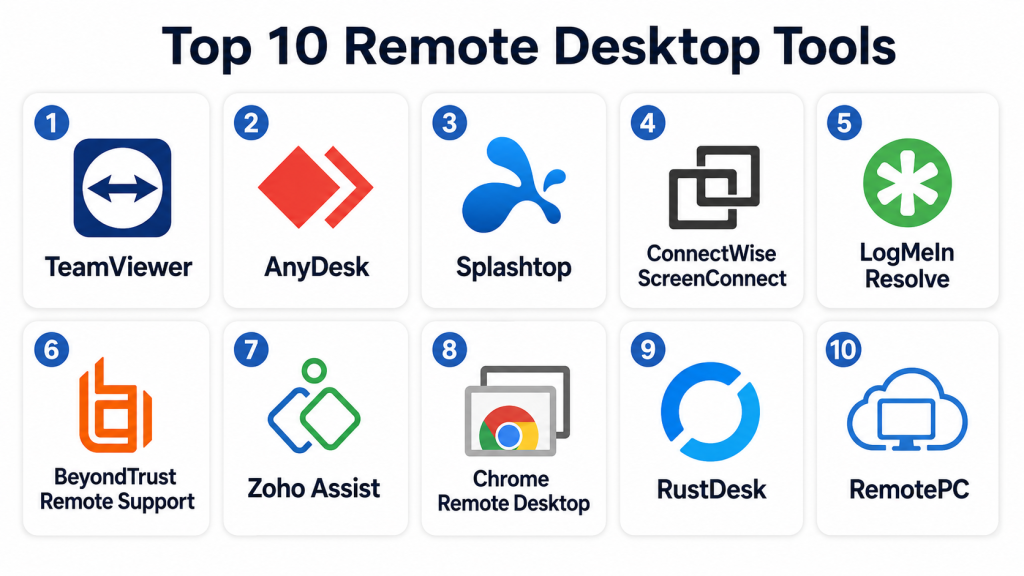
Top 10 Remote Desktop Tools
#1 — TeamViewer
Short description: TeamViewer is a widely used remote access and remote support platform for IT teams, support agents, MSPs, and businesses. It supports attended and unattended access across many device types and is known for broad platform coverage.
Key Features
- Remote desktop control for attended and unattended sessions.
- Cross-platform support for desktop and mobile devices.
- File transfer and clipboard sharing.
- Multi-monitor support.
- Remote printing options depending on setup.
- User and device management features.
- Session recording and reporting options depending on plan.
Pros
- Broad platform coverage across many device types.
- Useful for both internal IT support and external customer support.
- Strong fit for distributed support teams.
Cons
- Pricing may be high for some small teams.
- Advanced administration features may require higher plans.
- Some users may need guidance for secure configuration.
Platforms / Deployment
Web / Windows / macOS / Linux / iOS / Android
Cloud / Hybrid options may vary
Security & Compliance
Supports encryption, MFA, SSO options, trusted device controls, conditional access options, session controls, and admin management features depending on plan. Specific compliance certifications should be verified with the vendor.
Integrations & Ecosystem
TeamViewer fits IT support, service desk, endpoint access, and remote operations workflows. It has integrations and connectors for business and IT environments depending on plan.
- Help desk platforms
- IT service management tools
- Endpoint management workflows
- Identity providers
- Monitoring tools
- Customer support workflows
Support & Community
TeamViewer provides documentation, customer support, knowledge resources, onboarding materials, and a large user base. Enterprise support options may vary by plan.
#2 — AnyDesk
Short description: AnyDesk is a remote desktop tool focused on fast connections, lightweight access, and cross-platform remote control. It is used by freelancers, SMBs, IT teams, and support agents that need quick remote sessions.
Key Features
- Remote desktop access and screen control.
- Attended and unattended access.
- File transfer and clipboard support.
- Cross-platform desktop and mobile support.
- Address book and session management.
- Low-latency remote access experience.
- Permission controls for remote sessions.
Pros
- Lightweight and fast for many remote access workflows.
- Easy to start for small teams and individual users.
- Good platform coverage.
Cons
- Enterprise governance depth may depend on plan.
- Advanced reporting and integrations should be validated.
- Security configuration should be reviewed before broad rollout.
Platforms / Deployment
Web / Windows / macOS / Linux / iOS / Android
Cloud / Self-hosted options may vary
Security & Compliance
Supports encrypted connections, unattended access controls, permissions, MFA options, and access management features depending on plan. Specific compliance certifications should be verified with the vendor.
Integrations & Ecosystem
AnyDesk is useful for quick support, remote access, and lightweight IT assistance workflows.
- Help desk workflows
- Device support processes
- Remote work access
- File transfer workflows
- Customer support use cases
- IT administration tasks
Support & Community
AnyDesk provides documentation, support resources, knowledge base articles, and business support options depending on the selected plan.
#3 — Splashtop
Short description: Splashtop is a remote access and remote support platform used by IT teams, MSPs, education, healthcare, and businesses that need secure remote computer access. It is known for practical performance and business-focused plans.
Key Features
- Remote access for computers and servers.
- Attended and unattended support options.
- File transfer and remote printing.
- Multi-monitor support.
- User and technician management.
- Session recording and logging options depending on plan.
- Device grouping and access permissions.
Pros
- Good balance of performance, usability, and value.
- Strong fit for remote work and IT support.
- Useful for MSPs and business teams.
Cons
- Plan selection can require careful review.
- Advanced enterprise controls may require higher-tier plans.
- Some integrations may vary by product edition.
Platforms / Deployment
Web / Windows / macOS / Linux / iOS / Android
Cloud
Security & Compliance
Supports encryption, MFA, device authentication, session logging, access permissions, and admin controls depending on plan. Specific compliance certifications should be verified directly.
Integrations & Ecosystem
Splashtop works well for IT support, remote work, education labs, and managed service workflows.
- Help desk tools
- RMM workflows
- Identity providers
- Endpoint support processes
- Remote lab access
- Business support operations
Support & Community
Splashtop provides documentation, customer support, onboarding resources, and business support options. It is commonly used by SMBs, MSPs, and education teams.
#4 — ConnectWise ScreenConnect
Short description: ConnectWise ScreenConnect is a remote support and remote access platform designed for IT service providers, MSPs, and support teams. It is strong for unattended access, technician workflows, and IT service operations.
Key Features
- Remote support and unattended access.
- Technician management and role controls.
- Session recording and audit options.
- File transfer and command execution.
- Support for multiple operating systems.
- Customer and device organization.
- Integration with ConnectWise ecosystem.
Pros
- Strong fit for MSPs and IT service teams.
- Good unattended access and technician workflow features.
- Useful integration with service management environments.
Cons
- May be more technical than simple remote desktop tools.
- Best value often comes for IT service teams.
- Setup and permissions should be planned carefully.
Platforms / Deployment
Web / Windows / macOS / Linux / iOS / Android
Cloud / Self-hosted options may vary
Security & Compliance
Supports encryption, role-based permissions, session auditing, authentication controls, and admin management features. Specific compliance certifications should be verified with the vendor.
Integrations & Ecosystem
ConnectWise ScreenConnect fits service desk, MSP, and remote IT support environments.
- ConnectWise platform
- PSA tools
- RMM tools
- Ticketing workflows
- Endpoint management workflows
- Technician support processes
Support & Community
ConnectWise provides documentation, partner resources, customer support, training materials, and a strong MSP-focused ecosystem.
#5 — LogMeIn Resolve
Short description: LogMeIn Resolve is an IT management and remote support solution that combines remote access with support, automation, and endpoint management capabilities. It is suited for IT teams that want more than basic screen control.
Key Features
- Remote support and unattended access.
- Endpoint management features.
- IT automation workflows.
- Ticketing and support workflow options.
- Remote execution and troubleshooting.
- Device inventory and monitoring features depending on plan.
- Technician and admin controls.
Pros
- Combines remote support with IT operations features.
- Useful for internal IT teams and support desks.
- Good fit for teams wanting broader device support workflows.
Cons
- May be more than needed for basic remote access.
- Pricing and plan structure should be reviewed carefully.
- Some advanced features may require setup effort.
Platforms / Deployment
Web / Windows / macOS / iOS / Android / Linux support may vary
Cloud
Security & Compliance
Supports encryption, MFA options, access controls, admin permissions, and session-related security features depending on plan. Specific compliance certifications should be verified with the vendor.
Integrations & Ecosystem
LogMeIn Resolve fits IT support environments where remote access, ticketing, automation, and endpoint actions need to work together.
- IT help desk workflows
- Endpoint management
- Automation scripts
- Monitoring workflows
- User support processes
- Device inventory operations
Support & Community
LogMeIn provides documentation, onboarding resources, business support, help center materials, and customer assistance depending on plan.
#6 — BeyondTrust Remote Support
Short description: BeyondTrust Remote Support is an enterprise remote support platform focused on secure privileged access, controlled support sessions, auditability, and compliance-heavy environments. It is best for organizations with strict security requirements.
Key Features
- Secure remote support sessions.
- Privileged access and permission controls.
- Session recording and audit trails.
- Unattended access options.
- Identity and access management integrations.
- Support for internal and external users.
- Enterprise-grade technician management.
Pros
- Strong security and governance focus.
- Good fit for regulated and enterprise environments.
- Useful for privileged remote support workflows.
Cons
- May be too advanced for small teams.
- Implementation can require planning.
- Pricing may be higher than basic remote desktop tools.
Platforms / Deployment
Web / Windows / macOS / Linux / iOS / Android
Cloud / Self-hosted / Hybrid options may vary
Security & Compliance
Supports encryption, RBAC, MFA options, SSO integrations, audit logs, session recording, privileged access controls, and admin governance features. Specific compliance certifications should be verified with the vendor.
Integrations & Ecosystem
BeyondTrust Remote Support fits enterprise security, identity, help desk, and privileged access workflows.
- Identity providers
- IT service management tools
- Privileged access management workflows
- Security operations tools
- Endpoint support systems
- Audit and compliance processes
Support & Community
BeyondTrust provides enterprise documentation, professional services, customer support, onboarding resources, and security-focused guidance.
#7 — Zoho Assist
Short description: Zoho Assist is a cloud-based remote support and unattended access tool for IT teams, MSPs, support agents, and SMBs. It is useful for teams that want browser-based support with simple setup.
Key Features
- On-demand remote support sessions.
- Unattended remote access.
- File transfer and clipboard sharing.
- Multi-monitor navigation.
- Session recording options depending on plan.
- Technician management.
- Integration with Zoho ecosystem.
Pros
- Easy to start and manage.
- Good fit for SMBs and support teams.
- Useful value for teams already using Zoho apps.
Cons
- Advanced enterprise governance may be limited compared with premium tools.
- Performance may vary depending on network conditions.
- Some features depend on selected plan.
Platforms / Deployment
Web / Windows / macOS / Linux / iOS / Android
Cloud
Security & Compliance
Supports encrypted sessions, MFA options, role-based controls, session logging, and access permissions depending on plan. Specific compliance certifications should be verified with the vendor.
Integrations & Ecosystem
Zoho Assist fits customer support, IT help desk, and Zoho-centered business workflows.
- Zoho Desk
- Zoho CRM
- Help desk workflows
- Customer support processes
- Endpoint support
- Browser-based support sessions
Support & Community
Zoho provides documentation, help center content, customer support, onboarding resources, and a broad ecosystem of business applications.
#8 — Chrome Remote Desktop
Short description: Chrome Remote Desktop is a simple remote access tool for users who need basic remote control through a browser-based setup. It is best for individuals, freelancers, and small teams with simple remote access needs.
Key Features
- Browser-based remote access.
- Basic unattended access setup.
- Cross-platform desktop support.
- Simple connection process.
- Remote screen control.
- Works with Google account-based access.
- Lightweight setup for personal and basic business use.
Pros
- Simple and easy to use.
- Good for basic personal or lightweight remote access.
- No heavy administration required.
Cons
- Limited business administration features.
- Not ideal for enterprise support workflows.
- Lacks advanced auditing, technician management, and governance.
Platforms / Deployment
Web / Windows / macOS / Linux / Android / iOS
Cloud
Security & Compliance
Uses account-based access and encrypted remote sessions. Advanced enterprise controls such as RBAC, detailed audit logs, and compliance reporting are limited or not publicly stated for business governance use.
Integrations & Ecosystem
Chrome Remote Desktop is best for simple access rather than complex integrations.
- Chrome browser workflows
- Google account access
- Basic remote support
- Personal device access
- Lightweight troubleshooting
- Cross-device remote control
Support & Community
Support is mainly through help documentation and community resources. It is not designed as a full enterprise remote support platform.
#9 — RustDesk
Short description: RustDesk is a remote desktop tool known for open-source availability and self-hosting options. It is useful for technical users and teams that want more control over remote desktop infrastructure.
Key Features
- Remote desktop access and control.
- Cross-platform support.
- File transfer capabilities.
- Self-hosting options for relay and server components.
- Open-source ecosystem.
- Basic unattended access support.
- Lightweight remote support workflow.
Pros
- Good for teams wanting self-hosted control.
- Open-source option with flexible deployment.
- Useful for technical users and privacy-conscious teams.
Cons
- Requires technical skill for self-hosting.
- Enterprise support and governance may vary by edition.
- May need careful security configuration.
Platforms / Deployment
Windows / macOS / Linux / iOS / Android
Self-hosted / Cloud options may vary
Security & Compliance
Supports encrypted remote sessions and self-hosting controls depending on configuration. SSO, RBAC, audit logs, and compliance certifications may vary by edition and deployment.
Integrations & Ecosystem
RustDesk is best for technical teams that want remote access control with self-hosting flexibility.
- Self-hosted relay servers
- Desktop support workflows
- File transfer workflows
- Open-source deployments
- Remote IT troubleshooting
- Custom infrastructure setups
Support & Community
RustDesk has community resources, documentation, and open-source ecosystem support. Commercial support options may vary.
#10 — RemotePC
Short description: RemotePC is a remote access platform for individuals, small businesses, and teams that need secure access to computers from different devices. It offers practical remote desktop features with business-friendly plans.
Key Features
- Remote access to computers and devices.
- Always-on remote access.
- File transfer and remote printing options.
- Multi-monitor support.
- Mobile access.
- User and computer management features.
- Session logging options depending on plan.
Pros
- Practical remote access for individuals and small teams.
- Good balance of features and affordability.
- Useful for remote work and basic IT access.
Cons
- Enterprise governance may be limited compared with high-end tools.
- Advanced integrations should be validated.
- Best suited for straightforward remote access needs.
Platforms / Deployment
Web / Windows / macOS / Linux / iOS / Android
Cloud
Security & Compliance
Supports encrypted remote sessions, access controls, and authentication features. Advanced compliance certifications, SSO, and deep audit governance should be verified with the vendor.
Integrations & Ecosystem
RemotePC fits simple business remote access and remote work scenarios.
- Desktop remote access
- Mobile remote access
- File transfer workflows
- Remote printing workflows
- Small business support operations
- Team access management
Support & Community
RemotePC provides documentation, customer support resources, help center content, and business support options depending on plan.
Comparison Table (Top 10)
| Tool Name | Best For | Platform(s) Supported | Deployment | Standout Feature | Public Rating |
|---|---|---|---|---|---|
| TeamViewer | Broad remote support and access | Web, Windows, macOS, Linux, iOS, Android | Cloud / Hybrid options may vary | Wide platform coverage | N/A |
| AnyDesk | Fast lightweight remote access | Web, Windows, macOS, Linux, iOS, Android | Cloud / Self-hosted options may vary | Low-latency remote sessions | N/A |
| Splashtop | SMBs, MSPs, remote work, education | Web, Windows, macOS, Linux, iOS, Android | Cloud | Performance-focused business remote access | N/A |
| ConnectWise ScreenConnect | MSPs and IT service teams | Web, Windows, macOS, Linux, iOS, Android | Cloud / Self-hosted options may vary | Technician-focused remote support | N/A |
| LogMeIn Resolve | IT teams needing support plus automation | Web, Windows, macOS, iOS, Android, Varies | Cloud | Remote access with IT operations features | N/A |
| BeyondTrust Remote Support | Enterprise secure remote support | Web, Windows, macOS, Linux, iOS, Android | Cloud / Self-hosted / Hybrid options may vary | Privileged and audited remote support | N/A |
| Zoho Assist | SMB support teams and Zoho users | Web, Windows, macOS, Linux, iOS, Android | Cloud | Simple cloud-based support sessions | N/A |
| Chrome Remote Desktop | Basic personal remote access | Web, Windows, macOS, Linux, Android, iOS | Cloud | Simple browser-based remote control | N/A |
| RustDesk | Self-hosted and open-source remote access | Windows, macOS, Linux, iOS, Android | Self-hosted / Cloud options may vary | Open-source remote desktop control | N/A |
| RemotePC | Individuals and small businesses | Web, Windows, macOS, Linux, iOS, Android | Cloud | Practical always-on remote access | N/A |
Evaluation & Scoring of Remote Desktop Tools
| Tool Name | Core (25%) | Ease (15%) | Integrations (15%) | Security (10%) | Performance (10%) | Support (10%) | Value (15%) | Weighted Total (0–10) |
|---|---|---|---|---|---|---|---|---|
| TeamViewer | 9 | 8 | 8 | 9 | 8 | 9 | 7 | 8.30 |
| AnyDesk | 8 | 9 | 7 | 8 | 9 | 8 | 8 | 8.10 |
| Splashtop | 8 | 9 | 8 | 8 | 9 | 8 | 9 | 8.40 |
| ConnectWise ScreenConnect | 9 | 7 | 9 | 9 | 8 | 8 | 8 | 8.40 |
| LogMeIn Resolve | 8 | 8 | 8 | 8 | 8 | 8 | 7 | 7.85 |
| BeyondTrust Remote Support | 9 | 7 | 9 | 10 | 8 | 9 | 6 | 8.35 |
| Zoho Assist | 8 | 9 | 8 | 8 | 8 | 8 | 9 | 8.30 |
| Chrome Remote Desktop | 5 | 10 | 5 | 7 | 7 | 6 | 10 | 7.00 |
| RustDesk | 7 | 7 | 6 | 8 | 8 | 6 | 9 | 7.25 |
| RemotePC | 7 | 8 | 6 | 7 | 8 | 7 | 9 | 7.40 |
These scores are comparative and should be used as a decision-support guide, not as a universal ranking. A small team may get strong value from Zoho Assist, RemotePC, or Splashtop, while an enterprise may need BeyondTrust, TeamViewer, or ConnectWise ScreenConnect. The best choice depends on security needs, support workflows, device types, and scale.
Which Remote Desktop Tool Is Right for You?
Solo / Freelancer
Solo users usually need simple remote access to personal or client systems. Chrome Remote Desktop, AnyDesk, RemotePC, and RustDesk can be practical depending on the comfort level and security needs.
Freelancers who support clients may prefer AnyDesk, Zoho Assist, Splashtop, or TeamViewer because they are easier to use for attended support sessions. Technical users who want more control may consider RustDesk.
SMB
SMBs should look for easy setup, secure unattended access, simple billing, file transfer, multi-device support, and clear admin controls. Splashtop, Zoho Assist, RemotePC, AnyDesk, and TeamViewer are practical choices for many small businesses.
If the SMB has an internal IT person or small help desk, Zoho Assist and Splashtop can provide a good balance of usability and value.
Mid-Market
Mid-market teams usually need technician management, role controls, unattended access, session logs, reporting, integrations, and stronger security. TeamViewer, Splashtop, ConnectWise ScreenConnect, Zoho Assist, and LogMeIn Resolve can all fit depending on workflow needs.
Mid-market buyers should test session performance, permission controls, file transfer behavior, and help desk integration before rollout.
Enterprise
Enterprises should focus on access governance, identity integration, MFA, SSO, audit logs, session recording, privileged access controls, compliance visibility, and support maturity. BeyondTrust Remote Support, TeamViewer, ConnectWise ScreenConnect, Splashtop Enterprise options, and LogMeIn Resolve are stronger fits for larger environments.
Enterprises should also define remote support policies clearly, especially around vendor access, unattended access, session approvals, and privileged systems.
Budget vs Premium
Budget-focused users may prefer Chrome Remote Desktop, RustDesk, RemotePC, Zoho Assist, AnyDesk, or Splashtop depending on use case. Premium buyers with larger support teams, stronger security needs, and governance requirements may prefer BeyondTrust, TeamViewer, ConnectWise ScreenConnect, or LogMeIn Resolve.
The right budget decision should include license cost, technician time, security risk, admin overhead, training, and support quality.
Feature Depth vs Ease of Use
For feature depth, BeyondTrust Remote Support, ConnectWise ScreenConnect, TeamViewer, LogMeIn Resolve, and Splashtop are strong options. For ease of use, Chrome Remote Desktop, AnyDesk, Zoho Assist, RemotePC, and Splashtop are easier for many users.
A tool with many features is not always best if users find it difficult. The right platform should match the technical ability of both support teams and end users.
Integrations & Scalability
ConnectWise ScreenConnect is strong for MSP and service desk workflows. BeyondTrust fits security-heavy enterprise environments. TeamViewer and Splashtop offer broad business remote access support. Zoho Assist fits teams using Zoho apps. LogMeIn Resolve fits IT teams wanting remote access plus operations features.
Scalability should be tested through real technician workflows, device grouping, session logs, role permissions, and support process integration.
Security & Compliance Needs
Security-focused buyers should evaluate encryption, MFA, SSO, RBAC, session recording, audit logs, device trust, unattended access controls, credential handling, and privileged access policies. For regulated industries, official vendor documentation should be reviewed before final selection.
Remote desktop access can create serious risk if poorly configured, so security settings should be tested before broad deployment.
Frequently Asked Questions (FAQs)
1. What is a remote desktop tool?
A remote desktop tool allows users to access and control another computer or device from a different location. It is commonly used for IT support, remote work, troubleshooting, and server administration.
2. How is remote desktop different from screen sharing?
Screen sharing usually lets others view a screen during a meeting. Remote desktop tools allow deeper control, unattended access, file transfer, admin actions, and device troubleshooting.
3. How much do remote desktop tools cost?
Pricing varies by vendor, number of users, technicians, devices, sessions, and features. Some tools offer simple plans, while enterprise platforms use custom pricing.
4. Are remote desktop tools secure?
They can be secure when configured correctly with encryption, MFA, access controls, session logging, and strong permissions. Poor configuration can create serious security risks.
5. What is unattended access?
Unattended access allows authorized users to connect to a device without someone sitting at the remote computer to approve the session. It is useful for servers, kiosks, and managed devices.
6. What is attended remote support?
Attended support requires the remote user to start or approve the session. It is commonly used by help desks, customer support teams, and IT technicians assisting employees or customers.
7. What are common mistakes when using remote desktop tools?
Common mistakes include weak passwords, no MFA, shared technician accounts, poor session logging, unmanaged unattended access, and allowing broad permissions without review.
8. Can remote desktop tools transfer files?
Yes, many remote desktop tools support file transfer between local and remote devices. Buyers should test speed, size limits, permissions, and logging before relying on this feature.
9. Do remote desktop tools support mobile devices?
Many tools support iOS and Android for remote access or remote viewing. Full control capabilities may vary depending on operating system limitations and vendor support.
10. What integrations should buyers check?
Buyers should check integrations with help desk systems, IT service management tools, identity providers, endpoint management tools, monitoring platforms, and security operations workflows.
Conclusion
Remote Desktop Tools are essential for secure support, remote troubleshooting, device management, and distributed work. The best tool depends on who needs access, what devices must be supported, how sensitive the systems are, and how much governance the organization requires. TeamViewer and AnyDesk are strong general-purpose options, Splashtop offers a practical balance of performance and value, ConnectWise ScreenConnect is well suited for MSPs, and BeyondTrust Remote Support is strong for security-focused enterprises. Zoho Assist works well for SMBs, Chrome Remote Desktop is simple for basic access, RustDesk offers self-hosted flexibility, and RemotePC is practical for small teams. The best next step is to shortlist two or three tools, test them with real support sessions, validate security controls, review unattended access settings, and confirm that the tool fits both user experience and IT governance needs.
