Upgrade & Secure Your Future with DevOps, SRE, DevSecOps, MLOps!
We spend hours scrolling social media and waste money on things we forget, but won’t spend 30 minutes a day earning certifications that can change our lives.
Master in DevOps, SRE, DevSecOps & MLOps by DevOps School!
Learn from Guru Rajesh Kumar and double your salary in just one year.
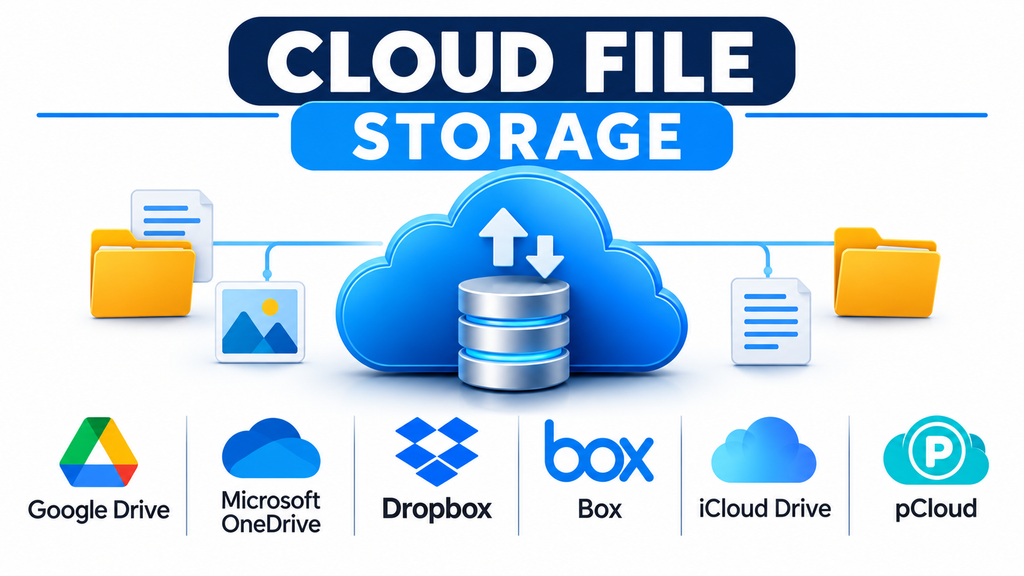
Cloud file storage has changed how individuals and organizations manage digital information. Instead of depending entirely on local hard drives, USB devices, or office file servers, users can store documents, photographs, videos, and project files on remote infrastructure and access them through connected devices.
The convenience goes beyond simply saving files online. A well-designed cloud storage service can help prevent data loss, simplify access across devices, support distributed teams, and reduce the need to maintain physical storage equipment.
However, different platforms serve different needs. Some are designed around everyday document access, others emphasize business content management, and some focus on synchronization across personal devices. Choosing the right service requires understanding these differences rather than comparing storage capacity alone.
Understanding How Cloud File Storage Works
Cloud file storage keeps digital files on infrastructure managed by a service provider. Users access their stored information through web browsers, desktop applications, mobile applications, or supported integrations.
Most services organize content into folders and files, allowing users to maintain a familiar structure. Depending on the platform, files can also be synchronized with local devices, shared with other people, or accessed through collaborative applications.
A typical workflow involves:
- Uploading files from a computer or mobile device.
- Storing the files in the provider’s cloud infrastructure.
- Organizing content into folders and directories.
- Accessing files through authorized devices or applications.
- Managing permissions and sharing access where supported.
- Recovering previous versions or deleted content when the service provides those capabilities.
The provider generally manages the underlying infrastructure, while customers remain responsible for account security, access configuration, and appropriate data management.
Cloud File Storage Platforms and Their Different Strengths
Several established platforms approach cloud file storage from different perspectives. The following applications illustrate the available choices.
Google Drive: Convenient Storage for Document-Centered Workflows
Google Drive combines cloud file storage with Google’s productivity ecosystem. Users can store documents, spreadsheets, presentations, PDFs, photographs, and other digital files in an organized online environment.
Its strongest appeal is the connection between stored files and Google Workspace applications. Users can work with Google Docs, Sheets, and Slides while keeping their content accessible through the same account.
Drive is particularly useful for individuals, educational institutions, and organizations that already rely on Google’s applications.
Its search functionality and folder organization also help users manage growing collections of digital content.
Important consideration: Storage allocation is connected to the applicable Google account or Workspace plan. Organizations should examine shared storage arrangements, administrative controls, and retention requirements before adopting it as their primary repository.
Microsoft OneDrive: Cloud Storage for Microsoft-Based Environments
Microsoft OneDrive provides online file storage that integrates closely with Windows and Microsoft 365.
Users can store documents, synchronize selected folders, and access content from supported computers and mobile devices. Its integration with applications such as Word, Excel, and PowerPoint makes it especially convenient for organizations already using Microsoft’s productivity ecosystem.
OneDrive also supports Files On-Demand, which helps users access cloud-stored content without requiring every file to occupy local disk space.
For businesses, administrative controls and integration with Microsoft’s broader identity and collaboration environment can make it a practical choice.
Important consideration: Organizations should distinguish personal OneDrive storage from OneDrive for work or school. Account ownership, sharing policies, storage allocation, and administrative controls can differ.
Dropbox: A File-Centered Storage Experience
Dropbox focuses strongly on storing, organizing, synchronizing, and accessing files across devices.
Its desktop applications provide a familiar folder-based experience, making it possible to work with cloud-stored content through a computer’s file manager. Selective synchronization and online-only storage options can also help manage local disk usage.
Dropbox offers file history and recovery capabilities, with availability and retention depending on the applicable plan.
It is particularly relevant to creative professionals, freelancers, and teams that regularly handle large collections of documents and media files.
Important consideration: Businesses should examine storage limits, file recovery periods, sharing permissions, and the administrative features included in their chosen subscription.
Box: Business-Oriented Content Storage and Governance
Box approaches cloud storage with a stronger emphasis on organizational content management.
Businesses can use it to store documents, organize departmental content, control access, and connect files with business applications. Its administrative and governance capabilities are important considerations for organizations handling sensitive corporate information.
Box is particularly suitable for companies that need more than a convenient personal file repository.
Its enterprise-oriented approach can support structured content management across departments and external collaborators.
Important consideration: Advanced security, compliance, workflow, and administrative capabilities may depend on the selected subscription. Organizations should verify the precise controls available in their intended plan.
Apple iCloud Drive: Storage Across Apple Devices
iCloud Drive provides cloud-based file access within Apple’s ecosystem.
Users can save files and folders and access them across supported Apple devices. It also works with Apple’s Files application, allowing users to manage documents alongside content from supported third-party cloud services.
Its integration with macOS and iOS makes it convenient for people who regularly move between Mac computers, iPhones, and iPads.
Important consideration: Its greatest convenience comes from the Apple ecosystem. Organizations using a broad mixture of operating systems should evaluate cross-platform access and administration before making it their central business storage platform.
pCloud: Flexible Personal Cloud Storage
pCloud offers cloud file storage with desktop and mobile applications, file synchronization, and remote access.
It is worth considering for individuals who want a dedicated storage service rather than a platform primarily organized around office productivity applications.
The service provides options for managing files across devices and accessing stored content through its applications.
Important consideration: Users should examine the available subscription structure, storage allowances, recovery features, and optional privacy-related capabilities. They should not assume that every file receives the same level of client-side encryption by default.
Comparing Cloud Storage Platforms
| Platform | Primary strength | Suitable users |
|---|---|---|
| Google Drive | Google Workspace integration | Individuals, schools, businesses |
| Microsoft OneDrive | Windows and Microsoft 365 integration | Microsoft-based organizations |
| Dropbox | File synchronization and access | Freelancers, creative teams |
| Box | Business content management | Medium and large organizations |
| iCloud Drive | Apple device integration | Apple users |
| pCloud | Dedicated personal cloud storage | Individuals and independent users |
The comparison highlights different product priorities rather than an overall ranking. The right option depends on the applications, devices, security requirements, and storage habits of the intended users.
What to Evaluate Before Choosing a Cloud Storage Service
Selecting a platform based only on the advertised storage allowance can lead to unnecessary costs or operational problems. Several other factors deserve attention.
Storage Capacity and Expansion
Estimate how much data needs to be stored initially and how quickly it is likely to grow.
A personal user storing documents and photographs may have very different requirements from a business maintaining large design files, video projects, and departmental archives.
Examine whether the provider offers additional capacity, how shared storage is allocated, and whether storage upgrades require moving to another subscription.
Security and Access Management
Cloud storage contains information that may be valuable or confidential. Security should therefore be considered before transferring important business files.
Review whether the provider supports:
- Multi-factor authentication.
- Encryption during data transmission and while stored.
- User and administrator access controls.
- External sharing restrictions.
- Activity monitoring and security alerts.
- File recovery and version history.
- Organization-level access policies.
For sensitive information, also examine available encryption options, account recovery procedures, and the provider’s data-handling documentation.
Synchronization and Device Compatibility
Synchronization determines how conveniently files remain accessible across devices.
Check whether the service provides desktop applications, mobile access, selective synchronization, and offline availability.
This is especially important for professionals who work across multiple computers or need access to large files without downloading their entire storage collection.
Recovery and Retention
Accidental deletion, unwanted modifications, and ransomware incidents can affect cloud-stored content.
Some services provide file version history, deleted-file recovery, or administrative restoration features. However, these capabilities are not necessarily equivalent to a dedicated backup service.
Review the retention periods and recovery conditions carefully. Organizations with critical information should maintain an independent backup strategy rather than treating synchronization as complete data protection.
Data Residency and Compliance
Organizations operating in regulated industries may have requirements concerning where information is stored and how it is processed.
Check the provider’s available storage regions, contractual terms, security documentation, administrative controls, and relevant compliance commitments.
A provider’s general compliance statement should not be interpreted as automatic compliance for every customer or workload.
Total Cost of Ownership
The subscription fee is only one part of the overall expense.
Consider:
- Additional storage charges.
- Per-user licensing.
- Administrative overhead.
- Data transfer requirements.
- Premium recovery and security capabilities.
- Costs associated with migrating existing files.
- Expenses involved in maintaining independent backups.
A slightly more expensive platform may offer better value if it reduces administrative complexity or fits existing business applications.
Cloud File Storage Versus Object Storage and Backup
These three storage approaches are related, but they solve different problems.
Cloud file storage organizes information into recognizable files and folders. It is useful when people need to browse documents, manage directories, and access shared content through familiar interfaces.
Object storage stores information as objects with associated metadata in a storage environment commonly organized around buckets. It is particularly useful for large collections of unstructured data, application assets, media repositories, and archival workloads.
Cloud backup focuses on creating recoverable copies of important information. It is designed to help restore data after accidental deletion, device failure, corruption, or other incidents.
An organization may use all three approaches together. For example, employees might use OneDrive or Google Drive for everyday documents, object storage for application-generated media, and a separate backup service for recovery.
Understanding this distinction prevents businesses from selecting a convenient file repository for a workload that requires a different storage architecture.
Common Cloud Storage Implementation Mistakes
Even a capable platform can create problems when storage is poorly organized or administered.
Some common mistakes include:
- Using one account for everything: Separating personal and organizational accounts helps maintain ownership and administrative control.
- Granting excessive permissions: Access should be limited to the people who need particular files or folders.
- Ignoring old shared links: External sharing arrangements should be reviewed regularly.
- Assuming synchronization equals backup: Synchronization can reproduce deletions or unwanted changes across connected devices.
- Neglecting storage organization: Clear folder structures, naming conventions, and ownership rules make large repositories easier to maintain.
- Overlooking migration complexity: Moving large collections of files can involve permission changes, duplicate content, metadata differences, and interrupted workflows.
- Failing to test recovery: Backup and restoration procedures should be tested rather than assumed to work.
Building a Practical Cloud Storage Strategy
A successful implementation begins with understanding what information needs to be stored and who needs access to it.
For a small team, a shared cloud repository with clearly defined folder ownership and permissions may be sufficient. A larger organization may need centralized administration, retention policies, identity integration, and more detailed governance.
A practical rollout can follow these steps:
- Identify the categories of files that need cloud storage.
- Estimate current and future storage requirements.
- Select a platform that fits the existing software ecosystem.
- Define folder structures and access responsibilities.
- Configure authentication and sharing policies.
- Migrate a small collection of representative files.
- Test synchronization, access, and recovery.
- Expand deployment after confirming that the workflow meets requirements.
This approach helps uncover compatibility and administrative issues before a complete migration takes place.
Choosing a Platform That Fits Your Storage Needs
Cloud file storage is most valuable when it makes digital information easier to access without creating unnecessary security or management complexity.
Google Drive is a natural option for workflows built around Google Workspace, while OneDrive fits closely into Microsoft environments. Dropbox offers a file-centered experience, Box emphasizes organizational content management, iCloud Drive is convenient within Apple’s ecosystem, and pCloud provides a dedicated personal storage alternative.
Before selecting a service, evaluate more than capacity and subscription cost. Consider data ownership, access permissions, recovery capabilities, device compatibility, and the effort required to manage the repository over time.
The strongest storage strategy is not necessarily the one with the most features or the largest advertised capacity. It is the one that keeps important files accessible, organized, appropriately protected, and recoverable when they are needed.
