Upgrade & Secure Your Future with DevOps, SRE, DevSecOps, MLOps!
We spend hours scrolling social media and waste money on things we forget, but won’t spend 30 minutes a day earning certifications that can change our lives.
Master in DevOps, SRE, DevSecOps & MLOps by DevOps School!
Learn from Guru Rajesh Kumar and double your salary in just one year.
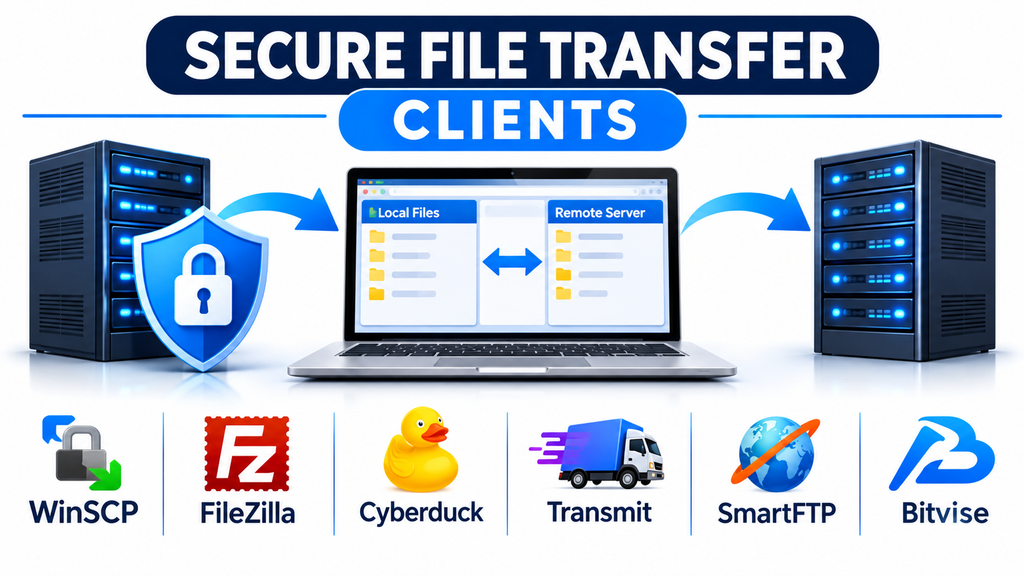
Secure file transfer clients are essential tools for developers, system administrators, website owners, and businesses that regularly exchange information with remote servers. They provide an organized way to upload, download, manage, and synchronize files while supporting encrypted communication.
These applications are commonly used for website maintenance, application deployment, server administration, remote backups, and exchanging business documents. Instead of relying on complicated command-line operations, users can connect to remote systems through graphical interfaces and manage files with familiar controls.
Two important protocols in this category are SFTP and FTPS. Although both provide secure file-transfer capabilities, they use different technologies and connection methods. Understanding this distinction is essential when selecting a suitable client.
Understanding SFTP and FTPS
SFTP stands for SSH File Transfer Protocol. It transfers files through an SSH connection, providing encrypted communication and authentication between the client and server.
FTPS stands for FTP Secure. It extends traditional FTP by adding TLS encryption to protect communication.
Although both protocols support secure file transfers, they are not interchangeable.
| Feature | SFTP | FTPS |
|---|---|---|
| Underlying technology | SSH | FTP with TLS |
| Common port | 22 | 21 for explicit FTPS; implicit FTPS commonly uses 990 |
| Authentication | Passwords or SSH keys | Passwords and supported certificate-based methods |
| Connection structure | Single SSH connection | Separate control and data connections |
| Common applications | Linux servers and hosting environments | Windows servers and enterprise FTP systems |
The correct choice depends on the protocol configured by the remote server administrator or hosting provider.
Plain FTP should generally be avoided for sensitive transfers because it does not encrypt usernames, passwords, or file contents. <Cite refs={[“turn646186search2″,”turn646186search4”]}/>
Popular Secure File Transfer Clients
WinSCP: Advanced File Management for Windows
WinSCP is a widely used file-transfer client designed for Windows users who need reliable connections to remote servers.
It supports SFTP, SCP, FTP, FTPS, WebDAV, and Amazon S3. Its dual-pane interface makes it easy to compare local and remote directories and move files between them.
One of its major strengths is automation. Users can create scripts, synchronize directories, and integrate file-transfer operations into administrative workflows.
WinSCP is particularly useful for developers who maintain websites, administrators managing Linux servers, and professionals who regularly exchange files with remote systems.
Key capabilities:
- Secure SFTP and FTPS connections.
- SSH key authentication.
- Directory synchronization.
- Script-based automation.
- File editing and permission management.
Best suited for: Windows users, developers, and system administrators who need both graphical file management and automation.
FileZilla Client: Cross-Platform File Transfers
FileZilla Client provides a familiar graphical interface for transferring files between local computers and remote servers.
It supports FTP, FTPS, and SFTP, making it suitable for users working with different server configurations.
Its interface includes a local file browser, remote directory browser, transfer queue, and connection management features. These tools simplify common activities such as uploading website files, downloading server backups, and managing remote directories.
FileZilla is available for Windows, macOS, and Linux, making it a practical option for individuals and teams using different desktop operating systems.
Key capabilities:
- FTP, FTPS, and SFTP connectivity.
- Site Manager for saved connections.
- Drag-and-drop file transfers.
- Transfer queue management.
- Cross-platform desktop support.
Best suited for: Website owners, developers, beginners, and users who need a straightforward transfer application.
Cyberduck: File Transfers and Cloud Storage Access
Cyberduck combines traditional server connections with access to various cloud storage services.
It supports SFTP, FTP, FTPS, WebDAV, and multiple cloud-storage integrations. This makes it useful for professionals who manage files across different infrastructure environments.
Its bookmark-based interface allows users to save connection details and quickly return to frequently accessed servers or storage locations.
Cyberduck is available for Windows and macOS and is particularly useful for users who want a single application for server file transfers and supported cloud connections.
Key capabilities:
- SFTP and FTP over TLS support.
- Cloud storage connectivity.
- Saved connection bookmarks.
- File browsing and transfer management.
- Integration with supported external applications.
Best suited for: Designers, developers, and professionals managing both remote servers and cloud storage.
Transmit: Professional File Transfers for macOS
Transmit is a dedicated file-transfer application developed for macOS users.
It provides an interface designed for managing local and remote files, with support for multiple transfer services and protocols.
The application is useful for professionals who regularly work with website hosting environments, remote servers, and cloud storage.
Its file-management approach can make recurring upload and download operations more convenient, particularly for users who prefer a polished desktop experience.
Key capabilities:
- FTP and FTPS connections.
- SFTP connectivity.
- Remote file management.
- Support for selected cloud services.
- File synchronization features.
Best suited for: Mac developers, web designers, and professionals who frequently transfer files between local and remote environments.
SmartFTP: Feature-Rich Windows Transfer Management
SmartFTP is a Windows-based file-transfer application designed for users who require more advanced transfer and synchronization functionality.
It supports multiple transfer protocols and offers features for managing remote files, scheduling operations, and handling recurring transfer activities.
Its advanced capabilities make it relevant to professional environments where file transfers are part of regular operational workflows.
Key capabilities:
- FTP, FTPS, and SFTP support.
- Multiple connection management.
- File synchronization.
- Transfer scheduling and automation.
- Support for selected cloud storage services.
Best suited for: Windows professionals, IT administrators, and organizations with recurring file-transfer requirements.
Bitvise SSH Client: SSH and SFTP Connectivity
Bitvise SSH Client focuses on secure SSH connectivity for Windows users.
Its capabilities include SSH terminal access, SFTP file transfer, and tunneling features. This makes it useful for administrators who need to manage remote systems and transfer files through the same application.
Unlike general-purpose FTP clients, Bitvise is particularly oriented toward SSH-based workflows.
It can be a practical choice for users managing Linux servers or other systems that provide SSH access.
Key capabilities:
- SSH connectivity.
- Secure SFTP file transfers.
- Public-key authentication support.
- SSH tunneling.
- Remote terminal access.
Best suited for: System administrators, technical users, and developers working with SSH-enabled servers.
Comparing Secure File Transfer Clients
| Software | Main strength | Supported environment |
|---|---|---|
| WinSCP | Scripting and synchronization | Windows |
| FileZilla Client | Straightforward cross-platform transfers | Windows, macOS, Linux |
| Cyberduck | Server and cloud connections | Windows, macOS |
| Transmit | Professional desktop file management | macOS |
| SmartFTP | Advanced transfer workflows | Windows |
| Bitvise SSH Client | SSH and SFTP administration | Windows |
These applications have different strengths. Users should verify the exact protocol and platform support in the current product documentation before installation. <Cite refs={[“turn646186search0″,”turn646186search4″,”turn646186search5”]}/>
Important Features to Consider
Selecting a file-transfer client requires more than checking whether it supports SFTP or FTPS. Several additional features can influence usability, security, and long-term productivity.
Secure Authentication
Authentication determines how a client verifies the identity of a remote user.
Look for support for SSH keys, secure password handling, and certificate-based authentication where applicable.
For SFTP connections, users should also verify SSH host keys to help prevent connecting to an impersonated server.
Connection Management
Professionals who access multiple servers need an organized way to store and manage connection information.
Useful features include saved connection profiles, server bookmarks, connection settings, and secure credential storage.
File Synchronization
Some clients provide directory comparison and synchronization functionality.
These capabilities help users identify differences between local and remote folders and update selected files without manually transferring every item.
However, synchronization should be configured carefully to prevent accidental overwriting or deletion.
Transfer Queues and Resume Support
Large file transfers can be interrupted by network failures or connection timeouts.
Transfer queues allow users to organize multiple operations, while resume support can help continue compatible interrupted transfers.
These capabilities are particularly useful when managing website assets, media files, and large datasets.
Automation and Scheduling
Advanced clients may support scripts, command-line operations, or scheduled workflows.
These features help administrators automate repetitive uploads, downloads, and directory synchronization tasks.
WinSCP is particularly relevant for users who need scripting and automation within Windows environments.
Platform Compatibility
A client should work reliably with the user’s operating system and server environment.
Windows administrators may prefer WinSCP or Bitvise, while Mac users may find Transmit or Cyberduck convenient. FileZilla is an option for mixed desktop environments.
Common Applications of SFTP and FTPS Clients
Secure file-transfer applications support a wide range of technical and business activities.
Website management: Developers upload website files, update application resources, and manage remote directories.
Server administration: IT professionals exchange configuration files, logs, and administrative documents with remote systems.
Software deployment: Development teams transfer application packages and supporting assets to deployment environments.
Database operations: Administrators move database exports, backups, and data files between authorized systems.
Business document exchange: Organizations exchange invoices, reports, and other business information with external partners.
Remote backups: Technical teams transfer backup files to remote storage locations through supported secure protocols.
Security Best Practices for File Transfers
Even when a client supports secure protocols, safe file transfer depends on proper configuration.
- Prefer SFTP or FTPS instead of unencrypted FTP.
- Verify SSH host keys before establishing SFTP connections.
- Use strong passwords or appropriately protected SSH keys.
- Avoid storing credentials in unsecured files.
- Restrict remote accounts to necessary directories and permissions.
- Keep transfer clients updated.
- Review connection logs and investigate unusual activity.
- Use separate accounts for different users or applications.
- Confirm that transferred files reach the intended destination.
- Protect important files with independent backups.
For organizations handling confidential information, authentication, access control, encryption, and monitoring should be part of a broader security policy.
How to Choose the Right Secure Transfer Client
The right client depends on the operating system, server protocol, and complexity of the transfer workflow.
For Windows users who need scripting, synchronization, and SSH connectivity, WinSCP is a strong option. FileZilla offers a straightforward experience across major desktop operating systems. Cyberduck is useful when traditional server connections and cloud storage access need to coexist.
Mac users who prefer a dedicated file-transfer application can evaluate Transmit, while SmartFTP is worth considering for advanced Windows transfer workflows. Bitvise is particularly relevant when SSH administration and SFTP are central requirements.
Before making a decision, test the client with the actual server configuration. Confirm authentication, directory permissions, file uploads, downloads, interrupted transfers, and connection recovery.
Making Secure File Transfers More Reliable
Secure file-transfer clients remain important tools for managing remote data in modern IT environments. They simplify communication with servers, support website maintenance, and help organizations exchange information without relying on unencrypted transfer methods.
WinSCP, FileZilla, Cyberduck, Transmit, SmartFTP, and Bitvise each offer different approaches to secure file management.
The best selection is the application that supports the required protocol, fits the available operating system, and provides the necessary security and management features.
By combining an appropriate client with strong authentication, careful permission management, and reliable backup practices, individuals and organizations can create a more secure and efficient file-transfer workflow.
