Upgrade & Secure Your Future with DevOps, SRE, DevSecOps, MLOps!
We spend hours scrolling social media and waste money on things we forget, but won’t spend 30 minutes a day earning certifications that can change our lives.
Master in DevOps, SRE, DevSecOps & MLOps by DevOps School!
Learn from Guru Rajesh Kumar and double your salary in just one year.
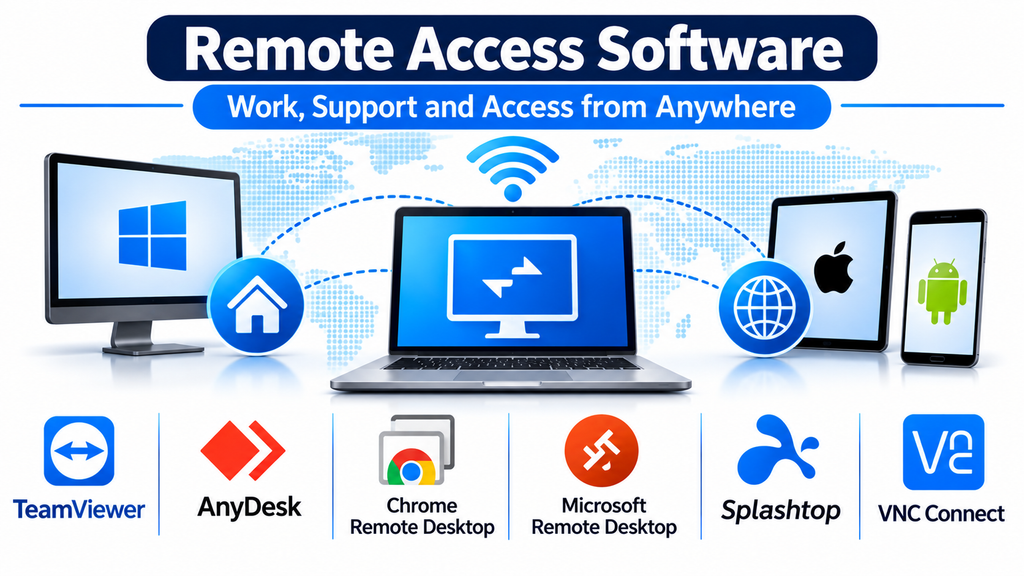
Remote access software has become an important technology for businesses, IT professionals, technical support teams, and individuals who need to connect to computers from different locations. It allows users to view and control another device over a network without being physically present in front of it.
Whether an employee needs to access an office computer from home, an IT administrator must troubleshoot a remote workstation, or a support specialist needs to resolve a customer’s technical issue, remote access applications make these activities possible.
As remote and hybrid working environments continue to evolve, organizations increasingly depend on remote connectivity to maintain productivity, provide technical assistance, and manage distributed devices.
What Is Remote Access Software?
Remote access software enables a user to establish a connection with another computer or device through a network or the internet.
Once a connection is authorized, users may be able to view the remote screen, control the keyboard and mouse, transfer files, access applications, and perform administrative tasks.
Depending on the platform, remote access may support unattended connections, attended technical support sessions, multiple monitors, remote printing, and centralized device management.
Common capabilities include:
- Remote desktop control: View and interact with another computer.
- Unattended access: Connect to authorized devices without requiring someone to accept every session.
- File transfer: Move documents and other files between connected devices.
- Remote troubleshooting: Diagnose and resolve technical problems from another location.
- Multi-device support: Connect to computers running different operating systems.
- Session security: Use authentication, encryption, and permission controls.
- Remote administration: Manage computers and perform maintenance tasks.
These capabilities make remote access software useful for both personal and enterprise environments.
Popular Remote Access Software Platforms
Different applications focus on different use cases. Some prioritize straightforward desktop connectivity, while others provide advanced support tools and centralized IT management.
TeamViewer: Comprehensive Remote Connectivity
TeamViewer is a well-known remote connectivity platform used by individuals, support professionals, and organizations.
It allows users to access computers and mobile devices remotely, provide technical assistance, and manage connected endpoints.
Its capabilities include remote control, file transfer, multi-platform connectivity, and support for attended and unattended access workflows.
Businesses can also evaluate its broader remote support and device-management capabilities when managing distributed IT environments.
Key capabilities:
- Remote desktop access and control.
- File transfer between connected devices.
- Cross-platform connectivity.
- Unattended remote access.
- Remote support and troubleshooting.
Best suited for: IT support teams, businesses, technical service providers, and individuals who need a versatile remote connectivity solution.
Consideration: Review licensing requirements and available features carefully, particularly when using the software commercially.
AnyDesk: Lightweight Remote Desktop Connectivity
AnyDesk focuses on remote desktop access with an emphasis on responsive connections and ease of use.
Its application allows users to connect to remote computers, control applications, and provide technical assistance.
The platform supports multiple operating systems and offers features for file transfer, unattended access, and remote administration.
Its lightweight client experience makes it attractive to users who want to establish remote connections without navigating a complicated setup process.
Key capabilities:
- Remote desktop control.
- File transfer.
- Unattended access.
- Multi-platform support.
- Session permission controls.
Best suited for: Small businesses, IT technicians, freelancers, and users who frequently connect to remote computers.
Consideration: Organizations should examine security settings, licensing, and deployment options before adopting it for business-wide use.
Splashtop: Remote Access for Professionals and Teams
Splashtop provides remote desktop access and support solutions designed for individuals, businesses, educational institutions, and IT departments.
It allows users to connect to computers remotely and work with applications, files, and desktop environments.
Its product offerings address different requirements, including personal remote access, business computer access, and IT support.
Organizations that need to access office workstations from home or support computers across multiple locations may find its capabilities useful.
Key capabilities:
- Remote computer access.
- File transfer.
- Remote printing.
- Multi-monitor support.
- Business-oriented remote support options.
Best suited for: Remote employees, IT departments, educational organizations, and businesses managing distributed computers.
Consideration: Different Splashtop products target different use cases, so compare their capabilities rather than assuming every feature is included in every subscription.
Chrome Remote Desktop: Simple Browser-Based Access
Chrome Remote Desktop provides a straightforward way to access computers remotely through Google’s remote desktop service.
It supports remote access to authorized computers and temporary remote support sessions.
Its browser-oriented approach makes it convenient for users who need basic remote connectivity without adopting a larger enterprise management platform.
The service is particularly useful for individuals who want to access a personal computer while travelling or provide occasional assistance to another user.
Key capabilities:
- Remote desktop access.
- Remote support sessions.
- Access through supported browsers and applications.
- Cross-platform connectivity.
- Simple connection setup.
Best suited for: Individuals, students, freelancers, and users who need basic remote desktop functionality.
Consideration: It does not provide the same extensive centralized administration and enterprise support features found in dedicated business remote access platforms.
Zoho Assist: Remote Support and Unattended Access
Zoho Assist is a remote support platform designed for IT technicians, help desks, and managed service providers.
It enables support professionals to connect to customer devices, troubleshoot problems, and provide assistance without travelling to the user’s location.
The platform supports attended and unattended remote access, along with features such as file transfer, session recording, and multi-monitor navigation, depending on the subscription.
Its integration with other Zoho business applications may also benefit organizations already using the Zoho ecosystem.
Key capabilities:
- Remote support sessions.
- Unattended remote access.
- File transfer.
- Session management.
- Multi-monitor support.
- Technician-oriented administration.
Best suited for: IT support teams, customer service departments, and managed service providers.
Consideration: Compare technician limits, supported devices, and session-management features across available plans.
RemotePC: Remote Access for Individuals and Businesses
RemotePC provides remote desktop access for users who need to connect to computers from different locations.
It supports remote access, file transfers, remote printing, and other productivity features.
Its business-oriented capabilities can help organizations provide employees with access to office computers while maintaining centralized account management.
The platform is also relevant to individuals who want to access their home or personal computers while away.
Key capabilities:
- Remote computer access.
- File transfer.
- Remote printing.
- Multi-monitor support.
- Unattended connectivity.
Best suited for: Small businesses, remote employees, freelancers, and individuals managing multiple computers.
Consideration: Check device limits, access permissions, and subscription features before selecting a plan.
RustDesk: Open-Source Remote Desktop Alternative
RustDesk is an open-source remote desktop application that provides another approach to remote connectivity.
It allows users to access and control remote devices and offers self-hosting options for organizations that want greater control over their remote access infrastructure.
This flexibility makes it attractive to technically experienced users who prefer to manage parts of their own connectivity environment.
Key capabilities:
- Remote desktop control.
- File transfer.
- Cross-platform support.
- Self-hosting options.
- Customizable deployment possibilities.
Best suited for: Technical users, developers, small IT teams, and organizations interested in self-managed remote access.
Consideration: Self-hosting introduces additional responsibilities involving server configuration, updates, network security, and ongoing maintenance.
Comparing Remote Access Software
| Software | Main strength | Suitable users |
|---|---|---|
| TeamViewer | Broad remote connectivity | Businesses and IT teams |
| AnyDesk | Lightweight remote desktop access | Small businesses and individuals |
| Splashtop | Professional remote computer access | Remote teams and IT departments |
| Chrome Remote Desktop | Simple remote connections | Individual users |
| Zoho Assist | Remote technical support | Help desks and service providers |
| RemotePC | Personal and business access | Freelancers and organizations |
| RustDesk | Open-source and self-hosted access | Technical teams |
The comparison highlights different approaches to remote connectivity rather than establishing an overall ranking.
Important Features to Consider When Choosing Remote Access Software
Selecting the right platform requires evaluating how users will connect, what they need to accomplish, and how access will be secured.
Security and Authentication
Remote access applications can provide control over computers containing confidential business information.
Security should therefore be one of the first evaluation criteria.
Look for:
- Encrypted remote connections.
- Multi-factor authentication.
- Strong account authentication.
- Device authorization.
- Session access controls.
- Detailed activity logs.
- Restrictions on unattended access.
Organizations should also use individual accounts rather than sharing a single administrator login among multiple employees.
Unattended Remote Access
Unattended access allows authorized users to connect to computers without requiring someone at the remote location to approve every session.
This is particularly useful for IT maintenance, server administration, and accessing office computers after working hours.
However, unattended access should be configured carefully. Devices should be registered, permissions restricted, and access reviewed regularly.
File Transfer Capabilities
Many remote access platforms allow users to transfer files during remote sessions.
This can simplify technical support and administrative tasks, particularly when users need to exchange diagnostic reports, configuration files, or documents.
Check whether the application supports secure transfers, large files, and appropriate permission controls.
Multi-Monitor Support
Professionals working with multiple displays may need access to the complete remote desktop environment.
Multi-monitor functionality helps users switch between remote displays and maintain their normal working arrangements.
This is especially relevant to designers, developers, financial professionals, and technical support teams.
Operating System Compatibility
Remote access requirements often involve different operating systems.
Check whether the selected application supports the required combinations of Windows, macOS, Linux, Android, and iOS.
Also examine whether the same features are available across all supported platforms.
Centralized Administration
Businesses managing numerous remote computers may need centralized administrative controls.
Useful capabilities include device grouping, technician permissions, access policies, reporting, and session management.
These features can reduce the workload associated with administering remote connections individually.
Performance and Connection Reliability
A remote session should remain responsive enough for the intended task.
Performance can depend on internet speed, latency, device hardware, display resolution, and application settings.
Test the platform under realistic network conditions before adopting it across an organization.
Common Business Applications of Remote Access Software
Remote access technology supports a wide range of operational activities.
Remote and hybrid work: Employees can connect to office computers and use applications or resources that are not available on personal devices.
IT help desk support: Technicians can troubleshoot software issues, configure settings, and assist employees remotely.
Server administration: System administrators can access remote machines to monitor services, update software, and investigate technical problems.
Education: Educational institutions can support remote computer labs and provide access to specialized applications.
Healthcare administration: Authorized technical personnel can support administrative systems while following applicable security and privacy requirements.
Managed IT services: Service providers can maintain customer computers and troubleshoot problems across multiple locations.
Business continuity: Remote connectivity can help authorized staff continue essential work when physical office access is disrupted.
Remote Access Software vs. Remote Desktop Software
The terms remote access software and remote desktop software are often used interchangeably, but their scope can differ.
Remote desktop software generally focuses on displaying and controlling another computer’s graphical desktop.
Remote access software can cover a broader range of activities, including remote support, file transfer, device management, unattended connectivity, and administration.
| Area | Remote desktop software | Broader remote access software |
|---|---|---|
| Screen sharing | Common | Common |
| Keyboard and mouse control | Common | Common |
| File transfer | Varies | Often available |
| Technical support | Basic to advanced | Often a major use case |
| Device management | Varies | May include centralized tools |
| Unattended connections | Platform-dependent | Common in business solutions |
The distinction is not absolute because many products provide both capabilities.
Common Remote Access Security Risks
Remote connectivity introduces security considerations that organizations should address before deployment.
- Weak passwords: Poor authentication can expose remote computers to unauthorized access.
- Excessive permissions: Users should not receive administrator privileges unless necessary.
- Unattended access exposure: Devices should not remain accessible through unprotected or shared credentials.
- Unmanaged software: Remote access applications should be updated and centrally reviewed.
- Unverified support requests: Employees should confirm the identity of technicians before granting access.
- Unrestricted file transfers: File exchange should follow organizational security and data-handling policies.
- Insufficient monitoring: Remote sessions should be logged where supported, especially in business environments.
Remote access tools are also commonly misused in technical support scams. Users should never grant access to an unknown person who contacts them unexpectedly.
How to Choose the Right Remote Access Platform
A practical selection process begins by identifying the primary purpose of remote connectivity.
For personal computer access, Chrome Remote Desktop or RemotePC may be sufficient. Businesses requiring broader remote connectivity can evaluate TeamViewer, AnyDesk, and Splashtop. Support departments may benefit from Zoho Assist, while technically experienced teams interested in self-hosting can explore RustDesk.
Before making a decision, evaluate these requirements:
- Number of computers and users that need access.
- Operating systems involved.
- Whether attended or unattended access is required.
- File transfer and remote printing needs.
- Authentication and security controls.
- Centralized administration and reporting.
- Connection performance and reliability.
- Licensing and long-term costs.
A pilot deployment should include real-world tests involving remote connections, interrupted networks, different user permissions, and recovery from connection failures.
Building a Secure and Efficient Remote Access Environment
Remote access software makes it possible to manage computers, support employees, and maintain business operations without depending on physical proximity.
TeamViewer, AnyDesk, Splashtop, Chrome Remote Desktop, Zoho Assist, RemotePC, and RustDesk provide different approaches to remote connectivity.
The most suitable platform depends on whether the primary requirement is personal computer access, professional remote support, enterprise device administration, or self-managed infrastructure.
Organizations should prioritize strong authentication, limited permissions, reliable monitoring, and regular software updates when implementing remote access.
With the right platform and appropriate security practices, remote access can improve productivity, simplify technical support, and help businesses manage distributed computer environments more effectively.
