Upgrade & Secure Your Future with DevOps, SRE, DevSecOps, MLOps!
We spend hours scrolling social media and waste money on things we forget, but won’t spend 30 minutes a day earning certifications that can change our lives.
Master in DevOps, SRE, DevSecOps & MLOps by DevOps School!
Learn from Guru Rajesh Kumar and double your salary in just one year.
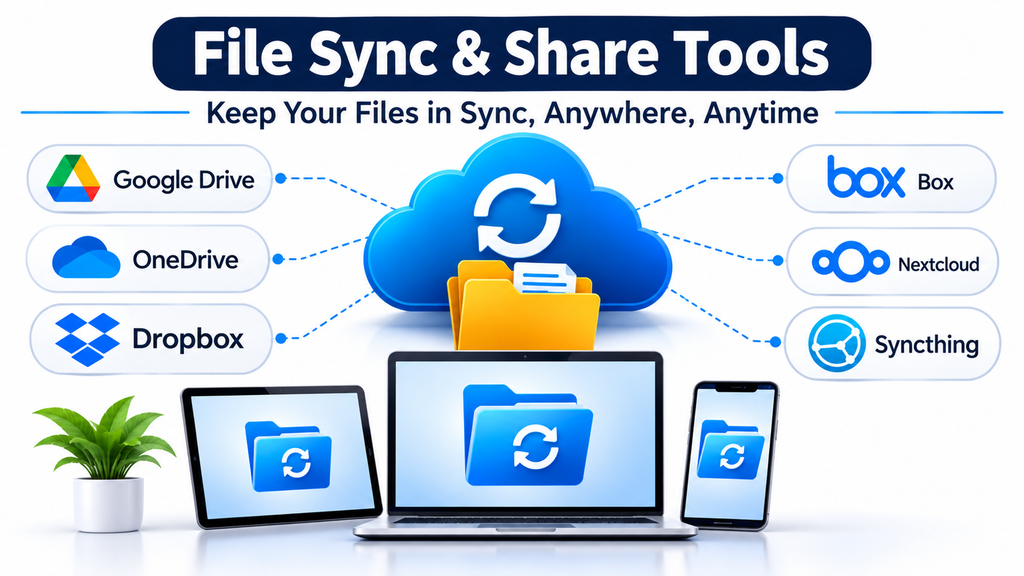
File synchronization and sharing have become essential parts of modern digital collaboration. Employees frequently move between computers, mobile devices, and remote work environments, while teams need access to the same documents without creating multiple disconnected copies.
File sync and share tools address this challenge by keeping selected files updated across devices and providing controlled ways to distribute content. They can also support shared workspaces, collaboration, offline access, and file recovery.
However, synchronization and sharing are not the same thing. Synchronization keeps files consistent across locations, while sharing determines who can access particular content and what they are allowed to do with it. A reliable platform needs to handle both without creating unnecessary security or version-control problems.
How File Synchronization and Sharing Work
File synchronization software monitors selected folders or cloud repositories for changes. When a file is created, modified, or deleted, the application communicates that change to other connected devices or storage locations.
File sharing adds permission-based access. Instead of sending multiple attachments, users can provide access to a shared file or folder through an invitation or link.
Important capabilities include:
- Automatic synchronization: Updates are propagated between connected devices.
- Selective synchronization: Users choose which folders should be stored locally.
- Shared workspaces: Teams access common project files.
- Permission management: Owners control viewing, editing, and sharing rights.
- Version history: Earlier versions can be restored when supported.
- Offline access: Selected files remain available without an internet connection.
- External sharing: Authorized users can distribute files to people outside their organization.
The distinction between these capabilities matters when choosing a platform. A tool designed mainly for device-to-device synchronization may not provide the governance features required by a large organization.
File Sync and Share Platforms Compared
Dropbox: Straightforward Synchronization Across Devices
Dropbox is designed around keeping files accessible and consistent across multiple devices. Its desktop application creates a familiar folder-based experience, while mobile and browser access extend that workflow beyond a single computer.
Its online-only storage and selective synchronization options help users manage local disk capacity without losing access to their cloud content. File recovery and version-history options provide additional protection against accidental changes, subject to the applicable plan. <Cite refs={[“turn843124search0”]}/>
Dropbox is particularly relevant to creative teams and professionals who regularly exchange large collections of documents, images, and project files.
Its sharing capabilities also support collaboration with people outside an organization.
Trade-off: Businesses should evaluate subscription-dependent recovery periods, team administration, storage allocation, and external sharing policies before standardizing on the platform.
Microsoft OneDrive and SharePoint: Connected Personal and Team File Workflows
Microsoft separates individual file storage from organizational document libraries through OneDrive and SharePoint.
OneDrive is suited to personal work files, while SharePoint provides shared team and organizational content spaces. Both connect with Microsoft 365 applications, supporting document access and collaboration within familiar productivity workflows. <Cite refs={[“turn843124search6”]}/>
This distinction is useful when employees need private working documents alongside shared departmental resources.
For example, an employee can maintain personal project drafts in OneDrive while storing approved team documents in a SharePoint library.
Trade-off: Administrators must establish appropriate ownership, external sharing rules, permissions, and retention policies. Treating every shared document as an individually owned file can create management difficulties as teams change.
Google Drive: Sharing Built Around Collaborative Documents
Google Drive combines file synchronization and sharing with Google’s document collaboration environment.
Users can organize content into folders, share files with individuals, and collaborate on supported documents through Google Docs, Sheets, and Slides.
Its strongest advantage is the connection between file access and real-time productivity applications. This can reduce the need to distribute document attachments whenever someone makes an update.
Google also documents support for working with certain Google documents stored through providers such as Box and Dropbox, although some functionality is restricted in those configurations. <Cite refs={[“turn843124search2”]}/>
Trade-off: Organizations should carefully configure account permissions, shared-drive ownership, external access, and administrative controls, particularly when managing information across departments.
Box: Controlled Sharing for Organizational Content
Box emphasizes business content management, making it relevant to organizations that need structured document access and governance.
Its platform provides collaboration and sharing capabilities, while Box Drive allows users to access cloud content through desktop file-management environments.
An important distinction is the difference between Box Drive and the older Box Sync application. Box’s documentation describes Box Drive as supporting broader content browsing and collaboration functionality. Box has also announced the end of life of Box Sync, making it important for organizations to review migration plans rather than build new workflows around the older client. <Cite refs={[“turn843124search9″,”turn843124search5”]}/>
Trade-off: Organizations should examine subscription requirements, administrative capabilities, integration needs, and the migration effort involved when replacing older synchronization clients.
Nextcloud: Self-Hosted File Collaboration
Nextcloud offers an alternative for organizations that want greater control over their file-sharing infrastructure.
Its file platform supports synchronization, internal sharing, public links, permission management, and collaboration features. Administrators can deploy the server in an environment they control, subject to the infrastructure and maintenance responsibilities involved. <Cite refs={[“turn668683search2″,”turn668683search6”]}/>
This approach can appeal to organizations with specific data-location, customization, or infrastructure requirements.
Nextcloud also supports features such as file versioning, link expiration, password-protected sharing, and configurable permissions.
Trade-off: Self-hosting transfers more operational responsibility to the organization. Server maintenance, backups, updates, monitoring, storage capacity, and security configuration must be managed properly.
Syncthing: Direct Device-to-Device Synchronization
Syncthing takes a different approach from conventional cloud-based file-sharing platforms.
It synchronizes files between connected devices without requiring a central cloud storage service. Its communication is encrypted, and devices are identified through cryptographic certificates. <Cite refs={[“turn668683search0″,”turn668683search3”]}/>
This makes it useful for people who want to keep synchronized copies of files on their own computers rather than depend on a third-party cloud repository.
It can be particularly attractive to technically confident users and organizations with suitable device-management infrastructure.
Trade-off: Syncthing is not a conventional team collaboration platform. It does not replace the shared document editing, centralized administration, and user-facing collaboration features commonly found in business file-sharing services. Device availability and network configuration also matter.
Choosing Between Cloud-Based and Self-Managed Synchronization
One of the most important decisions is where the synchronized content should live.
Cloud-based services store files within provider-managed infrastructure. Users benefit from centralized access, managed applications, and relatively straightforward collaboration.
Self-managed platforms allow organizations to operate their own storage environments. This offers more control over infrastructure decisions but introduces additional administration.
Peer-to-peer synchronization takes another route by transferring files directly between connected devices rather than maintaining a central cloud repository.
| Approach | Example platform | Main advantage | Main consideration |
|---|---|---|---|
| Managed cloud | Dropbox | Convenient cross-device access | Provider and plan dependencies |
| Productivity ecosystem | OneDrive and SharePoint | Integrated document collaboration | Permission and ownership management |
| Document collaboration | Google Drive | Connected editing workflows | Account and sharing administration |
| Enterprise content management | Box | Organizational content controls | Plan and governance requirements |
| Self-hosted platform | Nextcloud | Infrastructure control | Maintenance responsibility |
| Peer-to-peer synchronization | Syncthing | Direct device synchronization | No central collaboration workspace |
These approaches should not be treated as identical competitors. Their underlying operating models are different.
Security Considerations for Shared Files
Sharing files introduces risks that do not necessarily exist when documents remain on a single computer.
A public link, for example, may allow access to information beyond the intended audience if its permissions are configured incorrectly.
Organizations should consider several safeguards.
Use least-privilege permissions: Grant users only the access they need. Viewing, editing, deleting, and resharing should be treated as separate privileges where the platform supports them.
Control external links: Use password protection, expiration dates, and restricted access where appropriate. Avoid unrestricted links for confidential material.
Enable stronger authentication: Multi-factor authentication helps reduce the risk of unauthorized account access.
Review access regularly: Remove permissions when employees, contractors, or external collaborators no longer need access.
Understand version recovery: Check how long earlier versions and deleted files remain recoverable. Recovery windows vary by provider and subscription.
Separate synchronization from backup: A synchronized deletion can propagate to other connected devices. Maintain an independent backup for important information.
Common Problems in File Synchronization
Even well-designed synchronization tools can produce unexpected results when devices or users make conflicting changes.
Conflicting File Versions
If two people edit the same file simultaneously, the application may create a conflict copy or apply application-specific collaboration rules.
This can be problematic when several users edit large project files that are not designed for simultaneous modification.
A practical solution is to establish ownership rules or use applications with suitable co-authoring support.
Incomplete Synchronization
Large files, unreliable connections, limited disk space, and paused synchronization can prevent updates from reaching every device.
Users should be able to identify whether a file is fully synchronized rather than assuming that saving locally means it is available everywhere.
Excessive Local Storage Usage
Synchronizing every available folder can consume substantial disk space.
Selective synchronization and online-only file options help reduce unnecessary local storage usage.
Accidental Deletion Across Devices
When synchronization replicates file changes, deleting a file on one device may remove it from other connected locations.
Version history, recycle-bin recovery, and independent backups are important safeguards.
Uncontrolled External Sharing
Shared links can remain accessible longer than intended, particularly when users forget to revoke access.
Organizations should periodically review externally shared folders and establish clear policies for confidential content.
How to Evaluate a File Sync and Share Platform
A practical evaluation should use the same workflow across the shortlisted applications.
Start by creating a shared project folder containing different file types, including documents, spreadsheets, images, and a large media file.
Then evaluate the following:
- Synchronization speed: How reliably do changes appear across connected devices?
- Conflict handling: What happens when multiple users modify the same file?
- Sharing controls: Can access be restricted to specific users?
- External collaboration: Can authorized guests access shared content safely?
- Offline behavior: Can users work without a network connection?
- Recovery: Can previous versions and deleted files be restored?
- Administration: Can administrators monitor access and enforce policies?
- Integration: Does the platform fit existing productivity applications and workflows?
The evaluation should also include a realistic test of permissions. For example, give one user read-only access and another editing rights, then confirm that each person can perform only the intended actions.
This reveals practical limitations that may not be obvious from a product demonstration.
Which Platform Fits Different Teams?
The appropriate choice depends on the organization’s operating environment.
- Small teams and freelancers: Dropbox or Google Drive can provide straightforward sharing and synchronization.
- Microsoft 365 organizations: OneDrive and SharePoint offer a connected approach to personal and departmental file management.
- Organizations requiring content governance: Box is worth evaluating for its business-focused sharing and administration capabilities.
- Organizations preferring self-hosted infrastructure: Nextcloud provides a flexible option when internal technical resources are available.
- Users prioritizing direct device synchronization: Syncthing provides an alternative to conventional cloud-based storage.
A platform should be selected according to the collaboration model, not simply the number of features advertised.
Building a More Reliable File Collaboration Workflow
File synchronization and sharing are most effective when supported by clear organizational practices.
Define which folders are personal, which belong to teams, and which contain approved organizational records. Establish naming conventions and access responsibilities before large-scale migration.
For important projects, document the expected workflow for editing, reviewing, approving, and archiving files. This reduces the possibility of employees working from outdated copies or sharing unfinished documents.
Most importantly, test recovery procedures independently. A file-sharing service may provide useful version history, but organizations should not assume that this automatically satisfies their backup and disaster-recovery requirements.
The right platform should make collaboration easier while maintaining control over where information is stored, who can access it, and how changes are recovered. Dropbox, Microsoft OneDrive and SharePoint, Google Drive, Box, Nextcloud, and Syncthing each addres
