Upgrade & Secure Your Future with DevOps, SRE, DevSecOps, MLOps!
We spend hours scrolling social media and waste money on things we forget, but won’t spend 30 minutes a day earning certifications that can change our lives.
Master in DevOps, SRE, DevSecOps & MLOps by DevOps School!
Learn from Guru Rajesh Kumar and double your salary in just one year.
Introduction
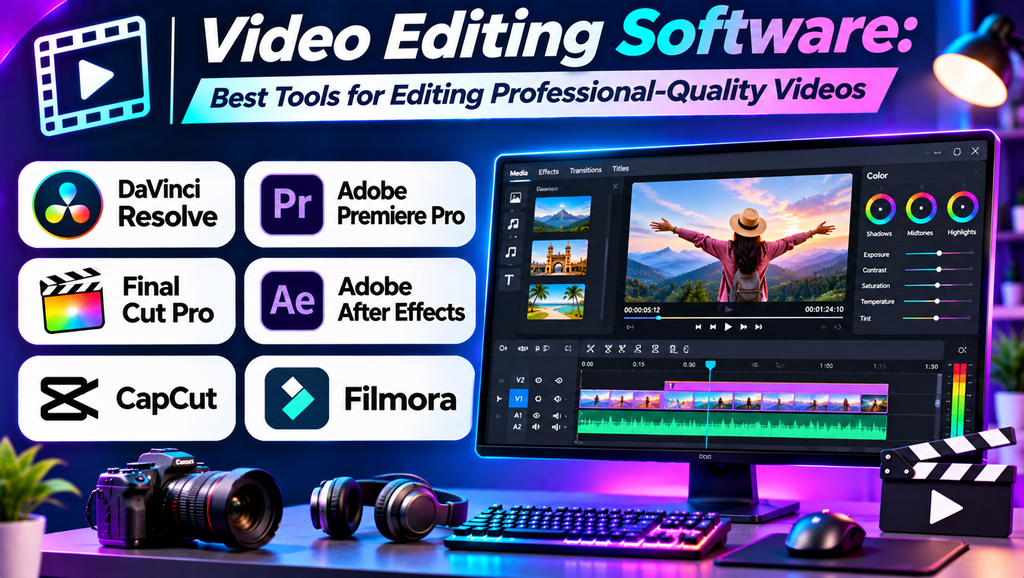
Video editing is an essential part of creating engaging digital content. It transforms raw footage into a structured story by combining clips, sound, transitions, titles, graphics, and visual effects. Whether you create YouTube videos, Instagram Reels, advertisements, tutorials, or films, the right editing software can improve both efficiency and quality.
Modern video editing applications range from beginner-friendly mobile editors to advanced professional suites. The best choice depends on your experience, computer specifications, editing style, and project requirements.
What Is Video Editing Software?
Video editing software is an application used to import, organize, trim, arrange, enhance, and export video footage. Common features include timeline editing, transitions, audio mixing, color correction, titles, effects, captions, and support for different video formats.
Some tools focus on quick social media editing, while others provide advanced controls for filmmaking, broadcast production, and collaborative workflows.
Best Video Editing Software
1. Adobe Premiere Pro
Adobe Premiere Pro is a professional video editing application used by content creators, production teams, and filmmakers.
Key features:
- Timeline-based editing and trimming.
- Multi-track video and audio editing.
- Color correction, transitions, and effects.
- Integration with Adobe Creative Cloud applications.
Best for: YouTubers, professional editors, marketing teams, and video production workflows.
Limitation: It requires a subscription, and complex projects may need a powerful computer.
Website: https://www.adobe.com/products/premiere.html
2. DaVinci Resolve
DaVinci Resolve combines video editing, color grading, visual effects, and audio post-production in one application.
Key features:
- Professional timeline editing.
- Advanced color correction and grading.
- Fusion visual effects tools.
- Fairlight audio post-production.
Best for: Filmmakers, advanced creators, and editors who want comprehensive post-production tools.
Limitation: Its advanced interface can be challenging for beginners, and some workflows require substantial hardware resources.
Website: https://www.blackmagicdesign.com/products/davinciresolve
3. Final Cut Pro
Final Cut Pro is Apple’s video editing application designed for the Mac ecosystem.
Key features:
- Magnetic Timeline editing.
- Multicam editing and clip organization.
- Color correction and effects.
- Integration with compatible Apple hardware and applications.
Best for: Mac users, YouTubers, and professional editors who prefer Apple’s editing workflow.
Limitation: It is designed for Apple platforms, and its purchase or licensing options can vary.
Website: https://www.apple.com/final-cut-pro/
4. CapCut
CapCut is a video editing application popular for short-form social media content and accessible editing workflows.
Key features:
- Quick trimming and timeline editing.
- Templates, transitions, and visual effects.
- Text, captions, and audio tools.
- Features designed for vertical videos and social media formats.
Best for: Instagram Reels creators, TikTok creators, beginners, and social media marketers.
Limitation: Available features, export options, and pricing can vary by platform, region, and version.
Website: https://www.capcut.com/
5. Filmora
Wondershare Filmora offers a relatively approachable video editing workflow with built-in effects and creative assets.
Key features:
- Drag-and-drop editing.
- Transitions, titles, and effects.
- Audio editing and color adjustments.
- Tools for creating tutorials and social media videos.
Best for: Beginners, small businesses, educators, and creators who want an accessible desktop editor.
Limitation: Some assets and features may require a paid plan, and it offers less specialized control than certain professional editing suites.
Website: https://filmora.wondershare.com/
6. Shotcut
Shotcut is a free, open-source video editor available for multiple desktop operating systems.
Key features:
- Timeline-based editing.
- Support for a broad range of media formats.
- Video and audio filters.
- Resolution and frame-rate options.
Best for: Budget-conscious creators and beginners who want desktop editing without a mandatory subscription.
Limitation: Its interface may feel less streamlined than some commercial editors, particularly for users who prefer guided workflows.
Website: https://shotcut.org/
7. Kdenlive
Kdenlive is a free, open-source, multitrack video editor with a range of editing and effects tools.
Key features:
- Multitrack timeline editing.
- Transitions and effects.
- Title creation and audio controls.
- Proxy workflows for supported editing setups.
Best for: Independent filmmakers, educators, and creators seeking a flexible open-source editor.
Limitation: Performance and stability can depend on the system, media formats, and software version.
Website: https://kdenlive.org/
Video Editing Software Comparison
| Software | Main strength | Best suited for | Cost model |
|---|---|---|---|
| Adobe Premiere Pro | Professional editing workflow | Production teams and YouTubers | Subscription |
| DaVinci Resolve | Editing, grading, effects, and audio | Filmmakers and advanced creators | Free and paid versions |
| Final Cut Pro | Mac-focused editing | Apple users and professional editors | Apple’s current purchasing terms apply |
| CapCut | Short-form social content | Reels and social media creators | Free and paid options |
| Filmora | Beginner-friendly creative editing | Beginners and small businesses | Free and paid options |
| Shotcut | Flexible desktop editing | Budget-conscious creators | Free and open source |
| Kdenlive | Multitrack open-source editing | Independent creators | Free and open source |
Features, pricing, export limits, and licensing may change. Check each provider’s official website for current details.
How to Choose the Right Video Editing Software
- Define your content type: Vertical Reels, YouTube videos, tutorials, and cinematic projects may need different tools.
- Consider your experience: Beginners may prefer templates and simple timelines, while professionals may need detailed control over media and effects.
- Check system requirements: Confirm that your computer can handle the footage resolution, codecs, and effects you plan to use.
- Review export options: Check resolution, frame rate, file formats, watermark rules, and platform-specific settings.
- Evaluate audio and color tools: Good sound, balanced exposure, and consistent colors make videos look more professional.
- Compare pricing: Consider subscriptions, one-time purchases, optional assets, and paid features.
- Test your workflow: Edit a short sample project before committing to a tool for a larger production.
Common Video Editing Mistakes to Avoid
- Using too many transitions and effects.
- Ignoring audio levels, background noise, or music balance.
- Exporting at settings that do not suit the destination platform.
- Overusing sharpening, saturation, or artificial effects.
- Failing to organize footage and maintain project backups.
- Neglecting captions and readability on mobile screens.
- Editing without a clear story or sequence.
Frequently Asked Questions
Which video editing software is best for beginners?
CapCut and Filmora are approachable options for many new creators. Shotcut and Kdenlive are alternatives for people who prefer free desktop software.
Which software is best for professional video editing?
Adobe Premiere Pro, DaVinci Resolve, and Final Cut Pro are widely used options. The best choice depends on your platform, production workflow, and project needs.
Is there free video editing software?
Yes. DaVinci Resolve offers a free version, and Shotcut and Kdenlive are free and open source. Other applications offer free access with feature or export limitations that can vary by version.
Which editor is best for Instagram Reels?
CapCut can be convenient for vertical videos, captions, effects, and short-form editing. Other desktop editors can also create Reels when configured for the required aspect ratio and export settings.
Do I need a powerful computer for video editing?
Not necessarily for simple projects. Basic editing can work on many modern computers, but high-resolution footage, complex effects, and demanding timelines benefit from stronger hardware and sufficient memory.
Conclusion
Video editing software helps creators turn raw footage into clear, engaging, and polished content. Adobe Premiere Pro and Final Cut Pro support professional editing workflows, DaVinci Resolve combines several post-production capabilities, and CapCut and Filmora offer accessible tools for everyday content creation. Shotcut and Kdenlive provide open-source alternatives.
