Upgrade & Secure Your Future with DevOps, SRE, DevSecOps, MLOps!
We spend hours scrolling social media and waste money on things we forget, but won’t spend 30 minutes a day earning certifications that can change our lives.
Master in DevOps, SRE, DevSecOps & MLOps by DevOps School!
Learn from Guru Rajesh Kumar and double your salary in just one year.
Introduction
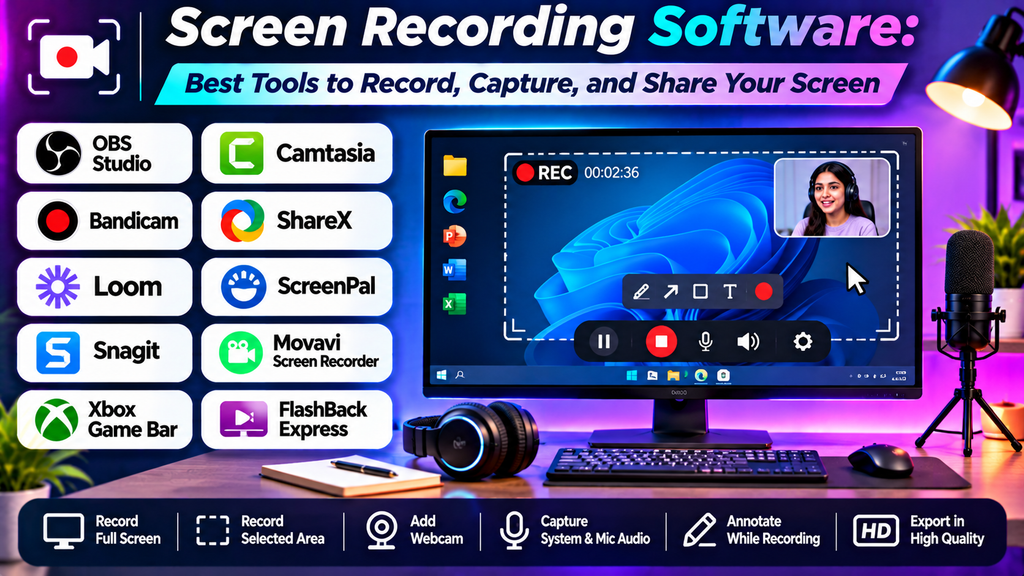
Screen recording software makes it easy to capture on-screen activities and turn them into useful video content. Whether you are explaining how an application works, recording an online lesson, demonstrating software, or creating a product tutorial, the right tool can help you communicate clearly.
Modern screen recorders offer features such as microphone recording, webcam overlays, annotation tools, editing, and high-resolution exports. Some are designed for quick recordings, while others support advanced production and team collaboration.
What Is Screen Recording Software?
Screen recording software captures activity displayed on a computer or mobile screen and saves it as a video file or shareable recording. Depending on the application, users can record the entire screen, a selected window, a specific region, or a combination of screen content and webcam footage.
Common features include:
- Full-screen, window, and region recording.
- Microphone and system-audio capture.
- Webcam overlays and presenter recording.
- Cursor highlighting and annotation tools.
- Basic video editing and trimming.
- Export, sharing, and cloud storage options.
Best Screen Recording Software
1. OBS Studio
OBS Studio is a free, open-source application for screen recording and live streaming. It offers detailed control over recording sources and audio.
Key features:
- Capture displays, windows, webcams, and other sources.
- Configure scenes and recording layouts.
- Mix microphone and system audio.
- Adjust recording formats and output settings.
- Extend functionality with supported plugins.
Best for: YouTubers, educators, gamers, technical creators, and users who want flexible recording controls.
Limitations: The interface can be challenging for beginners, and editing recorded videos usually requires a separate editor.
2. Camtasia
Camtasia combines screen recording with video editing tools designed for instructional and business content.
Key features:
- Screen, webcam, and microphone recording.
- Timeline-based video editing.
- Titles, callouts, annotations, and transitions.
- Cursor effects and tutorial-focused elements.
- Export options for training and presentation videos.
Best for: Trainers, educators, instructional designers, and businesses creating polished tutorials.
Limitations: Paid licensing may be a consideration, and advanced projects can require time to edit.
3. Loom
Loom focuses on quick screen and camera recordings that can be shared with colleagues, clients, or learners.
Key features:
- Screen and webcam recording.
- Presenter camera bubble options.
- Shareable recordings and collaboration features.
- Viewer engagement and feedback tools in supported plans.
- Workflows designed for asynchronous communication.
Best for: Remote teams, product demonstrations, feedback videos, and short explanations.
Limitations: Recording limits, editing features, and collaboration options depend on the current plan and product version.
4. ShareX
ShareX is a free, open-source Windows utility that supports screen capture, screen recording, and other productivity workflows.
Key features:
- Region and window capture.
- Screenshot and screen recording tools.
- Customizable capture workflows.
- Image annotation and file-sharing integrations.
- Automation options for supported tasks.
Best for: Technical users, support teams, and Windows users who need a versatile capture utility.
Limitations: Its extensive options and interface may be less approachable for people who want a simple, guided video recording experience.
5. Bandicam
Bandicam is a Windows screen recording application commonly used for desktop activity, gameplay, and device capture workflows.
Key features:
- Screen, game, and supported external-device recording.
- Webcam overlay options.
- Microphone and audio capture.
- Recording controls for different content types.
- Compression and output configuration options.
Best for: Windows users recording gameplay, software demonstrations, or desktop tutorials.
Limitations: Some features require a paid license, and the software is primarily associated with Windows workflows.
6. ScreenFlow
ScreenFlow is a screen recording and video editing application for macOS.
Key features:
- Screen, camera, and audio recording.
- Multitrack video editing.
- Titles, transitions, and callouts.
- Zoom and cursor effects.
- Export tools for tutorials and presentations.
Best for: Mac users, educators, and creators who want to record and edit tutorials in one application.
Limitations: It is designed for macOS, and licensing costs should be considered before choosing it.
7. QuickTime Player
QuickTime Player includes screen recording capabilities on supported Mac systems and provides a simple way to capture basic screen activity.
Key features:
- Straightforward screen recording.
- Simple capture workflow.
- Basic playback and trimming features.
- Convenient integration with macOS.
Best for: Mac users who need occasional recordings without a complicated production setup.
Limitations: Advanced editing, detailed audio routing, and professional annotation features are limited compared with dedicated recording applications.
Screen Recording Software Comparison
| Software | Main strength | Best suited for | Cost category |
|---|---|---|---|
| OBS Studio | Flexible recording controls | Creators, educators, and gamers | Free and open source |
| Camtasia | Recording with integrated editing | Tutorials and training videos | Paid options |
| Loom | Quick sharing and collaboration | Remote teams and business communication | Free and paid plans vary |
| ShareX | Customizable capture workflows | Technical users and Windows productivity | Free and open source |
| Bandicam | Desktop and gameplay recording | Windows users and gamers | Free and paid options |
| ScreenFlow | Mac recording and editing | Tutorials and educational videos | Paid license |
| QuickTime Player | Simple built-in recording | Basic Mac screen captures | Included with supported macOS systems |
Features, pricing, recording limits, and operating system compatibility can change. Check the current product details before selecting a tool.
How to Choose the Right Screen Recording Software
- Identify your purpose: Software tutorials, gaming videos, meetings, and online lessons may need different recording features.
- Check audio support: Confirm that you can record microphone narration and system audio as required.
- Choose your capture method: Some projects require the full screen, while others are clearer when recording a single application or selected region.
- Consider editing needs: If you need zoom effects, callouts, captions, and transitions, integrated editing can save time.
- Review export settings: Make sure the application supports suitable resolutions, frame rates, and file formats.
- Check compatibility: Verify operating system support and whether the tool can record the applications you need.
- Consider privacy: Before recording meetings or demonstrations, obtain any required consent and hide private notifications or information.
Common Screen Recording Mistakes to Avoid
- Recording without checking microphone levels.
- Capturing notifications, passwords, or confidential information.
- Moving the mouse too quickly during demonstrations.
- Recording at unnecessarily high settings that create very large files.
- Forgetting to test the recording before a long session.
- Using a cluttered desktop that distracts viewers.
- Publishing videos without trimming mistakes or checking audio quality.
- Failing to save a backup of important recordings.
Frequently Asked Questions
Which screen recording software is best for beginners?
Loom is useful for quick recordings and sharing, while QuickTime Player offers a straightforward option on supported Macs. OBS Studio is a powerful free choice for users who want more control and are willing to learn its settings.
Is there free screen recording software?
Yes. OBS Studio and ShareX are free and open source. QuickTime Player also provides basic screen recording on supported Mac systems. Other products may offer free plans or trials with limitations.
Can screen recording software record my voice?
Most dedicated screen recorders support microphone narration. Some can also capture system audio, but the available options depend on the application and operating system.
What is the difference between screen recording and screenshots?
A screenshot captures a single still image of the screen. Screen recording captures a sequence of activity as a video, often including movement, narration, and application sounds.
Can I record my screen and webcam at the same time?
Many applications, including OBS Studio, Camtasia, Loom, and ScreenFlow, support screen and webcam recording in compatible configurations. Available layouts and features vary by product.
Which screen recorder is best for tutorials?
Camtasia and ScreenFlow are useful for tutorials that need editing and annotations. OBS Studio is a flexible option for recording, particularly when you are comfortable editing the resulting video separately.
Conclusion
Screen recording software helps users explain processes, demonstrate applications, teach online, and communicate through video. OBS Studio offers flexible free recording, Camtasia combines recording with tutorial-focused editing, Loom simplifies sharing, ShareX provides customizable Windows capture workflows, and ScreenFlow serves Mac users who want an integrated editor.
