Upgrade & Secure Your Future with DevOps, SRE, DevSecOps, MLOps!
We spend hours scrolling social media and waste money on things we forget, but won’t spend 30 minutes a day earning certifications that can change our lives.
Master in DevOps, SRE, DevSecOps & MLOps by DevOps School!
Learn from Guru Rajesh Kumar and double your salary in just one year.
Introduction
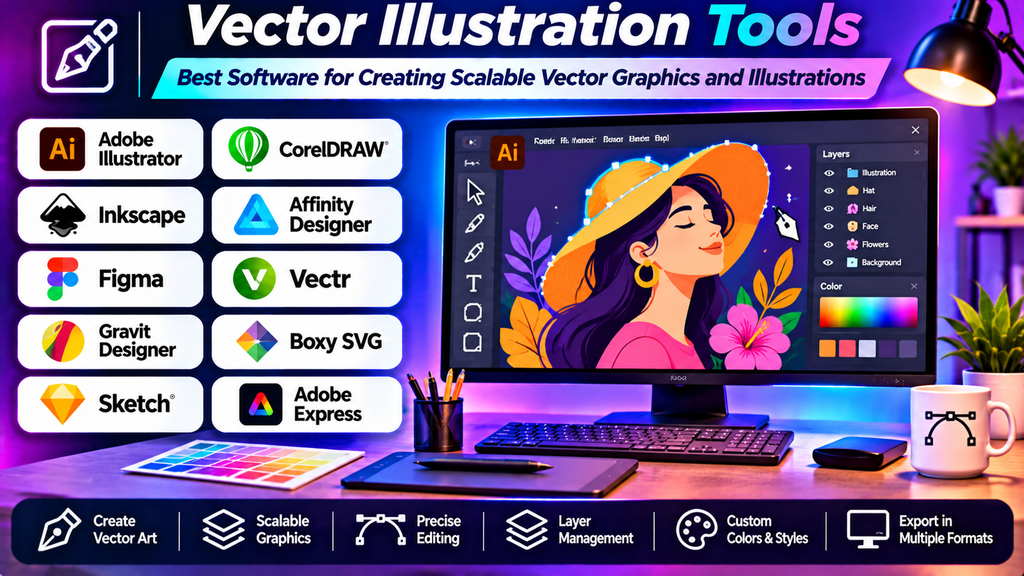
Vector illustration is an important part of graphic design, branding, digital marketing, and creative production. Unlike raster images made from pixels, vector graphics use mathematically defined paths, curves, and shapes. This allows artwork to scale up or down without losing sharpness.
Vector illustration software helps users create logos, icons, illustrations, diagrams, typography, packaging designs, and promotional graphics. Some applications focus on professional design workflows, while others prioritize free access, browser-based editing, or artistic drawing tools.
What Are Vector Illustration Tools?
Vector illustration tools are applications used to create and edit artwork made from paths, points, curves, shapes, and fills. Designers can adjust individual elements, change colors, modify outlines, and resize artwork while maintaining clean edges.
Common features include:
- Pen and Bezier curve tools for drawing paths.
- Shape tools for creating geometric illustrations.
- Layers, groups, and object alignment.
- Gradient fills, strokes, and transparency controls.
- Typography and text-on-path features.
- SVG, PDF, EPS, and other supported export formats.
- Boolean operations for combining or subtracting shapes.
Vector graphics are particularly useful for logos, icons, diagrams, and illustrations that must work across multiple sizes and formats.
Best Vector Illustration Tools
1. Adobe Illustrator
Adobe Illustrator is a professional vector graphics application used for illustration, branding, typography, and commercial design.
Key features:
- Precise path and curve editing.
- Shape-building and object-combination tools.
- Advanced typography and text effects.
- Artboards for multiple design variations.
- Support for common vector export formats.
- Integration with other creative applications.
Advantages: Provides extensive control for complex illustrations and professional design projects.
Limitations: Requires time to master, and access is subscription-based.
Best for: Professional graphic designers, illustrators, branding specialists, and marketing teams.
2. CorelDRAW
CorelDRAW is a vector graphics and page-layout application used in illustration, signage, print production, and commercial design.
Key features:
- Vector drawing and curve editing.
- Typography and layout tools.
- Object arrangement and color management.
- Tools for preparing graphics for print.
- Support for a range of common design formats.
Advantages: Useful for combining illustration and layout work, particularly in print-focused environments.
Limitations: The available features and licensing options depend on the edition, and new users may need time to learn its workflow.
Best for: Print designers, sign makers, illustrators, and businesses producing commercial graphics.
3. Inkscape
Inkscape is a free, open-source vector graphics editor that supports SVG-based illustration and design.
Key features:
- Pen, pencil, and shape tools.
- Path editing and Boolean operations.
- Text and object styling.
- Gradients, patterns, and transparency.
- SVG-focused editing and export options.
Advantages: Offers many useful vector design features without a paid subscription.
Limitations: Some professional workflows and file-format compatibility may differ from commercial applications, and complex documents can require performance tuning.
Best for: Students, independent designers, hobbyists, and users seeking a free desktop vector editor.
4. Affinity Designer
Affinity Designer is a vector design application with additional capabilities for working with raster elements in supported workflows.
Key features:
- Precise vector drawing and curve editing.
- Layers, symbols, and reusable design elements.
- Artboards and layout controls.
- Gradient and stroke customization.
- Support for vector and raster design workflows.
Advantages: Combines detailed vector editing with a streamlined creative interface.
Limitations: The interface and feature set may differ from those of other professional tools, and licensing terms can change.
Best for: Illustrators, UI designers, branding specialists, and digital artists.
5. Figma
Figma is a collaborative design application with vector editing capabilities, particularly useful for interface graphics and product design.
Key features:
- Vector shapes and path editing.
- Components and reusable assets.
- Shared design files and collaboration.
- Alignment, constraints, and layout tools.
- Export options for supported asset formats.
Advantages: Makes it easy for design teams to collaborate and reuse graphics within interface and product workflows.
Limitations: It is not as specialized for complex illustration and print production as dedicated vector illustration applications.
Best for: UI designers, product teams, web designers, and collaborative design workflows.
6. Sketch
Sketch is a digital design application primarily used for interface design, with vector tools for icons, symbols, and other interface assets.
Key features:
- Vector shape and path editing.
- Reusable symbols and components.
- Artboards and layout controls.
- Prototyping and interface design workflows.
- Asset export options.
Advantages: Supports organized, reusable graphics for digital products and interface design.
Limitations: Its platform availability and workflow are more specialized than general-purpose vector illustration tools.
Best for: Interface designers and teams creating assets for digital products.
7. Vectr
Vectr is a simplified vector design tool intended for accessible graphic creation and basic vector editing.
Key features:
- Shape and text tools.
- Basic vector object editing.
- Simple layout and design workflows.
- Support for common vector design tasks.
Advantages: Its straightforward approach can make basic vector creation less intimidating for new users.
Limitations: Advanced illustration, complex path manipulation, and professional production features may be more limited than in comprehensive design applications.
Best for: Beginners, students, and users creating straightforward graphics.
Vector Illustration Tools Comparison
| Software | Main strength | Best suited for | Cost category |
|---|---|---|---|
| Adobe Illustrator | Professional vector illustration | Branding and commercial design | Subscription |
| CorelDRAW | Illustration and print production | Signage and print graphics | Paid plans or licenses vary |
| Inkscape | Open-source vector editing | Students and independent designers | Free and open source |
| Affinity Designer | Vector and raster creative workflow | Illustrators and digital artists | Licensing depends on current offering |
| Figma | Collaborative digital design | UI and product teams | Free and paid plans vary |
| Sketch | Interface asset creation | Digital product designers | Paid options |
| Vectr | Simple vector design | Beginners and basic graphics | Current access and plan options vary |
Features, operating system support, pricing, and licensing can change. Review current product information before choosing a tool.
How to Choose the Right Vector Illustration Tool
- Define your main purpose: Logo design, detailed illustration, UI assets, and print production can require different capabilities.
- Evaluate path editing: If you create complex artwork, check the precision of the pen tool, curve handles, node editing, and Boolean operations.
- Check file compatibility: Make sure the software supports the formats required by your clients, printers, or collaborators.
- Consider typography: Branding and promotional design may require advanced text controls, font handling, and text-on-path features.
- Review collaboration needs: Teams may benefit from shared files, reusable components, comments, and version management.
- Consider export requirements: Check support for SVG, PDF, EPS, PNG, and other formats needed for digital or print delivery.
- Match the tool to your budget: Free software may be enough for many projects, while professional applications can provide specialized production features.
Common Vector Illustration Mistakes to Avoid
- Creating unnecessarily complicated paths that make editing difficult.
- Using too many anchor points instead of smooth curves.
- Forgetting to organize objects into layers or groups.
- Expanding or converting text before keeping an editable copy.
- Ignoring alignment, spacing, and consistent stroke widths.
- Exporting without checking the intended dimensions and format.
- Assuming every SVG or vector file will render identically in every application.
- Using raster images where fully scalable artwork is required without considering resolution.
Frequently Asked Questions
What is the best vector illustration software for beginners?
Inkscape is a strong free option for learning vector design. Vectr may suit simple graphics, while Affinity Designer and Adobe Illustrator offer more extensive tools for users who want to develop professional skills.
Is vector illustration software free?
Yes. Inkscape is free and open source. Other applications may offer free plans, trials, or limited access, while professional features often require a paid license or subscription.
What is the difference between vector and raster graphics?
Vector graphics use paths and mathematical shapes, allowing them to scale without becoming pixelated. Raster graphics consist of pixels and are well suited to photographs and detailed pixel-based editing.
Which file format is best for vector illustrations?
SVG is widely used for web graphics and scalable illustrations. PDF and EPS may be appropriate for print and professional workflows. The best format depends on the intended use and the requirements of the recipient.
Can vector illustration tools create logos?
Yes. Vector applications are commonly used to design logos because shapes, paths, and typography can be resized for business cards, websites, packaging, and large-format signage.
Are vector illustration tools suitable for digital drawing?
Yes, particularly for clean line art, stylized illustrations, icons, and geometric artwork. Artists who prefer natural brush textures and painterly effects may also want a raster painting application.
Conclusion
Vector illustration tools help designers create clean, scalable artwork for branding, digital interfaces, marketing materials, and print production. Adobe Illustrator and CorelDRAW support professional design workflows, Inkscape provides a capable free alternative, and Affinity Designer combines vector and raster creative tools. Figma and Sketch are especially useful for digital product assets, while Vectr offers a simpler approach to basic vector graphics.
