Upgrade & Secure Your Future with DevOps, SRE, DevSecOps, MLOps!
We spend hours scrolling social media and waste money on things we forget, but won’t spend 30 minutes a day earning certifications that can change our lives.
Master in DevOps, SRE, DevSecOps & MLOps by DevOps School!
Learn from Guru Rajesh Kumar and double your salary in just one year.
Introduction
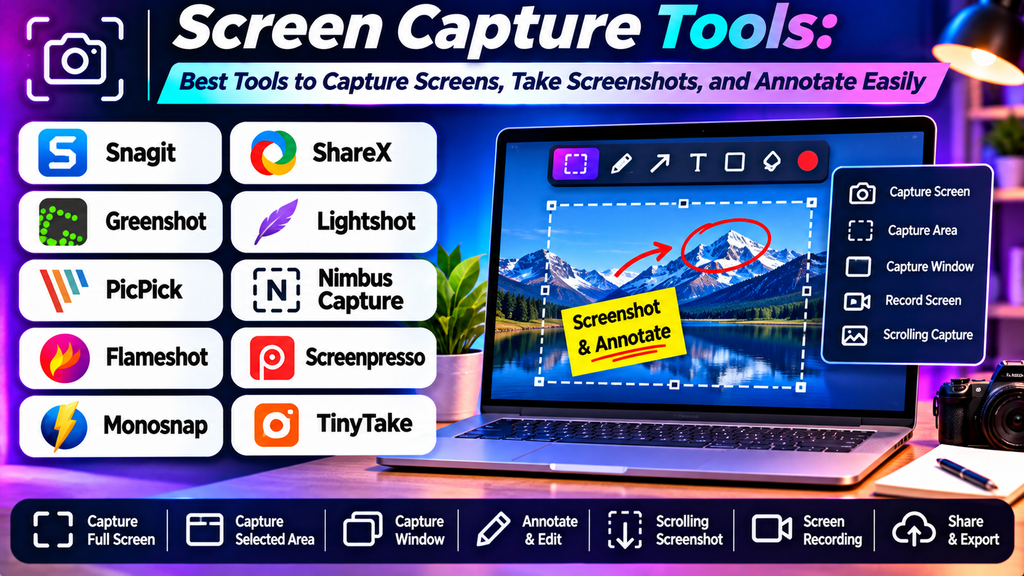
Screen capture tools make it easy to save and communicate information displayed on a computer screen. Whether you are documenting a software issue, preparing training material, sharing feedback with colleagues, or creating visual instructions, a screenshot can explain information faster than a long description.
Modern screen capture utilities go beyond basic screenshots. Many support annotations, arrows, text labels, scrolling capture, image editing, and quick sharing. The right tool depends on your operating system, workflow, and whether you need simple screenshots or advanced documentation features.
What Are Screen Capture Tools?
Screen capture tools are applications or built-in utilities that capture a still image of a computer or mobile screen. They can capture the full display, an active window, a selected region, or a scrolling page, depending on the software.
Common features include:
- Full-screen, window, and region capture.
- Annotation tools for arrows, shapes, and text.
- Highlighting and blurring sensitive information.
- Scrolling screenshots for long pages.
- Image cropping and basic editing.
- Copying, saving, and sharing captured images.
Screen capture tools primarily create still images, while screen recording software captures activity as video. Some applications offer both functions.
Best Screen Capture Tools
1. Snipping Tool
Snipping Tool is a built-in screenshot utility available in supported Windows versions.
Key features:
- Capture the full screen, a window, or a selected region.
- Add annotations and make basic edits.
- Copy screenshots to the clipboard or save them as files.
- Access screen recording features on supported versions.
Best for: Windows users who need quick screenshots without installing additional software.
Limitations: Advanced scrolling capture, batch workflows, and extensive annotation features may require another application.
2. ShareX
ShareX is a free, open-source Windows utility with extensive screenshot capture and automation options.
Key features:
- Full-screen, window, and region capture.
- Scrolling capture in supported situations.
- Image annotation and editing tools.
- Configurable workflows and file-saving options.
- Additional screen recording and sharing capabilities.
Best for: Technical users, support teams, developers, and people who capture screenshots frequently.
Limitations: Its many settings can feel complicated for beginners, and some capture methods may not work equally well with every application.
3. Greenshot
Greenshot is a lightweight screenshot utility designed to capture and annotate images efficiently.
Key features:
- Capture a region, window, or full screen.
- Add arrows, shapes, and text.
- Highlight or obscure selected areas.
- Save, copy, or send screenshots to supported destinations.
Best for: Office workers, educators, and technical support staff who regularly create annotated screenshots.
Limitations: Availability and feature support vary by operating system, and advanced image editing requires a separate application.
4. Snagit
Snagit is a screen capture and visual documentation application with more advanced editing and annotation features.
Key features:
- Capture screenshots and scrolling content.
- Add callouts, arrows, labels, and visual emphasis.
- Create step-by-step visual instructions.
- Organize and edit captured images.
- Support screen recording in compatible workflows.
Best for: Trainers, technical writers, customer support teams, and businesses producing documentation.
Limitations: It is a paid product, and its advanced features may be unnecessary for users who only need occasional screenshots.
5. Lightshot
Lightshot is a simple screenshot utility focused on selecting an area, making quick annotations, and sharing images.
Key features:
- Capture a selected screen region.
- Add basic arrows and text.
- Copy or save screenshots.
- Use a streamlined workflow for quick image capture.
Best for: Users who need fast, simple screenshots for everyday communication.
Limitations: Advanced editing, enterprise management, and complex capture workflows are limited compared with comprehensive screenshot applications.
6. Flameshot
Flameshot is an open-source screenshot tool known for its interactive capture and annotation workflow on supported desktop systems.
Key features:
- Select a screen region for capture.
- Annotate screenshots directly during capture.
- Add arrows, lines, text, and shapes.
- Blur or obscure selected information with supported tools.
- Configure shortcuts and other capture settings.
Best for: Linux users and technical teams who want quick screenshots with built-in annotation.
Limitations: Availability and functionality depend on the operating system and desktop environment, and it may not suit users seeking advanced documentation management.
7. macOS Screenshot
The built-in Screenshot utility on macOS provides convenient tools for capturing the screen or a selected area.
Key features:
- Capture the entire screen, a window, or a selected region.
- Configure screenshot options and save locations.
- Use preview tools for basic markup.
- Access screen recording options on supported systems.
Best for: Mac users who need reliable screenshots without installing additional software.
Limitations: Advanced scrolling capture, extensive annotation, and automated workflows may require third-party tools.
Screen Capture Tools Comparison
| Tool | Main strength | Best suited for | Cost category |
|---|---|---|---|
| Snipping Tool | Built-in Windows capture | Everyday screenshots | Included with supported Windows versions |
| ShareX | Automation and flexible capture | Technical users and frequent capture | Free and open source |
| Greenshot | Fast annotated screenshots | Office and support workflows | Free options; platform support varies |
| Snagit | Advanced documentation and editing | Training and technical writing | Paid |
| Lightshot | Simple, quick region capture | Casual users | Free-to-use options; check current terms |
| Flameshot | Interactive screenshot annotation | Linux and technical workflows | Free and open source |
| macOS Screenshot | Built-in Mac capture | Everyday Mac screenshots | Included with supported macOS systems |
Features, operating system support, and licensing may change. Check current product details before choosing a tool.
How to Choose the Right Screen Capture Tool
- Identify your operating system: Choose a tool that supports your Windows, macOS, or Linux environment.
- Consider capture types: If you frequently capture long web pages, look for reliable scrolling capture.
- Review annotation features: Arrows, text, shapes, highlights, and blur tools can make screenshots easier to understand.
- Evaluate sharing options: Consider whether you need clipboard copying, local file storage, or supported sharing workflows.
- Check automation needs: Frequent users may benefit from keyboard shortcuts, automatic file naming, and customizable workflows.
- Consider privacy: Make sure you can hide passwords, personal details, confidential documents, and notifications before sharing.
- Match the tool to your budget: Built-in utilities and open-source tools are often sufficient for basic capture, while paid applications can provide more advanced documentation features.
Common Screen Capture Mistakes to Avoid
- Capturing unnecessary desktop clutter.
- Leaving personal or confidential information visible.
- Using screenshots that are too small or blurry to read.
- Adding too many annotations that obscure the original content.
- Saving images in unsuitable formats or unnecessarily large sizes.
- Forgetting to crop unrelated information from the screenshot.
- Sharing images without checking whether they contain sensitive metadata or details.
- Using screenshots when a short screen recording would communicate the process more clearly.
Frequently Asked Questions
What is the best screen capture tool for Windows?
Snipping Tool is convenient for basic screenshots. ShareX offers extensive capture and automation options, while Snagit is suited to users who need more advanced annotation and documentation features.
Are screen capture tools free?
Many are free, including built-in operating system utilities and open-source tools such as ShareX and Flameshot. Some commercial products charge for advanced editing, documentation, or workflow features.
Can screen capture tools capture an entire web page?
Some applications support scrolling capture, which can capture content extending beyond the visible screen. Availability and compatibility vary by tool and application.
What is the difference between a screenshot and a screen recording?
A screenshot is a still image of what appears on the screen at a particular moment. A screen recording captures a sequence of activity as a video, making it better for demonstrating steps or showing movement.
Which tool is best for technical documentation?
Snagit and Greenshot can be useful for annotated documentation, while ShareX is valuable for users who want flexible capture and automation. The best option depends on the required editing and publishing workflow.
How can I protect private information in screenshots?
Review the entire image before sharing it. Crop unnecessary areas, blur or cover sensitive details, and ensure that passwords, account information, private messages, and notifications are not visible.
Conclusion
Screen capture tools make it easier to document information, explain software problems, create visual instructions, and share feedback. Snipping Tool and macOS Screenshot are convenient built-in choices, ShareX offers powerful automation, Greenshot supports quick annotations, Snagit provides advanced documentation features, Lightshot keeps capture simple, and Flameshot offers an open-source workflow on supported systems.
