Upgrade & Secure Your Future with DevOps, SRE, DevSecOps, MLOps!
We spend hours scrolling social media and waste money on things we forget, but won’t spend 30 minutes a day earning certifications that can change our lives.
Master in DevOps, SRE, DevSecOps & MLOps by DevOps School!
Learn from Guru Rajesh Kumar and double your salary in just one year.
Introduction
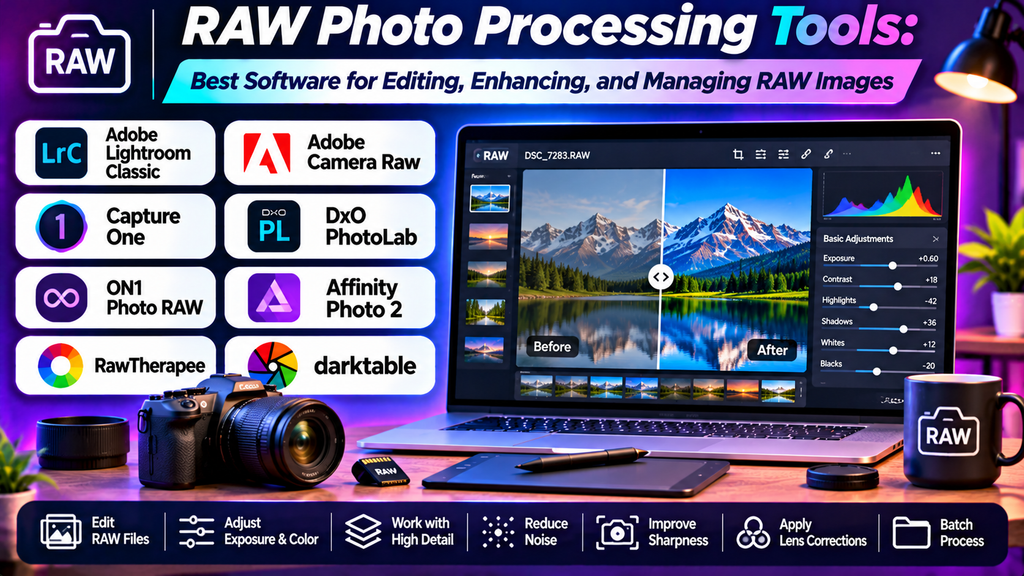
RAW photography gives photographers greater flexibility when editing images. Unlike a JPEG, which has already undergone in-camera processing, a RAW file preserves extensive image data that can be adjusted during post-production. RAW photo processing software helps photographers develop these files into finished images while controlling exposure, color, contrast, and detail.
These tools are useful for portrait photography, landscapes, travel photography, weddings, product photography, and professional image workflows. The right application depends on your camera, editing style, cataloging needs, operating system, and budget.
What Are RAW Photo Processing Tools?
RAW photo processing tools interpret the image data captured by a digital camera and provide controls for developing it into a viewable image. They commonly support exposure correction, white balance, tonal adjustments, lens corrections, sharpening, noise reduction, and color grading.
Many RAW processors also provide photo organization, presets, batch editing, masking, and non-destructive editing. Non-destructive workflows preserve the original RAW file while storing adjustments separately, allowing edits to be revised later.
Best RAW Photo Processing Tools
1. Adobe Lightroom Classic
Adobe Lightroom Classic is a desktop photography workflow application that combines RAW development with cataloging and photo organization.
Key features:
- Exposure, white balance, and tonal adjustments.
- Color grading and customizable presets.
- Lens corrections and detail enhancement.
- Local adjustments and masking tools.
- Cataloging, ratings, keywords, and batch processing.
Advantages: Its combination of RAW editing and image organization is useful for managing large photography collections.
Limitations: It requires a paid subscription, and its catalog-based workflow may take time to understand.
Best for: Professional photographers, wedding photographers, and creators who process large numbers of images.
2. Capture One
Capture One is a professional RAW processing application known for its color controls, tethered shooting workflows, and detailed image adjustments.
Key features:
- RAW development and color editing.
- Layers and local adjustment tools.
- Tethered shooting for supported cameras.
- Session- and catalog-based organization.
- Advanced control over color and tonal appearance.
Advantages: Offers detailed color adjustments and workflows that can be particularly useful in studio photography.
Limitations: Its interface and extensive controls may be challenging for beginners, and licensing can be expensive.
Best for: Studio photographers, commercial photographers, portrait professionals, and users who prioritize color control.
3. DxO PhotoLab
DxO PhotoLab combines RAW processing with image correction tools, including camera-and-lens-specific corrections and noise reduction in supported workflows.
Key features:
- RAW development and tonal adjustments.
- Lens and optical correction profiles.
- Noise reduction tools, including advanced options in supported editions.
- Local adjustments and selective editing.
- Automatic image correction features.
Advantages: Its optical corrections and noise reduction can be valuable when working with demanding camera files.
Limitations: Camera support and access to advanced processing technologies vary by version and license.
Best for: Landscape photographers, low-light photographers, and users who want strong image correction tools.
4. darktable
darktable is a free, open-source photography workflow application that provides RAW development and image management capabilities.
Key features:
- Non-destructive RAW editing.
- Exposure, color, and tone controls.
- Noise reduction and sharpening tools.
- Masking and local adjustment workflows.
- Image organization and processing modules.
Advantages: Offers a broad range of RAW processing features without requiring a paid license.
Limitations: Its interface and module-based editing workflow can take time to learn, especially for beginners.
Best for: Photographers seeking a powerful open-source alternative for desktop RAW processing.
5. RawTherapee
RawTherapee is a free, open-source RAW processor offering detailed control over image quality, color, and tonal rendering.
Key features:
- RAW demosaicing and image development.
- Exposure, white balance, and color adjustments.
- Detail enhancement and noise reduction.
- Advanced tonal and sharpening controls.
- Non-destructive processing and batch workflows.
Advantages: Provides extensive technical controls for photographers who want to fine-tune their RAW conversions.
Limitations: The range of controls may be overwhelming for users who prefer simple, guided editing.
Best for: Photography enthusiasts, technically minded users, and photographers who prefer free desktop tools.
6. ON1 Photo RAW
ON1 Photo RAW combines RAW processing with photo organization and creative editing features in a single application.
Key features:
- RAW development and color correction.
- Layers, masks, and selective adjustments.
- Presets and creative effects.
- Photo organization tools.
- Batch processing and supported AI-assisted features.
Advantages: Offers several photography workflows within one application, reducing the need to switch between separate tools.
Limitations: Performance and feature availability depend on the computer, software version, and license.
Best for: Enthusiasts and professionals who want RAW processing alongside creative editing features.
7. Apple Photos
Apple Photos includes RAW editing support for compatible camera files on supported Apple devices.
Key features:
- Basic and advanced photographic adjustments.
- Exposure, highlights, shadows, and color controls.
- Photo organization and album management.
- Synchronization across supported Apple devices.
- Non-destructive editing for supported image workflows.
Advantages: Convenient for Apple users who want RAW editing integrated with their photo library.
Limitations: It provides less specialized control than dedicated professional RAW processors, and support depends on the camera format and operating system.
Best for: Casual photographers and Apple users who want an integrated photo management and editing workflow.
RAW Photo Processing Tools Comparison
| Software | Main strength | Best suited for | Cost category |
|---|---|---|---|
| Lightroom Classic | Cataloging and complete photography workflow | Professional photographers and large collections | Subscription |
| Capture One | Color control and tethered shooting | Studio and commercial photography | Paid plans or licenses vary |
| DxO PhotoLab | Optical corrections and noise reduction | Landscape and low-light photography | Paid editions |
| darktable | Flexible open-source RAW workflow | Enthusiasts and budget-conscious photographers | Free and open source |
| RawTherapee | Detailed RAW conversion controls | Technical users and enthusiasts | Free and open source |
| ON1 Photo RAW | RAW development and creative editing | Enthusiasts and professionals | Paid options |
| Apple Photos | Integrated photo library and editing | Apple users and casual photographers | Included on supported Apple devices |
Camera compatibility, RAW format support, feature availability, pricing, and licensing can change. Confirm support for your camera model and operating system before choosing a processor.
How to Choose the Right RAW Photo Processing Tool
- Check camera compatibility: Make sure the software supports RAW files from your camera, particularly if the camera model is new.
- Define your editing workflow: Consider whether you need only RAW development or also cataloging, tethered shooting, and advanced retouching.
- Evaluate color controls: Portrait and product photographers may prioritize accurate color, while landscape photographers may need detailed tonal recovery.
- Review noise reduction: If you often shoot in low light or at high ISO settings, compare the processor’s noise reduction capabilities.
- Consider batch processing: Presets and synchronized adjustments can save time when editing hundreds of similar images.
- Check hardware requirements: High-resolution RAW files and complex adjustments can require substantial memory and processing power.
- Compare licensing and portability: Consider recurring costs, file organization, and whether your adjustments can be transferred or exported when changing applications.
Common RAW Processing Mistakes to Avoid
- Overexposing highlights during editing until important detail disappears.
- Increasing shadow brightness excessively and introducing visible noise.
- Applying too much sharpening or noise reduction.
- Making white balance inconsistent across images from the same shoot.
- Oversaturating colors and creating unnatural skin tones.
- Forgetting to apply appropriate lens corrections.
- Editing without keeping original RAW files backed up.
- Exporting at unsuitable dimensions, compression levels, or color settings.
Frequently Asked Questions
What is the best RAW photo processing software for beginners?
Apple Photos can be convenient for supported Apple devices. Lightroom Classic offers an organized photography workflow, while darktable and RawTherapee provide free alternatives for users willing to learn more detailed editing controls.
Is free RAW processing software good enough?
Yes. darktable and RawTherapee offer extensive RAW development capabilities. They can be suitable for serious photography work, although their interfaces and workflows may take practice.
What is the difference between RAW and JPEG?
RAW files generally preserve more original sensor data and allow greater flexibility for adjusting exposure, white balance, and color. JPEG files are processed and compressed by the camera or another application, making them smaller and often ready to share immediately.
Does RAW photo processing improve image quality?
RAW processing can help recover tonal detail, refine colors, reduce noise, and improve sharpness when the original file contains usable information. It cannot fully restore detail that was never captured or completely lost through clipping, motion blur, or severe focus errors.
Do I need a separate RAW processor if I already use Photoshop?
Not necessarily. Photoshop supports RAW development through its compatible RAW processing workflow. A dedicated cataloging application may still be useful if you manage large collections or need specialized batch-editing features.
Can RAW files be edited without changing the original?
Many RAW processors use non-destructive editing. They preserve the original RAW file and store editing instructions or adjustments separately, allowing changes to be modified later. Exporting creates a finished image file, such as a JPEG or TIFF.
Conclusion
RAW photo processing tools help photographers make the most of the data captured by their cameras. Lightroom Classic combines development and cataloging, Capture One offers detailed color controls, DxO PhotoLab focuses on optical correction and noise reduction, while darktable and RawTherapee provide powerful free alternatives. ON1 Photo RAW combines RAW development with creative tools, and Apple Photos offers a convenient integrated workflow for supported devices.
