Upgrade & Secure Your Future with DevOps, SRE, DevSecOps, MLOps!
We spend hours scrolling social media and waste money on things we forget, but won’t spend 30 minutes a day earning certifications that can change our lives.
Master in DevOps, SRE, DevSecOps & MLOps by DevOps School!
Learn from Guru Rajesh Kumar and double your salary in just one year.
Introduction
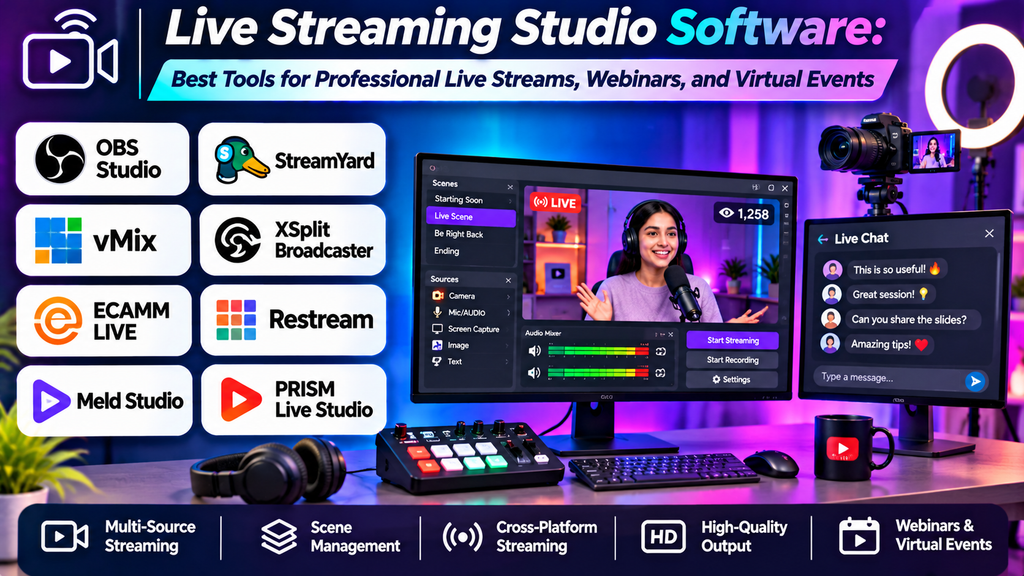
Live streaming has become an important way for creators, businesses, educators, gamers, and organizations to communicate with audiences in real time. Whether you are hosting a webinar, streaming gameplay, conducting an interview, or presenting an online class, live streaming studio software helps bring video, audio, graphics, and audience interactions together in one production.
The right software can improve stream quality, make broadcasts more engaging, and simplify the process of managing multiple scenes and sources. The best choice depends on your streaming goals, technical experience, computer performance, and preferred broadcasting platforms.
What Is Live Streaming Studio Software?
Live streaming studio software is used to create and control live video broadcasts. It can combine webcams, cameras, microphones, screen captures, images, videos, titles, and other visual elements into a single live production.
Common features include:
- Scene switching and customizable layouts.
- Webcam, camera, and screen capture.
- Audio mixing and microphone controls.
- Overlays, titles, transitions, and alerts.
- Streaming and local recording.
- Guest interviews and audience interaction, where supported.
Some applications provide extensive production controls, while others focus on browser-based streaming and quick setup.
Best Live Streaming Studio Software
1. OBS Studio
OBS Studio is a free, open-source application for live streaming and video recording. It offers extensive customization for users who want control over their broadcast setup.
Key features:
- Custom scenes and multiple source types.
- Webcam, display, window, and video capture.
- Audio mixing and configurable filters.
- Local recording and streaming output.
- Plugins and community-created extensions.
Best for: Gamers, educators, technical creators, and streamers who want flexible production controls without a required software subscription.
Limitations: Initial configuration can be challenging for beginners, and advanced layouts may require additional setup.
2. Streamlabs Desktop
Streamlabs Desktop is a streaming application designed to simplify broadcast setup and provide creator-focused features.
Key features:
- Scene layouts and source management.
- Stream overlays, alerts, and widgets.
- Tools for creator branding.
- Streaming and recording features.
Best for: Gaming streamers and creators who want integrated overlays and audience engagement tools.
Limitations: Some features require a paid plan, and the application can consume significant system resources depending on the setup.
3. StreamYard
StreamYard is a browser-based live streaming studio designed around interviews, guest conversations, and branded broadcasts.
Key features:
- Remote guest invitations.
- Branded layouts, backgrounds, and lower-thirds.
- Screen sharing and presentation support.
- Live comments and supported multistreaming features.
Best for: Podcasters, interview hosts, marketers, educators, and businesses running live discussions.
Limitations: Available destinations, branding options, recording limits, and other features depend on the plan.
4. vMix
vMix is a live production application offering advanced tools for mixing multiple video sources and producing professional broadcasts.
Key features:
- Multiple camera and video inputs.
- Live switching, transitions, and overlays.
- Audio mixing and recording.
- Production tools for events and remote contributions, depending on the edition.
Best for: Event producers, professional streamers, churches, sports broadcasts, and advanced live production teams.
Limitations: The broad feature set requires learning, and system requirements can be demanding for complex productions.
5. Wirecast
Wirecast is a live production application designed for broadcasting events, interviews, presentations, and multi-camera productions.
Key features:
- Multiple camera and media sources.
- Scene switching and visual overlays.
- Audio mixing and live production controls.
- Recording and streaming workflows.
Best for: Professional broadcasters, event teams, educational institutions, and businesses producing polished live shows.
Limitations: Commercial licensing can be expensive for casual users, and complex productions need appropriate hardware.
6. XSplit Broadcaster
XSplit Broadcaster is a live streaming and recording application with scene-based production tools.
Key features:
- Scene and source management.
- Screen capture and camera input.
- Visual effects and overlays.
- Streaming and local recording options.
Best for: Gamers, presenters, and creators who prefer a desktop-based production interface.
Limitations: Some capabilities may require a paid license, and performance depends on the hardware and production complexity.
7. Ecamm Live
Ecamm Live is a live streaming production application designed for supported Mac workflows.
Key features:
- Camera and screen sharing sources.
- Branded layouts and overlays.
- Guest interview features.
- Recording and live production controls.
Best for: Mac-based podcasters, educators, business owners, and interview hosts.
Limitations: It is intended for the Apple ecosystem, and some features depend on the subscription tier and supported setup.
Live Streaming Studio Software Comparison
| Software | Main strength | Best suited for | Cost category |
|---|---|---|---|
| OBS Studio | Flexible scenes and sources | Gaming, tutorials, and custom broadcasts | Free and open source |
| Streamlabs Desktop | Creator overlays and alerts | Gaming and audience engagement | Free and paid options |
| StreamYard | Browser-based guest interviews | Podcasts, webinars, and business streams | Free and paid plans may vary |
| vMix | Advanced live production | Events and multi-camera broadcasts | Paid editions |
| Wirecast | Professional broadcast workflows | Events, education, and production teams | Paid licenses |
| XSplit Broadcaster | Desktop streaming and recording | Gaming and presentations | Free and paid options |
| Ecamm Live | Mac-focused live production | Interviews and branded streams | Paid plans |
Features, system requirements, subscription options, and platform support may change. Review current product details before choosing software.
How to Choose the Right Live Streaming Studio Software
- Define your streaming purpose: Gaming, interviews, webinars, and multi-camera events require different production features.
- Check your computer specifications: Multiple video sources, high-resolution encoding, and visual effects can increase CPU, GPU, and memory usage.
- Choose your production style: Desktop software offers detailed control, while browser-based studios can make guest interviews easier to manage.
- Review streaming destinations: Confirm that the software supports the platforms and streaming workflows you plan to use.
- Evaluate audio features: Look for microphone controls, noise suppression, audio routing, and support for separate audio sources.
- Consider branding tools: Scenes, overlays, logos, lower-thirds, and transitions can help create a consistent presentation.
- Test recording and stability: Run a private test stream before an important event to check sound, picture quality, and connection reliability.
Common Live Streaming Mistakes to Avoid
- Starting a broadcast without testing the microphone and camera.
- Selecting an output resolution or bitrate that exceeds the available internet upload speed.
- Using too many animated overlays and distracting transitions.
- Forgetting to monitor audio levels during the stream.
- Running unnecessary applications that compete for system resources.
- Failing to prepare backup slides, media, or a fallback scene.
- Ignoring privacy when sharing the desktop or displaying notifications.
- Skipping a rehearsal before an important event.
Frequently Asked Questions
Which live streaming studio software is best for beginners?
OBS Studio is a strong free option for creators willing to learn its setup. StreamYard can be easier for browser-based interviews, while Streamlabs Desktop provides integrated creator-oriented features.
Is live streaming software free?
Yes. OBS Studio is free and open source. Several other applications offer free versions or limited plans, while advanced production features may require a paid license or subscription.
Can I stream to multiple platforms at once?
Some applications support multistreaming directly, while others rely on additional services or configurations. Check the software’s current feature set, destination limits, and plan restrictions.
Do I need a powerful computer for live streaming?
Not always. A simple webcam stream may work on a modest modern computer, but gaming streams, multiple camera inputs, high-resolution video, and complex effects require more processing power.
What equipment do I need for a professional live stream?
A suitable computer, stable internet connection, reliable microphone, camera or webcam, and appropriate lighting are useful starting points. Additional equipment such as capture cards, audio interfaces, and lighting controls depends on your production needs.
What is the difference between live streaming software and video editing software?
Live streaming software manages a broadcast in real time, including scenes, live sources, and audience interactions. Video editing software is generally used to arrange and refine recorded footage after filming, although some applications can support both workflows.
Conclusion
Live streaming studio software helps creators produce more organized, engaging, and professional broadcasts. OBS Studio offers extensive customization at no software cost, Streamlabs Desktop focuses on creator tools, StreamYard simplifies remote interviews, and vMix and Wirecast support advanced live production. XSplit Broadcaster and Ecamm Live provide additional workflows for specific creator needs and platforms.
