Upgrade & Secure Your Future with DevOps, SRE, DevSecOps, MLOps!
We spend hours scrolling social media and waste money on things we forget, but won’t spend 30 minutes a day earning certifications that can change our lives.
Master in DevOps, SRE, DevSecOps & MLOps by DevOps School!
Learn from Guru Rajesh Kumar and double your salary in just one year.
Introduction
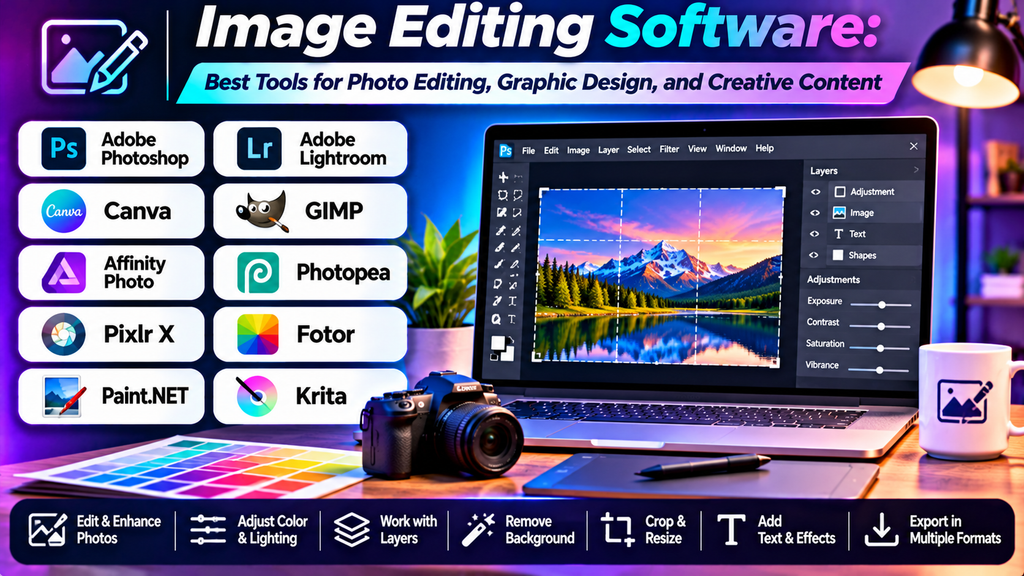
Image editing software plays an important role in photography, graphic design, digital marketing, e-commerce, and social media content creation. These applications help users improve image quality, correct colors, retouch portraits, remove distractions, and create visually appealing graphics.
Some tools focus on professional photo manipulation, while others emphasize quick edits, templates, background removal, or beginner-friendly design. Choosing the right software depends on your skill level, project requirements, preferred devices, and budget.
What Is Image Editing Software?
Image editing software is used to modify digital images and improve their appearance. Depending on the application, users can crop pictures, adjust brightness and contrast, correct colors, remove objects, apply filters, work with layers, and combine multiple images.
Common features include:
- Cropping, resizing, and rotating images.
- Brightness, contrast, exposure, and color adjustments.
- Portrait retouching and blemish removal.
- Layers, masks, selections, and compositing.
- Background removal and object cleanup.
- Text, graphics, and creative effects.
- Exporting images in different file formats.
Best Image Editing Software
1. Adobe Photoshop
Adobe Photoshop is a professional image editor widely used for photo manipulation, compositing, digital artwork, and detailed retouching.
Key features:
- Layer-based editing and masking.
- Advanced selections and object manipulation.
- Portrait retouching and image restoration.
- Compositing, typography, and creative effects.
- AI-assisted editing features in supported versions.
Advantages: Offers extensive control for complex image editing and professional creative projects.
Limitations: Requires time to learn, and access is subscription-based.
Best for: Professional designers, photographers, digital artists, and marketing teams.
2. Adobe Lightroom
Adobe Lightroom focuses on photographic adjustments, color grading, image organization, and batch editing.
Key features:
- Exposure, contrast, and white-balance correction.
- Color grading and photographic presets.
- Non-destructive editing workflows.
- Batch adjustments and photo organization.
- RAW image processing.
Advantages: Helps photographers maintain a consistent look across large collections of images.
Limitations: It is less suited to complex layer-based compositing than Photoshop.
Best for: Photographers, travel creators, portrait editors, and social media content creators.
3. GIMP
GIMP is a free, open-source image editor that provides tools for photo manipulation, retouching, and graphic creation.
Key features:
- Layers, masks, selections, and paths.
- Color correction and image enhancement.
- Retouching and compositing tools.
- Support for various image formats.
- Extensibility through supported plugins.
Advantages: Provides a substantial range of editing capabilities without requiring a paid license.
Limitations: Its interface and workflows may take time to learn, especially for users familiar with other editing applications.
Best for: Students, hobbyists, independent creators, and users looking for a free desktop editor.
4. Affinity Photo
Affinity Photo is a professional image editing application designed for detailed retouching, compositing, and photographic workflows.
Key features:
- Layer-based editing and masking.
- RAW development tools.
- Advanced selections and retouching.
- HDR and panorama workflows in supported versions.
- Detailed control over image adjustments.
Advantages: Offers powerful editing capabilities for photographers and designers who prefer a desktop-based workflow.
Limitations: Some workflows differ from those in other professional editors, so existing users may need time to adjust.
Best for: Photographers, designers, and advanced hobbyists seeking professional editing features.
5. Canva
Canva combines accessible image editing with graphic design templates for digital and print content.
Key features:
- Image adjustments, filters, and cropping.
- Ready-made social media and marketing templates.
- Text, shapes, and graphic elements.
- Background editing features in supported plans.
- Collaborative design workflows.
Advantages: Makes it easy to create branded visuals without advanced editing experience.
Limitations: It does not provide the same level of detailed pixel-level control as specialist photo editors.
Best for: Social media managers, small businesses, marketers, and beginner designers.
6. Pixlr
Pixlr provides browser-based image editing tools for quick adjustments and creative visual projects.
Key features:
- Image adjustments, filters, and effects.
- Cropping and basic retouching.
- Layer-based editing in supported tools.
- Design and AI-assisted features depending on the product and plan.
Advantages: Convenient for users who want to edit images online without installing a full desktop application.
Limitations: Available features, usage limits, and access to advanced tools depend on the current plan.
Best for: Casual editors, students, and creators who need quick online edits.
7. Paint.NET
Paint.NET is a Windows image editor that offers a straightforward interface with layers and common image adjustment tools.
Key features:
- Layers and blending modes.
- Selection and drawing tools.
- Color adjustments and special effects.
- Plugin support for extending functionality.
- Common image-format support.
Advantages: Easier to approach than many professional image editors and suitable for everyday image work.
Limitations: It is primarily designed for Windows and offers fewer advanced features than comprehensive professional applications.
Best for: Windows users, beginners, and people who need straightforward photo and graphic editing.
Image Editing Software Comparison
| Software | Main strength | Best suited for | Cost category |
|---|---|---|---|
| Adobe Photoshop | Advanced manipulation and compositing | Professional designers and retouchers | Subscription |
| Adobe Lightroom | Photo adjustments and organization | Photographers and content creators | Subscription or plan-dependent |
| GIMP | Flexible open-source editing | Budget-conscious users | Free and open source |
| Affinity Photo | Professional photo editing | Photographers and designers | Licensing depends on current offering |
| Canva | Template-based visual design | Marketers and social media creators | Free and paid plans |
| Pixlr | Convenient browser-based editing | Quick edits and casual projects | Free and paid options |
| Paint.NET | Simple desktop image editing | Windows users and beginners | Free options; check current terms |
Features, licensing, platform support, and pricing can change. Review current product details before choosing an application.
How to Choose the Right Image Editing Software
- Identify your primary task: Photo retouching, RAW development, graphic design, and image compositing require different tools.
- Match the tool to your experience: Beginners may prefer simple interfaces and templates, while professionals may need advanced layers and masking.
- Check file-format support: Confirm that the application supports the formats you use, especially RAW, PSD, TIFF, PNG, and JPEG where relevant.
- Consider batch editing: Photographers handling many images can save time with synchronized adjustments and presets.
- Evaluate device compatibility: Check operating system requirements and whether you need desktop, browser, or mobile editing.
- Review export quality: Make sure you can export at the required dimensions, resolution, and color profile.
- Set a realistic budget: Free tools can handle many tasks, while professional software may offer specialized workflows that justify the cost.
Common Image Editing Mistakes to Avoid
- Over-smoothing skin and removing natural texture.
- Increasing saturation until colors look unnatural.
- Over-sharpening images and creating visible artifacts.
- Editing without preserving an original copy.
- Exporting at a resolution too low for the intended use.
- Ignoring aspect ratios for social media or print.
- Using inconsistent colors across a brand’s visual content.
- Removing objects without checking the background for editing artifacts.
Frequently Asked Questions
Which image editing software is best for beginners?
Canva is useful for template-based graphics and simple image adjustments. Paint.NET is another approachable option for Windows users, while Pixlr offers browser-based editing.
Which software is best for professional photo editing?
Adobe Photoshop is well suited to detailed manipulation and compositing, while Adobe Lightroom is particularly useful for photographic adjustments and managing large image collections. Affinity Photo is another option for advanced editing workflows.
Is free image editing software good enough?
Yes. GIMP and Paint.NET can handle many common editing tasks. Free options are often sufficient for cropping, color correction, retouching, and creating basic graphics.
What is the difference between Photoshop and Lightroom?
Photoshop focuses on detailed pixel-level editing, layers, compositing, and object manipulation. Lightroom emphasizes photographic adjustments, color consistency, and organizing collections of images. Some photographers use both.
Can image editing software remove backgrounds?
Many applications offer background selection or removal tools. The quality depends on the image, the complexity of the subject, and the software’s capabilities. Fine hair, transparent objects, and complex edges may require manual refinement.
What is RAW photo editing?
RAW editing involves adjusting image data captured by a camera before producing a final image. RAW files generally preserve more processing flexibility than finished JPEG images, although the results depend on the camera and file format.
Conclusion
Image editing software helps transform ordinary photographs and graphics into clear, attractive, and professional visuals. Photoshop offers advanced manipulation, Lightroom specializes in photographic workflows, GIMP provides free open-source editing, and Affinity Photo supports detailed creative work. Canva, Pixlr, and Paint.NET offer practical alternatives for design tasks, quick edits, and everyday image adjustments.
