Upgrade & Secure Your Future with DevOps, SRE, DevSecOps, MLOps!
We spend hours scrolling social media and waste money on things we forget, but won’t spend 30 minutes a day earning certifications that can change our lives.
Master in DevOps, SRE, DevSecOps & MLOps by DevOps School!
Learn from Guru Rajesh Kumar and double your salary in just one year.
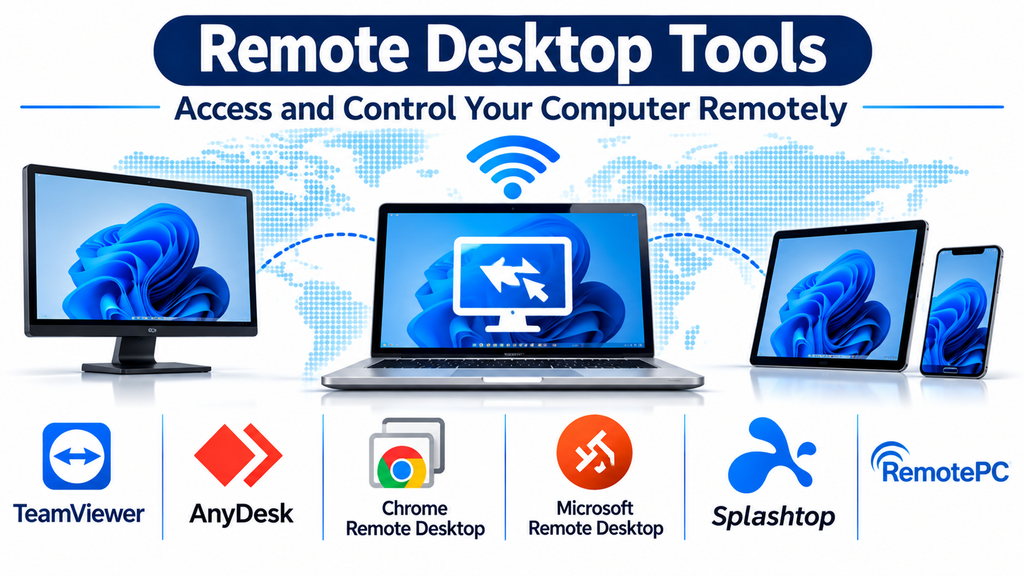
Remote desktop tools have become essential for businesses, IT professionals, developers, and individuals who need to work with computers from different locations. These applications allow users to view and control another computer through a network connection, providing access to its desktop, applications, files, and system resources.
Whether an employee needs to access an office workstation from home, an administrator must manage a remote server, or a technician needs to troubleshoot a customer’s computer, remote desktop technology makes these activities possible without physical access to the device.
As organizations adopt remote and hybrid working arrangements, remote desktop tools help maintain productivity, simplify technical support, and provide flexible access to business resources.
What Are Remote Desktop Tools?
Remote desktop tools are applications that allow one computer to display and interact with the desktop environment of another computer over a network.
The computer being accessed is generally called the host, while the device initiating the connection is called the client.
Depending on the application, users can:
- View another computer’s screen in real time.
- Control its keyboard and mouse.
- Open and operate installed applications.
- Transfer files between connected devices.
- Access multiple monitors.
- Print documents through remote connections.
- Connect to unattended computers.
- Troubleshoot technical problems remotely.
Some tools use Microsoft’s Remote Desktop Protocol (RDP), while others use proprietary connectivity technologies or open-source protocols.
Understanding these differences helps users choose an application that matches their operating systems, security requirements, and working environment.
Popular Remote Desktop Tools
Microsoft Windows App: Remote Access for Microsoft Environments
Microsoft Windows App provides access to supported Windows remote desktops, Windows 365 Cloud PCs, Azure Virtual Desktop, and other Microsoft-hosted environments, depending on the configuration.
It is particularly relevant to organizations that already use Microsoft’s cloud and virtualization technologies.
Employees can connect to their assigned work environments without needing to sit in front of the physical computer or access the office network directly.
Its integration with Microsoft’s ecosystem makes it useful for businesses deploying centrally managed desktop environments.
Key capabilities:
- Access to supported remote desktops.
- Connections to Windows 365 Cloud PCs.
- Azure Virtual Desktop connectivity.
- Multi-monitor support where supported.
- Integration with Microsoft account and organizational environments.
Best suited for: Businesses using Microsoft cloud desktops, IT departments, and employees accessing centrally managed Windows environments.
Consideration: Available functionality depends on the service being accessed, operating system, and organizational configuration.
TeamViewer: Remote Desktop Access and Support
TeamViewer is a widely used remote connectivity platform that allows users to access and control computers from different locations.
It provides remote desktop sessions, file transfer, device connectivity, and technical support capabilities.
Its cross-platform support makes it practical for organizations managing computers running different operating systems.
IT professionals can use it to troubleshoot problems, install software, assist employees, and maintain remote workstations.
Key capabilities:
- Remote desktop control.
- File transfer.
- Unattended access.
- Multi-platform connectivity.
- Remote technical support.
- Session management.
Best suited for: Businesses, IT support teams, service providers, and professionals managing remote computers.
Consideration: Commercial licensing and available capabilities should be reviewed according to the number of users, devices, and required support features.
AnyDesk: Responsive Remote Desktop Connections
AnyDesk provides remote desktop connectivity designed for users who need responsive access to computers and applications.
Its lightweight client experience makes it convenient for establishing remote sessions without complicated setup procedures.
Users can control remote desktops, exchange files, and configure unattended access where supported.
The platform is particularly relevant to technical support professionals and businesses that frequently connect to remote workstations.
Key capabilities:
- Remote screen control.
- File transfer.
- Unattended remote access.
- Cross-platform connectivity.
- Session permission management.
Best suited for: Small businesses, freelancers, IT technicians, and users who frequently work with remote computers.
Consideration: Organizations should evaluate authentication settings, connection policies, and commercial licensing before deployment.
Splashtop: Professional Remote Desktop Access
Splashtop provides remote desktop solutions for individuals, businesses, educational institutions, and IT departments.
Its applications allow users to connect to computers remotely and work with desktop applications, files, and other resources.
The platform offers different solutions for personal access, business computer access, and remote support.
Its capabilities can be useful for employees who need to access office workstations and organizations that manage distributed computers.
Key capabilities:
- Remote desktop access.
- File transfer.
- Remote printing.
- Multi-monitor support.
- Business-oriented access management.
Best suited for: Remote employees, IT departments, educational organizations, and businesses with distributed workstations.
Consideration: Review the differences between Splashtop’s product offerings because functionality and licensing vary by plan.
Chrome Remote Desktop: Simple Browser-Based Desktop Access
Chrome Remote Desktop provides a straightforward way to connect to another computer through Google’s remote desktop service.
It supports remote access to authorized computers and temporary support sessions.
The service is particularly useful for individuals who need to access a personal computer while travelling or help another person with a technical issue.
Its relatively simple setup makes it accessible to users who do not need advanced enterprise management capabilities.
Key capabilities:
- Remote computer access.
- Remote support sessions.
- Browser-based setup.
- Cross-platform connectivity.
- Secure connection through supported Google services.
Best suited for: Individuals, students, freelancers, and users who need basic remote desktop functionality.
Consideration: It does not provide the same extensive centralized administration and enterprise management features as dedicated business platforms.
RustDesk: Open-Source Remote Desktop Software
RustDesk is an open-source remote desktop application designed for users who want an alternative to conventional commercial remote access services.
It supports remote screen viewing, desktop control, and file transfer. One of its distinguishing features is the ability to use self-hosted infrastructure for users who want greater control over connection management.
This makes it attractive to technically experienced users and organizations that prefer to manage their own remote connectivity environment.
Key capabilities:
- Remote desktop control.
- File transfer.
- Cross-platform support.
- Self-hosted server options.
- Open-source development.
Best suited for: Developers, technically experienced users, small IT teams, and organizations interested in self-managed remote desktop infrastructure.
Consideration: Self-hosting requires additional responsibility for server configuration, security, updates, and network availability.
NoMachine: Remote Desktop and High-Performance Connectivity
NoMachine provides remote desktop access designed to deliver a responsive experience when connecting to computers over a network.
It is useful for accessing remote workstations, applications, and computing environments.
Its capabilities make it relevant to professionals who need to work with graphical applications remotely rather than simply transferring files or executing command-line operations.
Key capabilities:
- Remote desktop sessions.
- Cross-platform connectivity.
- File transfer.
- Audio and multimedia support.
- Remote access to graphical applications.
Best suited for: Developers, technical professionals, researchers, and users who need access to remote graphical work environments.
Consideration: Check the product edition and deployment requirements to determine which capabilities are available for the intended use.
Comparing Remote Desktop Tools
| Software | Main strength | Suitable users |
|---|---|---|
| Microsoft Windows App | Microsoft-hosted desktop access | Microsoft-based organizations |
| TeamViewer | Broad remote desktop connectivity | Businesses and IT teams |
| AnyDesk | Responsive remote sessions | Small businesses and technicians |
| Splashtop | Professional workstation access | Remote employees and IT departments |
| Chrome Remote Desktop | Simple desktop connections | Individual users |
| RustDesk | Open-source and self-hosted access | Technical teams |
| NoMachine | Remote graphical computing | Developers and professionals |
These platforms offer different approaches to remote desktop connectivity. The right option depends on the devices being accessed, the intended workflow, and the required level of administration.
Important Features to Evaluate
Choosing remote desktop software involves more than checking whether it can display another computer’s screen. Several technical and operational features deserve attention.
Connection Performance
A remote desktop session should remain responsive during normal work.
Performance depends on network bandwidth, latency, host hardware, display resolution, and the application’s connection technology.
For demanding tasks, evaluate how well the platform handles multiple displays, video playback, graphical applications, and frequent screen updates.
Multi-Monitor Support
Professionals often work with multiple displays to manage documents, applications, and development environments.
Multi-monitor support allows users to view and navigate remote displays without constantly switching between windows.
This capability can be particularly important for designers, developers, analysts, and administrative teams.
File Transfer
File-transfer functionality allows users to move documents between local and remote computers.
This can simplify troubleshooting, software installation, and document management.
Check whether the application supports large files, transfer permissions, and secure file exchange.
Unattended Access
Unattended access allows authorized users to connect to a remote computer without someone physically accepting each session.
This is particularly useful for server administration, routine maintenance, and accessing office computers outside business hours.
Organizations should protect unattended connections with strong authentication and restricted permissions.
Cross-Platform Compatibility
Remote desktop requirements frequently involve multiple operating systems.
Check compatibility with Windows, macOS, Linux, Android, and iOS according to the actual devices being used.
Also verify whether important features remain available across different client platforms.
Security and Authentication
Remote desktop connections can expose sensitive applications and business information if improperly configured.
Important safeguards include:
- Multi-factor authentication.
- Encrypted connections.
- Strong account passwords.
- Device authorization.
- Restricted access permissions.
- Session monitoring.
- Regular security updates.
Organizations should also establish procedures for revoking access when employees or external technicians no longer require it.
Centralized Management
Businesses managing numerous computers may need administrative tools for assigning access, grouping devices, managing technicians, and reviewing connection activity.
Centralized management becomes especially valuable when supporting employees across multiple offices or geographic locations.
Remote Desktop Tools vs. Remote Access Software
Remote desktop tools and remote access software are closely related, but they do not always describe exactly the same scope.
Remote desktop tools primarily focus on providing interactive access to another computer’s graphical desktop.
Remote access platforms may include additional capabilities such as device administration, file exchange, technical support workflows, and endpoint management.
| Capability | Remote desktop tools | Broader remote access platforms |
|---|---|---|
| Desktop viewing | Core function | Common |
| Keyboard and mouse control | Core function | Common |
| File transfer | Often available | Often available |
| Remote technical support | Varies | Common |
| Device management | Varies | May be included |
| Centralized administration | Product-dependent | Often available in business plans |
The distinction is not absolute because many applications combine both categories.
Common Business Applications
Remote desktop technology supports many business and technical workflows.
Remote working: Employees can connect to office workstations and use applications available only within their workplace environment.
IT support: Technicians can investigate software problems, configure systems, and assist employees remotely.
Server administration: Administrators can access graphical server environments to manage applications and troubleshoot problems.
Software development: Developers can work with remote development machines and access computing resources from different locations.
Education: Educational institutions can provide remote access to computer laboratories and specialized software.
Healthcare administration: Authorized staff can access administrative workstations remotely while following applicable security and privacy requirements.
Business continuity: Remote desktop access can help employees continue essential work when they cannot physically access their usual computers.
Common Remote Desktop Security Risks
Remote desktop technology provides convenience, but it also creates potential security exposure.
Organizations should address several common risks.
- Weak authentication: Poor passwords can make remote systems vulnerable to unauthorized access.
- Exposed RDP services: Directly exposing Remote Desktop Protocol services to the public internet increases security risks.
- Excessive permissions: Remote users should receive only the access necessary for their responsibilities.
- Unmanaged devices: Computers used for remote sessions should receive regular security updates.
- Unattended access exposure: Stored credentials and persistent connections must be protected.
- Unverified support requests: Users should confirm the identity of technicians before approving remote sessions.
- Insufficient monitoring: Organizations should maintain appropriate connection logs and investigate suspicious activity.
For Microsoft RDP deployments, using a VPN or Remote Desktop Gateway, network-level authentication, and appropriate firewall restrictions can help reduce exposure.
How to Choose the Right Remote Desktop Tool
The best remote desktop solution depends on the intended use rather than the number of available features.
For Microsoft-based organizations, Windows App is worth considering for supported hosted desktop environments. TeamViewer and AnyDesk offer broad remote connectivity options, while Splashtop is relevant for professional workstation access.
Chrome Remote Desktop can serve basic personal requirements, RustDesk offers an open-source alternative, and NoMachine is worth evaluating for remote graphical computing.
Before selecting a platform, consider:
- Number of computers and users.
- Operating systems involved.
- Remote desktop performance requirements.
- File-transfer and printing needs.
- Multi-monitor support.
- Authentication and security controls.
- Centralized administration requirements.
- Subscription and infrastructure costs.
Testing the shortlisted tools with actual network conditions and representative workloads is the most reliable way to identify limitations before deployment.
Building an Effective Remote Desktop Environment
Remote desktop tools make computer resources accessible without requiring users to remain physically close to their devices.
They help organizations support distributed employees, maintain technical infrastructure, and provide access to important applications from different locations.
Microsoft Windows App, TeamViewer, AnyDesk, Splashtop, Chrome Remote Desktop, RustDesk, and NoMachine each address different remote desktop requirements.
The most suitable application should provide dependable connectivity, appropriate security controls, operating system compatibility, and a manageable user experience.
With careful configuration and responsible access policies, remote desktop technology can become a valuable part of modern business operations and everyday computing.
