Upgrade & Secure Your Future with DevOps, SRE, DevSecOps, MLOps!
We spend hours scrolling social media and waste money on things we forget, but won’t spend 30 minutes a day earning certifications that can change our lives.
Master in DevOps, SRE, DevSecOps & MLOps by DevOps School!
Learn from Guru Rajesh Kumar and double your salary in just one year.
Introduction
Markdown editors are writing tools that help users create clean, structured text using simple formatting syntax. Instead of relying on heavy word processors, Markdown allows users to write headings, lists, tables, links, code blocks, and documentation in a lightweight format that is easy to read, edit, export, and version control.
Markdown editors matter because teams now produce more technical documentation, product notes, knowledge bases, developer guides, README files, blogs, release notes, and internal documentation. Writers, developers, product managers, students, researchers, and technical teams need tools that are fast, portable, searchable, and compatible with modern workflows.
Common use cases include software documentation, blog writing, technical notes, project documentation, personal knowledge management, academic writing, and developer README files.
Buyers should evaluate editing experience, preview quality, export options, Git support, collaboration, plugins, performance, offline access, platform support, security, and pricing.
Best for: developers, technical writers, product teams, documentation teams, bloggers, students, researchers, and professionals who prefer clean, portable writing workflows.
Not ideal for: users who need complex desktop publishing, heavy document formatting, advanced spreadsheet-style documents, or strict enterprise document lifecycle management.
Key Trends in Markdown Editors
- AI-assisted writing: Markdown editors are increasingly adding AI features for drafting, rewriting, summarizing, and improving documentation.
- Developer-first workflows: More editors support Git, code snippets, syntax highlighting, terminal workflows, and documentation pipelines.
- Knowledge management: Markdown is now widely used for personal knowledge bases with backlinks, tags, graph views, and connected notes.
- Better live preview: Users expect real-time preview, split view, distraction-free mode, and accurate rendering.
- Cross-platform sync: Writers want access across desktop, web, mobile, and cloud storage services.
- Static site publishing: Markdown editors are often used with blogs, documentation sites, and static site generators.
- Open file formats: Users prefer tools that do not lock their content into proprietary systems.
- Plugin ecosystems: Advanced users want extensions for diagrams, math, tables, citations, templates, and automation.
- Security awareness: Teams expect local storage options, permission control, encryption, and safe sync workflows.
- Minimal writing interfaces: Many users prefer clean, distraction-free editors over heavy word processors.
How We Selected These Tools
The tools in this list were selected using practical evaluation criteria:
- Strong recognition among writers, developers, and documentation teams.
- Markdown editing quality and preview accuracy.
- Cross-platform availability and daily usability.
- Support for technical writing, notes, blogs, and documentation.
- Plugin or extension ecosystem where relevant.
- Export options and content portability.
- Reliability, performance, and offline usability.
- Security posture and storage model where known.
- Fit for solo users, teams, SMBs, and enterprise workflows.
- Long-term value for professional writing and documentation.
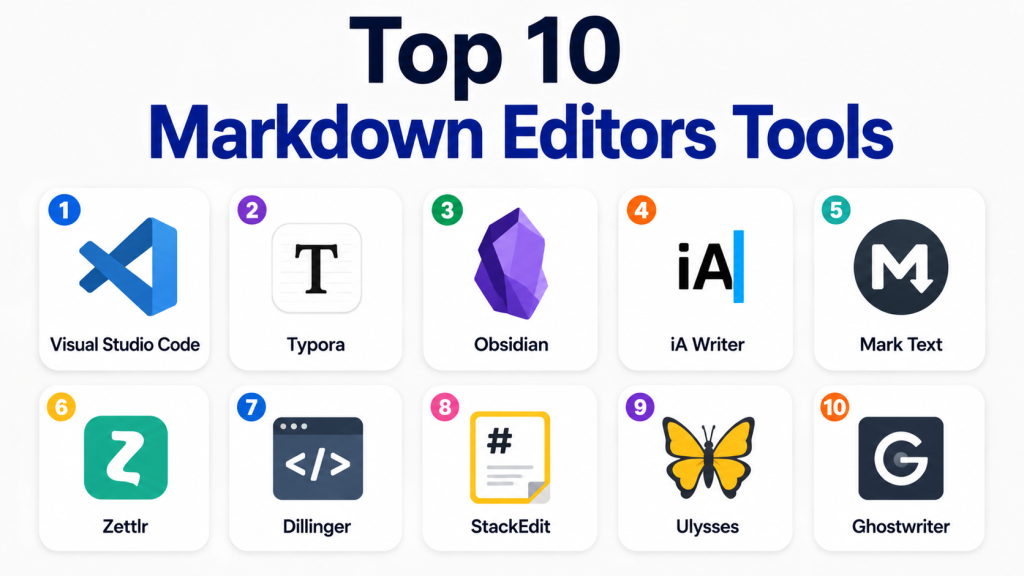
Top 10 Markdown Editors Tools
#1 — Visual Studio Code
Short description: Visual Studio Code is a powerful code editor that also works very well as a Markdown editor. It is ideal for developers, technical writers, DevOps teams, and documentation teams that need Markdown with Git, extensions, and code workflows.
Key Features
- Built-in Markdown editing and preview.
- Strong extension marketplace.
- Git integration.
- Syntax highlighting and code support.
- Split view editing.
- Terminal integration.
- Workspace and folder-based project management.
Pros
- Excellent for developer documentation workflows.
- Huge extension ecosystem.
- Works well with Git-based documentation projects.
Cons
- Can feel too technical for non-developers.
- Requires extensions for some advanced Markdown workflows.
- Not focused purely on distraction-free writing.
Platforms / Deployment
Web / Windows / macOS / Linux
Cloud / Desktop
Security & Compliance
Security depends on local setup, extensions, repositories, and connected services. Enterprise compliance details are Not publicly stated for the editor itself.
Integrations & Ecosystem
Visual Studio Code has one of the strongest ecosystems for Markdown users who also work with code and documentation.
- Git and version control
- Markdown preview extensions
- Static site generator workflows
- Terminal-based tools
- Cloud development environments
- Documentation pipeline integrations
Support & Community
Visual Studio Code has extensive documentation, a large developer community, many tutorials, and a very active extension ecosystem.
#2 — Typora
Short description: Typora is a clean Markdown editor focused on distraction-free writing and live preview. It is useful for writers, students, bloggers, and professionals who want a simple but polished writing experience.
Key Features
- Live preview while writing.
- Clean distraction-free interface.
- Support for tables, code blocks, math, and diagrams.
- Export options.
- Theme customization.
- File-based writing workflow.
- Outline and document structure support.
Pros
- Very clean and comfortable writing experience.
- Good for long-form writing and documentation.
- Easy to use compared with developer-heavy editors.
Cons
- Collaboration features are limited.
- Not as extensible as code-first editors.
- Team administration features are limited.
Platforms / Deployment
Windows / macOS / Linux
Desktop
Security & Compliance
Not publicly stated.
Integrations & Ecosystem
Typora is best for users who prefer local writing and clean export workflows.
- Local Markdown files
- PDF export
- HTML export
- Word-style export options
- Theme customization
- File-based document workflows
Support & Community
Typora provides documentation and product support resources. Community themes and user guides are available, but enterprise community depth is limited.
#3 — Obsidian
Short description: Obsidian is a Markdown-based knowledge management app built around linked notes, backlinks, graph views, and local files. It is ideal for researchers, writers, developers, students, and personal knowledge management users.
Key Features
- Local Markdown file storage.
- Backlinks and graph view.
- Large plugin ecosystem.
- Daily notes and templates.
- Canvas and visual thinking support.
- Custom themes.
- Optional sync and publishing services.
Pros
- Excellent for personal knowledge management.
- Strong plugin and community ecosystem.
- Notes remain portable as Markdown files.
Cons
- Can require setup for advanced workflows.
- Collaboration is not as simple as cloud-first tools.
- Enterprise controls are limited compared with business platforms.
Platforms / Deployment
Windows / macOS / Linux / iOS / Android
Desktop / Local-first / Optional Cloud
Security & Compliance
Not publicly stated for enterprise compliance. Security depends on local device controls, chosen sync method, and user configuration.
Integrations & Ecosystem
Obsidian is strong for users who want a customizable Markdown knowledge base.
- Community plugins
- Local file workflows
- Git-based workflows
- Markdown publishing workflows
- Themes and templates
- Optional sync services
Support & Community
Obsidian has a very active community, strong documentation, forums, plugins, themes, and many user-created learning resources.
#4 — iA Writer
Short description: iA Writer is a focused Markdown writing app built for clarity, concentration, and clean text creation. It is suitable for writers, bloggers, journalists, students, and professionals who want a polished writing environment.
Key Features
- Distraction-free Markdown writing.
- Focus mode.
- Syntax highlighting for writing structure.
- Clean preview.
- Export options.
- File-based workflow.
- Cross-device writing support.
Pros
- Excellent writing experience.
- Very clean and minimal interface.
- Good for essays, articles, drafts, and notes.
Cons
- Less suitable for complex documentation teams.
- Limited advanced collaboration.
- Fewer developer-focused integrations than code editors.
Platforms / Deployment
Windows / macOS / iOS / Android
Desktop / Mobile
Security & Compliance
Not publicly stated.
Integrations & Ecosystem
iA Writer is focused more on writing quality than complex integrations.
- Local files
- Cloud storage workflows
- Export formats
- Markdown preview
- Publishing-friendly drafts
- Cross-device writing
Support & Community
iA Writer provides documentation and support resources. It also has a loyal user base among professional writers and Markdown users.
#5 — Mark Text
Short description: Mark Text is an open-source Markdown editor focused on simple writing, live preview, and a clean interface. It is useful for users who want a free desktop Markdown editor with a modern feel.
Key Features
- Open-source Markdown editing.
- Real-time preview.
- Clean writing interface.
- Table support.
- Code block support.
- Export options.
- Multiple editing modes.
Pros
- Free and open-source.
- Simple and clean interface.
- Good for basic Markdown writing.
Cons
- Development activity and support may vary.
- Not ideal for enterprise collaboration.
- Fewer advanced integrations than larger editors.
Platforms / Deployment
Windows / macOS / Linux
Desktop
Security & Compliance
Not publicly stated.
Integrations & Ecosystem
Mark Text is best for lightweight local Markdown writing.
- Local files
- Export options
- Code block support
- Table editing
- Open-source workflows
- Basic file-based usage
Support & Community
Support is mostly community-based. Documentation and community resources are available, but business support is Not publicly stated.
#6 — Zettlr
Short description: Zettlr is an open-source Markdown editor designed for researchers, academics, writers, and knowledge workers. It supports long-form writing, citations, projects, and structured notes.
Key Features
- Markdown-based writing.
- Project and folder management.
- Citation support.
- Academic writing features.
- Export options.
- Focus and distraction-free modes.
- Open-source availability.
Pros
- Strong fit for academic and research writing.
- Good balance of writing and organization features.
- Open-source and file-based.
Cons
- May feel more complex for casual users.
- Collaboration is limited.
- Business administration features are limited.
Platforms / Deployment
Windows / macOS / Linux
Desktop
Security & Compliance
Not publicly stated.
Integrations & Ecosystem
Zettlr is strong for research and structured writing workflows.
- Citation tools
- Local Markdown files
- Export workflows
- Academic writing workflows
- Project folders
- Reference management support
Support & Community
Zettlr has documentation and an open-source community. Professional support details are Not publicly stated.
#7 — Dillinger
Short description: Dillinger is a browser-based Markdown editor useful for quick Markdown editing and previewing. It is helpful for users who want a simple web-based editor without installing a desktop app.
Key Features
- Web-based Markdown editing.
- Live preview.
- Import and export options.
- Cloud storage connections.
- Clean split-view interface.
- Basic document conversion.
- Quick access from browser.
Pros
- Easy to start using.
- No desktop installation required.
- Good for quick Markdown editing.
Cons
- Not ideal for complex long-term documentation.
- Limited team and enterprise features.
- Requires careful handling for sensitive content.
Platforms / Deployment
Web
Cloud
Security & Compliance
Not publicly stated.
Integrations & Ecosystem
Dillinger is suitable for quick browser-based Markdown workflows.
- Cloud storage connections
- Import and export options
- Browser-based editing
- Markdown preview
- Basic conversion workflows
- Simple document handling
Support & Community
Support and documentation are limited compared with larger tools. Community usage exists, but business support is Not publicly stated.
#8 — StackEdit
Short description: StackEdit is a web-based Markdown editor designed for writing, previewing, and syncing Markdown content. It is useful for users who prefer browser-based Markdown writing with cloud-connected workflows.
Key Features
- Web-based Markdown editor.
- Live preview.
- Offline-capable browser workflow.
- Sync options.
- Mathematical expression support.
- Document organization.
- Export and publishing-friendly features.
Pros
- Good browser-based Markdown experience.
- Useful for quick writing and previewing.
- Supports technical writing needs like math formatting.
Cons
- Not ideal for enterprise documentation governance.
- Collaboration and admin features are limited.
- Users should review storage and sync choices carefully.
Platforms / Deployment
Web
Cloud / Browser-based
Security & Compliance
Not publicly stated.
Integrations & Ecosystem
StackEdit fits users who want online Markdown writing with lightweight sync and export options.
- Cloud storage workflows
- Markdown preview
- Math support
- Export options
- Browser-based writing
- Offline browser usage
Support & Community
Documentation and community resources are available, but enterprise-grade support is Not publicly stated.
#9 — Ulysses
Short description: Ulysses is a polished writing app for Apple users that supports Markdown-style writing, organization, and publishing workflows. It is ideal for authors, bloggers, writers, and content creators in the Apple ecosystem.
Key Features
- Markdown-style writing.
- Clean writing environment.
- Library-based organization.
- Goals and writing progress.
- Export options.
- Publishing-friendly workflows.
- iCloud sync.
Pros
- Excellent for long-form writing.
- Strong organization for drafts and writing projects.
- Polished Apple ecosystem experience.
Cons
- Apple-only platform support.
- Not designed for developer documentation teams.
- Collaboration features are limited.
Platforms / Deployment
macOS / iOS
Cloud through Apple ecosystem
Security & Compliance
Not publicly stated.
Integrations & Ecosystem
Ulysses is strongest for writers who need organized drafts and polished exports.
- iCloud sync
- Export formats
- Publishing workflows
- Writing goals
- Markdown-style editing
- Apple ecosystem support
Support & Community
Ulysses provides documentation, support resources, and a strong user community among writers and content creators.
#10 — Ghostwriter
Short description: Ghostwriter is a distraction-free Markdown editor often used by Linux and desktop users who want a simple writing environment. It is useful for writers who prefer a lightweight offline editor.
Key Features
- Distraction-free Markdown writing.
- Live preview.
- Focus mode.
- Outline support.
- Export options.
- Lightweight desktop experience.
- Open-source availability.
Pros
- Simple and focused writing experience.
- Good for offline Markdown writing.
- Useful for Linux users and open-source users.
Cons
- Limited collaboration features.
- Fewer integrations than larger editors.
- Not suitable for enterprise documentation workflows.
Platforms / Deployment
Windows / Linux
Desktop
Security & Compliance
Not publicly stated.
Integrations & Ecosystem
Ghostwriter is best for local Markdown writing and simple export workflows.
- Local Markdown files
- Live preview
- Export workflows
- Open-source desktop usage
- Focus mode writing
- Offline writing
Support & Community
Support is mostly community-based. Documentation and open-source resources are available, but enterprise support is Not publicly stated.
Comparison Table
| Tool Name | Best For | Platform(s) Supported | Deployment | Standout Feature | Public Rating |
|---|---|---|---|---|---|
| Visual Studio Code | Developers and documentation teams | Web, Windows, macOS, Linux | Cloud / Desktop | Extensions and Git workflow | N/A |
| Typora | Clean desktop Markdown writing | Windows, macOS, Linux | Desktop | Live preview writing | N/A |
| Obsidian | Knowledge management and linked notes | Windows, macOS, Linux, iOS, Android | Local-first / Optional Cloud | Backlinks and graph view | N/A |
| iA Writer | Focused writing | Windows, macOS, iOS, Android | Desktop / Mobile | Distraction-free writing | N/A |
| Mark Text | Free open-source Markdown editing | Windows, macOS, Linux | Desktop | Simple real-time preview | N/A |
| Zettlr | Research and academic writing | Windows, macOS, Linux | Desktop | Citation-friendly writing | N/A |
| Dillinger | Quick browser-based Markdown editing | Web | Cloud | Web-based split preview | N/A |
| StackEdit | Online Markdown writing | Web | Cloud / Browser-based | Browser-based technical writing | N/A |
| Ulysses | Apple writers and bloggers | macOS, iOS | Cloud | Long-form writing organization | N/A |
| Ghostwriter | Lightweight offline writing | Windows, Linux | Desktop | Minimal distraction-free editor | N/A |
Evaluation & Scoring of Markdown Editors
| Tool Name | Core (25%) | Ease (15%) | Integrations (15%) | Security (10%) | Performance (10%) | Support (10%) | Value (15%) | Weighted Total |
|---|---|---|---|---|---|---|---|---|
| Visual Studio Code | 9 | 7 | 10 | 7 | 9 | 9 | 10 | 8.80 |
| Typora | 8 | 9 | 6 | 6 | 9 | 7 | 8 | 7.60 |
| Obsidian | 9 | 7 | 8 | 7 | 9 | 8 | 9 | 8.20 |
| iA Writer | 8 | 9 | 6 | 6 | 9 | 8 | 7 | 7.55 |
| Mark Text | 7 | 8 | 5 | 5 | 8 | 6 | 9 | 6.95 |
| Zettlr | 8 | 7 | 7 | 6 | 8 | 7 | 9 | 7.45 |
| Dillinger | 6 | 8 | 6 | 5 | 7 | 5 | 8 | 6.45 |
| StackEdit | 7 | 8 | 6 | 5 | 7 | 6 | 8 | 6.75 |
| Ulysses | 8 | 9 | 6 | 6 | 9 | 8 | 7 | 7.55 |
| Ghostwriter | 6 | 8 | 4 | 5 | 8 | 5 | 9 | 6.35 |
These scores are comparative and should not be treated as universal rankings. A developer may prefer Visual Studio Code because of Git and extensions, while a writer may prefer Typora, iA Writer, or Ulysses for focus. Open-source users may value Mark Text, Zettlr, or Ghostwriter even if they score lower in integrations. Security-conscious teams should validate storage, sync, permissions, and compliance before choosing any editor.
Which Markdown Editors Tool Is Right for You?
Solo / Freelancer
Solo users usually need speed, focus, and low cost. Typora, iA Writer, Obsidian, Mark Text, and Ghostwriter are strong choices. Writers may prefer Typora or iA Writer for clean drafting. Technical freelancers may prefer Visual Studio Code or Obsidian for Markdown files, plugins, and structured notes.
SMB
Small businesses often need documentation, internal notes, release notes, and content drafts. Visual Studio Code is strong for technical teams. Obsidian can work well for structured knowledge bases. Typora is suitable for individuals writing clean documentation. Teams that need collaboration may need to combine Markdown editors with Git, cloud storage, or documentation platforms.
Mid-Market
Mid-market teams should focus on workflow consistency, version control, documentation standards, and export quality. Visual Studio Code is a strong option for developer-first teams. Obsidian may work for knowledge teams that prefer Markdown-based knowledge management. Zettlr can be useful for research-heavy teams.
Enterprise
Enterprise teams should carefully evaluate security, access management, content governance, and storage policies. Markdown editors are often used together with Git repositories, internal documentation platforms, or content management systems. Visual Studio Code is usually suitable for technical teams, but enterprises should control extensions, repositories, and sync workflows.
Budget vs Premium
For budget users, Visual Studio Code, Mark Text, Zettlr, Ghostwriter, Dillinger, and StackEdit are practical options. Premium tools like Typora, iA Writer, and Ulysses may offer a more polished writing experience. The right choice depends on whether you value cost, writing comfort, or workflow depth.
Feature Depth vs Ease of Use
Visual Studio Code and Obsidian offer more feature depth through extensions and plugins. Typora, iA Writer, Ulysses, and Ghostwriter are easier for focused writing. Dillinger and StackEdit are helpful for quick browser-based editing but may not suit long-term business workflows.
Integrations & Scalability
Visual Studio Code is the strongest choice for integrations because of its extension marketplace, terminal support, and Git workflows. Obsidian also has a strong plugin ecosystem. For simple writing workflows, Typora, iA Writer, and Ulysses are easier but less integration-heavy.
Security & Compliance Needs
Security-focused teams should decide where Markdown files will live. Local files, Git repositories, cloud drives, and browser-based editors all have different security implications. Teams should validate encryption, access control, backup policies, version history, and admin governance before standardizing any workflow.
Frequently Asked Questions
What is a Markdown editor?
A Markdown editor is a writing tool that helps users create formatted text using simple plain-text syntax. It is commonly used for documentation, notes, blogs, README files, and technical content.
Why do developers use Markdown editors?
Developers use Markdown because it is lightweight, readable, and works well with Git. It is commonly used for README files, documentation, changelogs, and project notes.
Which Markdown editor is best for beginners?
Typora, iA Writer, and Mark Text are beginner-friendly because they offer clean interfaces and live preview. Visual Studio Code is better for users comfortable with developer tools.
Which Markdown editor is best for developers?
Visual Studio Code is a strong choice for developers because it supports Git, extensions, terminal workflows, syntax highlighting, and documentation projects.
Which Markdown editor is best for writers?
Typora, iA Writer, Ulysses, and Ghostwriter are strong options for focused writing. Writers who want connected notes may prefer Obsidian.
Are Markdown editors free?
Some Markdown editors are free, while others use paid licenses or subscriptions. Free options can work well, but paid tools may offer a more polished interface, better sync, or stronger writing features.
Are Markdown files portable?
Yes. Markdown files are plain-text files, so they are generally portable across many tools and platforms. This makes Markdown useful for long-term documentation and knowledge storage.
Can Markdown editors replace word processors?
For simple writing, documentation, and technical content, yes. For complex layouts, advanced formatting, legal documents, or print-heavy publishing, traditional word processors may still be better.
Are browser-based Markdown editors safe?
Browser-based editors can be convenient, but users should be careful with sensitive content. Security depends on storage, sync, account protection, and how the editor handles data.
What are common mistakes when choosing a Markdown editor?
Common mistakes include ignoring export options, choosing a tool without preview accuracy, relying on too many plugins, and not checking whether the workflow works across devices.
Do Markdown editors support collaboration?
Some support collaboration directly, but many Markdown workflows rely on Git, cloud storage, or documentation platforms. Teams should test collaboration before choosing a tool.
What alternatives exist to Markdown editors?
Alternatives include word processors, note-taking apps, documentation platforms, wikis, code editors, content management systems, and collaborative writing tools.
Conclusion
Markdown editors are valuable because they make writing simple, portable, and easy to manage across different workflows. Developers often prefer Visual Studio Code because it supports Git, extensions, code, and documentation pipelines. Writers may prefer Typora, iA Writer, Ulysses, or Ghostwriter for clean drafting. Knowledge workers may prefer Obsidian for backlinks, graph views, and connected notes. Open-source users may prefer Mark Text, Zettlr, or Ghostwriter, while browser users may find Dillinger or StackEdit useful for quick editing.
