Upgrade & Secure Your Future with DevOps, SRE, DevSecOps, MLOps!
We spend hours scrolling social media and waste money on things we forget, but won’t spend 30 minutes a day earning certifications that can change our lives.
Master in DevOps, SRE, DevSecOps & MLOps by DevOps School!
Learn from Guru Rajesh Kumar and double your salary in just one year.
Introduction
Image editing software helps users create, correct, enhance, retouch, resize, design, and export images for digital and print use. In simple words, it allows photographers, designers, marketers, creators, and businesses to improve pictures, remove unwanted objects, adjust colors, create graphics, and prepare visuals for websites, social media, ads, product catalogs, presentations, and brand campaigns.
Image editing matters now because visual content is central to online communication. Businesses need clean product images, creators need attractive social posts, photographers need professional retouching, and teams need fast design workflows. Modern image editing tools now include AI background removal, generative fill, object removal, smart selection, cloud collaboration, brand kits, mobile editing, and template-based design.
Common use cases include:
- Photo retouching and correction
- Social media graphics
- Product image editing
- Marketing banners and ads
- Brand design assets
- Website and blog visuals
Buyers should evaluate:
- Editing depth
- AI features
- Ease of use
- File format support
- Layer and masking tools
- Collaboration features
- Cloud storage
- Export quality
- Platform support
- Pricing and value
Best for: photographers, designers, marketers, content creators, agencies, eCommerce teams, social media teams, educators, and businesses that regularly create or edit visual content.
Not ideal for: users who only need basic cropping, resizing, or quick filters. Built-in phone editors, social media editors, or simple free tools may be enough for very light use.
Key Trends in Image Editing Software
- AI-powered editing is becoming standard with object removal, generative fill, background replacement, and smart retouching.
- Cloud-based editing is growing because teams need access from different devices and locations.
- Template-driven design is becoming more popular for marketers, founders, and non-designers.
- Mobile-first editing is now important as creators produce content directly from phones and tablets.
- Brand consistency tools are in demand with reusable templates, fonts, colors, logos, and asset libraries.
- Non-destructive editing is expected for professional photographers and designers.
- RAW photo editing remains important for photography workflows.
- Collaboration features are becoming a buying factor for agencies and marketing teams.
- Privacy and access controls matter more when teams work with client images, unreleased campaigns, or brand assets.
- Subscription and one-time license models continue to compete depending on budget and long-term usage needs.
How We Selected These Tools
The tools in this list were selected based on practical value for different users, from beginners to professional photographers and design teams.
Selection factors included:
- Market adoption and recognition
- Core image editing capabilities
- AI-assisted editing features
- Professional photo retouching depth
- Ease of use for non-designers
- RAW editing and color control
- Layer, masking, and selection tools
- Platform availability
- Integration ecosystem
- Suitability for freelancers, SMBs, agencies, and enterprises
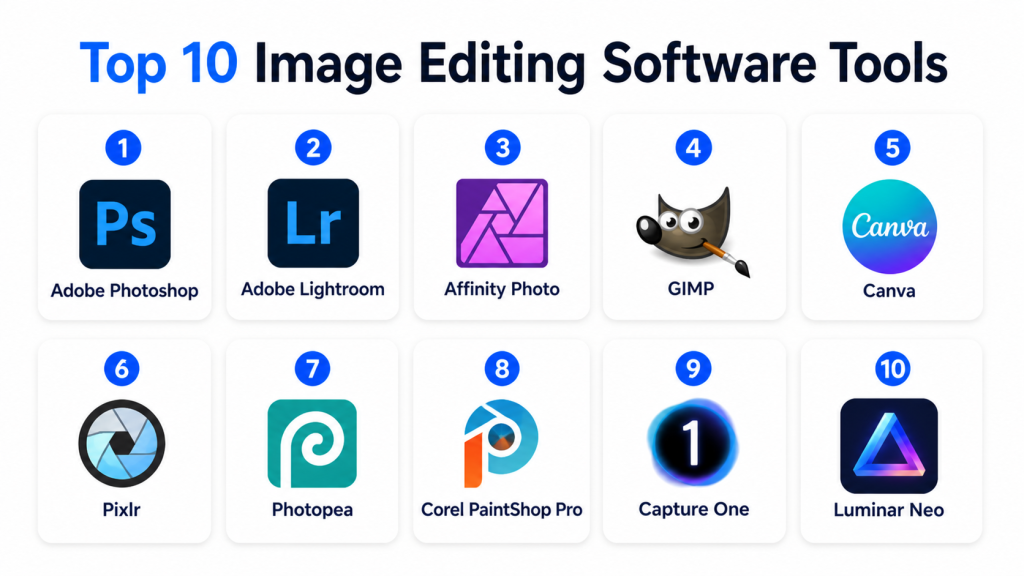
Top 10 Image Editing Software Tools
#1 — Adobe Photoshop
Short description: Adobe Photoshop is one of the most widely used professional image editing tools for designers, photographers, marketers, and creative teams. It supports advanced retouching, compositing, layers, masking, AI-assisted editing, and professional design workflows.
Key Features
- Advanced layer-based editing
- AI-assisted generative editing features
- Object removal and smart selection tools
- Masking, blending, and compositing
- Professional retouching tools
- Wide file format support
- Strong plugin and creative ecosystem
Pros
- Industry-standard tool for professional image editing
- Very deep feature set for complex creative work
- Strong integration with other Adobe tools
Cons
- Subscription cost may be high for casual users
- Learning curve can be steep
- May feel too advanced for simple image editing
Platforms / Deployment
Windows / macOS / iPadOS
Cloud-supported desktop and tablet workflow
Security & Compliance
Adobe business and enterprise plans may include admin controls and access management depending on plan.
SOC 2, ISO 27001, HIPAA: Not publicly stated for this specific product context.
Integrations & Ecosystem
Photoshop has one of the strongest creative ecosystems in the industry.
- Adobe Lightroom
- Adobe Illustrator
- Adobe InDesign
- Adobe Express
- Stock asset workflows
- Third-party plugins and extensions
Support & Community
Photoshop has extensive documentation, tutorials, training resources, official support options, and a very large global creative community.
#2 — Adobe Lightroom
Short description: Adobe Lightroom is a photo editing and management tool built mainly for photographers. It is best for RAW editing, color correction, batch editing, presets, photo organization, and non-destructive workflows.
Key Features
- RAW photo editing
- Non-destructive adjustments
- Presets and batch editing
- AI masking and subject selection
- Photo library management
- Cloud sync depending on version
- Color, tone, exposure, and lens corrections
Pros
- Excellent for photographers handling many images
- Strong organization and batch workflow
- Easier than Photoshop for photo correction
Cons
- Not ideal for complex graphic design
- Advanced compositing is limited
- Subscription model may not suit all users
Platforms / Deployment
Web / Windows / macOS / iOS / Android
Cloud-supported workflow
Security & Compliance
Adobe business and enterprise controls vary by plan.
SOC 2, ISO 27001, HIPAA: Not publicly stated for this specific product context.
Integrations & Ecosystem
Lightroom fits smoothly into photography and Adobe creative workflows.
- Adobe Photoshop
- Adobe cloud storage
- Camera RAW workflows
- Preset ecosystem
- Mobile photography workflows
- Portfolio and export workflows
Support & Community
Lightroom has strong documentation, official learning resources, photography tutorials, and a large user community.
#3 — Affinity Photo
Short description: Affinity Photo is a professional image editing tool known for strong photo retouching, layer-based editing, and one-time purchase licensing. It is useful for photographers, designers, and freelancers who want deep editing without a subscription model.
Key Features
- Layer-based image editing
- RAW photo development
- Retouching and healing tools
- Advanced selection and masking
- HDR merge and panorama tools
- Non-destructive adjustment layers
- Professional export options
Pros
- Strong professional feature set
- One-time purchase model
- Good alternative to subscription-based tools
Cons
- Smaller ecosystem than Adobe
- Collaboration features are limited
- Some users may need time to adjust from Photoshop
Platforms / Deployment
Windows / macOS / iPadOS
Desktop and tablet deployment
Security & Compliance
Not publicly stated.
Integrations & Ecosystem
Affinity Photo works well as part of the Affinity creative suite.
- Affinity Designer
- Affinity Publisher
- RAW image workflows
- Local file workflows
- Plugin-style creative workflows
- Export for print and digital use
Support & Community
Affinity has documentation, official tutorials, forums, and a growing professional user community.
#4 — GIMP
Short description: GIMP is a free and open-source image editing tool used for photo editing, graphic design, image manipulation, and creative work. It is best for users who want a no-cost editing solution with strong customization.
Key Features
- Layer-based editing
- Selection and masking tools
- Retouching and painting tools
- Plugin support
- Customizable interface
- Wide format support
- Open-source flexibility
Pros
- Free and open-source
- Good for users on a limited budget
- Flexible and customizable
Cons
- Interface may feel less polished than commercial tools
- Learning curve can be uneven
- Some professional workflows may require plugins or workarounds
Platforms / Deployment
Windows / macOS / Linux
Desktop deployment
Security & Compliance
Not publicly stated.
Integrations & Ecosystem
GIMP has a strong open-source ecosystem and supports many community plugins.
- Plugin workflows
- Open-source creative tools
- Local file editing
- Script-based automation
- Cross-platform workflows
- Community extensions
Support & Community
GIMP has community documentation, forums, tutorials, and open-source support. Formal enterprise support is limited.
#5 — Canva
Short description: Canva is a design and image editing platform built for marketers, creators, small businesses, educators, and non-designers. It is best for creating social posts, banners, presentations, simple image edits, and brand assets quickly.
Key Features
- Drag-and-drop editor
- Templates for social media and marketing
- Background remover depending on plan
- Brand kits and team assets
- Stock photos, icons, and graphics
- Collaboration and commenting
- Simple image adjustments and effects
Pros
- Very easy for beginners and teams
- Strong template and brand workflow
- Good for fast marketing content creation
Cons
- Not ideal for advanced retouching
- Limited compared with professional photo editors
- Some premium assets and features require paid plans
Platforms / Deployment
Web / Windows / macOS / iOS / Android
Cloud deployment
Security & Compliance
Canva business and enterprise plans may include role management and team controls depending on plan.
SOC 2, ISO 27001, HIPAA: Not publicly stated for this specific context.
Integrations & Ecosystem
Canva works well for content creation and brand design workflows.
- Social media workflows
- Brand kits
- Stock asset libraries
- Presentation tools
- Cloud storage workflows
- Team collaboration features
Support & Community
Canva has strong documentation, tutorials, templates, learning resources, and a large global user community.
#6 — Pixlr
Short description: Pixlr is a web-based image editing tool for quick edits, creative effects, background removal, and browser-based design. It is useful for casual users, students, creators, and small businesses that need fast editing without installing heavy software.
Key Features
- Browser-based image editing
- AI background removal
- Templates and design tools
- Filters and effects
- Layer support in advanced editor
- Quick crop, resize, and adjustment tools
- Mobile app availability
Pros
- Easy to access from a browser
- Good for quick edits and simple designs
- Useful for users who do not want heavy desktop software
Cons
- Not as deep as professional desktop tools
- Cloud and premium features depend on plan
- Performance may vary with browser and file size
Platforms / Deployment
Web / iOS / Android
Cloud / Browser-based workflow
Security & Compliance
Not publicly stated.
Integrations & Ecosystem
Pixlr supports lightweight creative and browser-first workflows.
- Browser-based editing
- Template workflows
- Mobile editing
- AI background tools
- Local export
- Social media image workflows
Support & Community
Pixlr provides help resources and tutorials. Community size is moderate compared with larger platforms.
#7 — Photopea
Short description: Photopea is a browser-based image editor with a Photoshop-like interface. It is useful for users who need quick access to layered editing, PSD support, and advanced editing features without installing desktop software.
Key Features
- Browser-based layered editing
- PSD file support
- Selection and masking tools
- Adjustment layers
- Text and shape tools
- Export to multiple file formats
- Works without heavy installation
Pros
- Accessible directly from a browser
- Familiar interface for Photoshop-style users
- Good value for quick advanced editing
Cons
- Browser performance can limit very large projects
- Collaboration and asset management are limited
- Enterprise support details are limited
Platforms / Deployment
Web
Browser-based deployment
Security & Compliance
Not publicly stated.
Integrations & Ecosystem
Photopea is practical for users who need browser-based compatibility with common design file formats.
- PSD workflows
- Local file workflows
- Browser-based editing
- Export to image formats
- Basic design workflows
- Lightweight editing access
Support & Community
Photopea has online documentation and an active user base. Formal support options may vary.
#8 — Corel PaintShop Pro
Short description: Corel PaintShop Pro is an image editing and graphic design tool for Windows users. It is suitable for photographers, hobbyists, small businesses, and users who want photo editing, design tools, and creative effects in one package.
Key Features
- Photo editing and retouching
- Layer-based editing
- RAW photo support
- AI-powered tools depending on version
- Graphic design features
- Effects and filters
- Batch processing
Pros
- Good feature set for Windows users
- One-time license model may appeal to some buyers
- Useful balance of photo editing and design
Cons
- Windows-only
- Smaller ecosystem than Adobe
- Interface may feel traditional for some users
Platforms / Deployment
Windows
Desktop deployment
Security & Compliance
Not publicly stated.
Integrations & Ecosystem
PaintShop Pro supports practical desktop editing and creative workflows.
- RAW photo workflows
- Local file export
- Design assets
- Batch processing
- Creative effects
- Print and digital output workflows
Support & Community
Corel provides product documentation, tutorials, and support resources. Community strength is moderate.
#9 — Capture One
Short description: Capture One is a professional photo editing and RAW processing tool widely used by photographers and studios. It is known for color control, tethered shooting, image organization, and high-quality RAW workflows.
Key Features
- Professional RAW processing
- Advanced color editing
- Tethered shooting support
- Layer-based adjustments
- Styles and presets
- Catalog and session workflows
- High-quality image output
Pros
- Excellent for professional photographers
- Strong color and RAW processing controls
- Useful for studio and commercial photography workflows
Cons
- Not designed for general graphic design
- Pricing may be high for casual users
- Learning curve can be moderate for beginners
Platforms / Deployment
Windows / macOS / iPadOS
Desktop and tablet workflow
Security & Compliance
Not publicly stated.
Integrations & Ecosystem
Capture One is focused on photography and studio workflows.
- Camera tethering workflows
- RAW image workflows
- Studio production workflows
- Preset and style workflows
- Local storage workflows
- Export for print and digital use
Support & Community
Capture One has professional documentation, tutorials, learning resources, and a strong photography-focused community.
#10 — Luminar Neo
Short description: Luminar Neo is an AI-powered photo editing tool designed for photographers, creators, and hobbyists who want faster editing results. It is useful for sky replacement, portrait retouching, object removal, lighting adjustments, and creative enhancements.
Key Features
- AI-powered photo enhancements
- Sky replacement and background tools
- Portrait retouching
- Object removal
- Lighting and color adjustments
- Presets and creative looks
- Plugin-style workflow with other tools
Pros
- Easy for users who want quick results
- Strong AI-assisted creative tools
- Good for photographers and content creators
Cons
- Not as deep as Photoshop for complex compositing
- Some advanced workflows may require other tools
- Feature access may vary by plan or edition
Platforms / Deployment
Windows / macOS
Desktop deployment
Security & Compliance
Not publicly stated.
Integrations & Ecosystem
Luminar Neo works well as a standalone editor or companion tool for photographers.
- RAW photo workflows
- Plugin-style editing workflows
- Preset libraries
- AI enhancement workflows
- Local export
- Photography editing pipelines
Support & Community
Luminar Neo has documentation, tutorials, support resources, and a creator-focused community.
Comparison Table
| Tool Name | Best For | Platform(s) Supported | Deployment | Standout Feature | Public Rating |
|---|---|---|---|---|---|
| Adobe Photoshop | Professional designers and editors | Windows, macOS, iPadOS | Cloud-supported desktop | Advanced layer-based editing | N/A |
| Adobe Lightroom | Photographers and RAW editing | Web, Windows, macOS, iOS, Android | Cloud-supported | Photo organization and RAW editing | N/A |
| Affinity Photo | Freelancers and professional editors | Windows, macOS, iPadOS | Desktop / Tablet | Professional editing without subscription | N/A |
| GIMP | Open-source image editing users | Windows, macOS, Linux | Desktop | Free customizable editing | N/A |
| Canva | Marketers and non-designers | Web, Windows, macOS, iOS, Android | Cloud | Template-based design and editing | N/A |
| Pixlr | Quick browser-based editing | Web, iOS, Android | Cloud / Browser-based | Fast web image editing | N/A |
| Photopea | Browser-based advanced editing | Web | Browser-based | PSD-style editing in browser | N/A |
| Corel PaintShop Pro | Windows photo and design users | Windows | Desktop | Photo editing plus design tools | N/A |
| Capture One | Professional photographers | Windows, macOS, iPadOS | Desktop / Tablet | Advanced RAW and color control | N/A |
| Luminar Neo | AI-assisted photo editing | Windows, macOS | Desktop | AI-powered photo enhancement | N/A |
Evaluation & Scoring of Image Editing Software
| Tool Name | Core (25%) | Ease (15%) | Integrations (15%) | Security (10%) | Performance (10%) | Support (10%) | Value (15%) | Weighted Total (0–10) |
|---|---|---|---|---|---|---|---|---|
| Adobe Photoshop | 10 | 7 | 10 | 8 | 9 | 9 | 7 | 8.75 |
| Adobe Lightroom | 9 | 8 | 9 | 8 | 9 | 9 | 7 | 8.50 |
| Affinity Photo | 9 | 7 | 7 | 6 | 8 | 8 | 9 | 7.95 |
| GIMP | 8 | 6 | 7 | 5 | 7 | 7 | 10 | 7.35 |
| Canva | 6 | 10 | 9 | 7 | 8 | 8 | 8 | 7.95 |
| Pixlr | 6 | 9 | 6 | 5 | 7 | 6 | 8 | 6.95 |
| Photopea | 7 | 8 | 6 | 5 | 7 | 6 | 9 | 7.05 |
| Corel PaintShop Pro | 8 | 7 | 6 | 5 | 8 | 7 | 8 | 7.25 |
| Capture One | 9 | 7 | 7 | 6 | 9 | 8 | 7 | 7.85 |
| Luminar Neo | 7 | 9 | 6 | 5 | 8 | 7 | 8 | 7.30 |
These scores are comparative and should be used as a shortlist guide. A higher score does not mean the tool is best for everyone. Photoshop is powerful, but Canva may be better for a marketing team that needs speed. Capture One is excellent for photographers, but not ideal for general social media design. Always test tools with your real workflow before selecting one.
Which Image Editing Software Tool Is Right for You?
Solo / Freelancer
Solo users should focus on budget, learning curve, and daily workflow. Affinity Photo is strong for professional editing without subscription. Canva is better for quick marketing visuals. GIMP is good for users who want a free tool. Luminar Neo is useful for fast AI-assisted photo enhancement.
SMB
Small businesses usually need social media visuals, website images, product photos, and branded graphics. Canva is a strong choice for non-designers and marketing teams. Photoshop is better if the business needs advanced editing. Pixlr and Photopea can work for fast browser-based editing.
Mid-Market
Mid-market teams often need stronger brand control, collaboration, asset consistency, and professional quality. Adobe Photoshop, Lightroom, Canva, and Capture One are strong options depending on whether the team focuses on design, marketing, or photography.
Enterprise
Enterprise teams should evaluate admin controls, access management, brand governance, security, collaboration, and support. Adobe Photoshop, Lightroom, and Canva enterprise-style plans may fit larger teams depending on requirements. Photography-heavy enterprises may also evaluate Capture One.
Budget vs Premium
For budget users, GIMP, Photopea, and Pixlr provide useful editing options. For premium professional workflows, Photoshop, Lightroom, Capture One, and Affinity Photo are stronger. For fast business design, Canva may provide high value.
Feature Depth vs Ease of Use
Choose Photoshop for maximum editing depth. Choose Lightroom or Capture One for professional photo workflows. Choose Canva for ease of use. Choose Luminar Neo for fast AI-assisted photo improvements. Choose GIMP or Photopea for low-cost advanced editing.
Integrations & Scalability
Teams should check integrations with cloud storage, design systems, stock media, publishing tools, print workflows, asset libraries, and collaboration platforms. Adobe tools are strong for creative ecosystems, while Canva is strong for team-based brand content.
Security & Compliance Needs
Businesses should review SSO, MFA, RBAC, audit logs, encryption, admin controls, sharing permissions, storage policies, and compliance documentation. Do not assume SOC 2, ISO 27001, GDPR, or HIPAA support unless the vendor clearly confirms it for the selected plan.
Frequently Asked Questions
1. What is image editing software?
Image editing software helps users change, improve, retouch, resize, design, and export images. It can be used for photos, graphics, product images, ads, social media posts, and website visuals.
2. Which image editing software is best for beginners?
Canva, Pixlr, Luminar Neo, and Photopea are good beginner-friendly options. They offer easier workflows than advanced tools like Photoshop or Capture One.
3. Which tool is best for professional image editing?
Adobe Photoshop is one of the strongest professional image editing tools. Affinity Photo is also a strong option for users who want professional editing without a subscription.
4. Which tool is best for photographers?
Adobe Lightroom, Capture One, Luminar Neo, and Photoshop are strong choices for photographers. Lightroom and Capture One are especially useful for RAW editing and photo organization.
5. Is free image editing software enough?
Free tools like GIMP and Photopea can be enough for many users. However, professional teams may need paid tools for advanced features, support, collaboration, and smoother workflows.
6. What pricing models are common?
Common pricing models include free plans, one-time licenses, monthly subscriptions, annual subscriptions, team plans, and enterprise pricing. Some tools also charge for premium assets or cloud features.
7. What are common mistakes when choosing image editing software?
Common mistakes include choosing a tool that is too complex, ignoring file format support, overlooking collaboration needs, and selecting a tool without checking export quality.
8. Are AI image editing features useful?
Yes, AI features can save time with background removal, object removal, smart selections, retouching, and image enhancement. However, professional judgment is still important for brand quality and final output.
9. Can image editing software scale for teams?
Yes, some tools support team workspaces, brand kits, admin controls, shared libraries, and collaboration. Teams should test permissions, storage, and review workflows before adoption.
10. What integrations should buyers look for?
Useful integrations include cloud storage, stock media libraries, design tools, publishing platforms, print workflows, social media tools, and creative asset management systems.
11. How hard is it to switch image editing tools?
Switching can be simple for basic editing, but harder for professional workflows. Teams should consider file compatibility, templates, presets, plugins, brand assets, and training needs.
12. What are good alternatives to Photoshop?
Affinity Photo, GIMP, Photopea, Corel PaintShop Pro, and Pixlr can be alternatives depending on your needs. Canva is also useful if your main requirement is fast design rather than advanced editing.
Conclusion
Image editing software is now essential for creators, photographers, marketers, agencies, and businesses that depend on strong visual communication. The best tool depends on your use case. Photoshop is powerful for professional editing. Lightroom and Capture One are excellent for photography workflows. Canva is ideal for fast branded content. Affinity Photo offers strong editing value without subscription. GIMP, Pixlr, and Photopea are useful for budget-friendly editing. Luminar Neo is strong for AI-assisted photo enhancement.
