Upgrade & Secure Your Future with DevOps, SRE, DevSecOps, MLOps!
We spend hours scrolling social media and waste money on things we forget, but won’t spend 30 minutes a day earning certifications that can change our lives.
Master in DevOps, SRE, DevSecOps & MLOps by DevOps School!
Learn from Guru Rajesh Kumar and double your salary in just one year.
Introduction
Video editing software helps creators, marketers, filmmakers, educators, agencies, and businesses turn raw footage into polished videos. It allows users to cut clips, add transitions, correct color, improve audio, apply effects, manage subtitles, and export videos for platforms like websites, social media, streaming, training portals, and internal communication.
Video editing matters more now because video has become a core content format for marketing, learning, product demos, entertainment, customer support, and brand storytelling. Modern tools are no longer limited to timeline editing. Many now include AI-assisted editing, automatic captions, background removal, speech cleanup, collaboration workflows, templates, cloud storage, and multi-platform publishing.
Common use cases include:
- Social media video creation
- YouTube and creator content
- Corporate training videos
- Product explainers and demos
- Film, documentary, and broadcast production
- Online course and webinar editing
Buyers should evaluate:
- Editing depth and timeline control
- Ease of use
- AI-assisted editing features
- Audio editing and cleanup
- Color grading tools
- Collaboration options
- Export formats and platform support
- Performance with large files
- Pricing and licensing
- Security and account controls
Best for: video creators, marketing teams, filmmakers, agencies, educators, YouTubers, social media teams, and businesses that regularly produce video content.
Not ideal for: users who only need very basic trimming, quick phone edits, or simple screen recording. In those cases, lightweight mobile apps or built-in platform editors may be enough.
Key Trends in Video Editing Software
- AI-assisted editing is becoming standard with auto-cutting, scene detection, filler-word removal, smart captions, voice cleanup, and text-based editing.
- Cloud collaboration is growing because distributed teams need shared review, comments, versioning, and faster approval workflows.
- Short-form video workflows are now essential as brands create content for Reels, Shorts, TikTok-style formats, and vertical video campaigns.
- Template-based editing is expanding for marketers, educators, and small businesses that need speed more than deep technical control.
- Professional color and audio tools remain important for filmmakers, agencies, and advanced creators.
- Cross-platform editing matters more as users move between desktop, web, mobile, and tablet workflows.
- Automatic captions and accessibility tools are now expected for social video, education, and corporate communication.
- Security and admin controls are becoming more relevant for teams handling brand assets, client footage, training videos, and internal recordings.
- Integration with design, storage, and publishing tools is a key buying factor because video rarely works alone.
- Pricing is shifting toward subscription models with tiered plans based on storage, export quality, collaboration, and AI usage.
How We Selected These Tools
The tools in this list were selected based on practical market relevance, user adoption, feature depth, and fit across different editing needs. The goal is not to crown one universal winner, but to help readers understand which software fits which scenario.
Selection factors included:
- Strong recognition among creators, editors, agencies, and business users
- Core editing features such as timeline editing, trimming, transitions, effects, audio, and export control
- Advanced capabilities such as color grading, motion graphics, AI editing, and collaboration
- Platform availability across desktop, web, and mobile
- Suitability for different users, from beginners to professional studios
- Ecosystem strength, including plugins, templates, stock media, and integrations
- Performance reputation for handling HD, 4K, and complex projects
- Security and account management signals where publicly available
- Pricing flexibility for individuals, teams, and enterprises
- Long-term usefulness for modern video production workflows
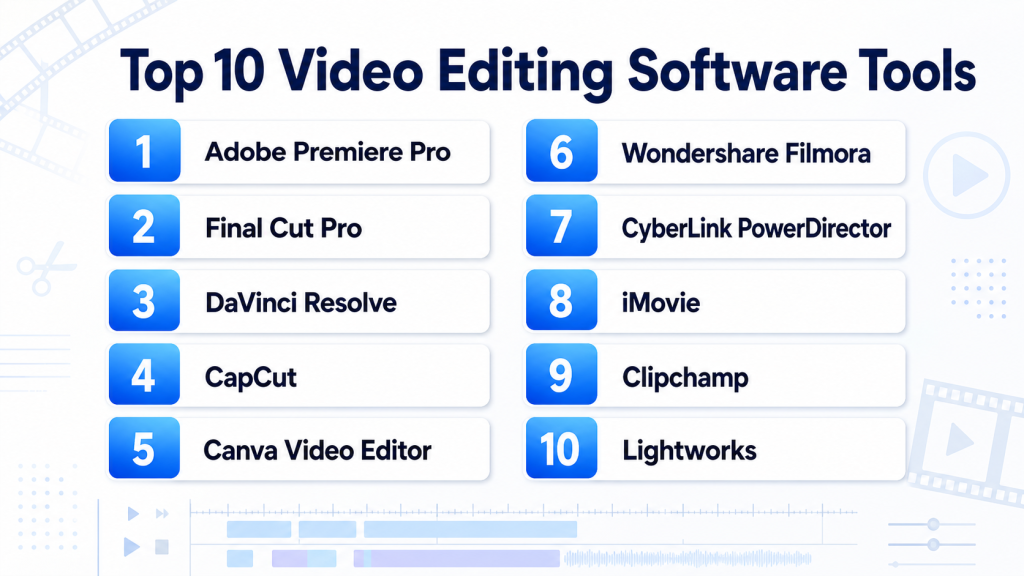
Top 10 Video Editing Software Tools
#1 — Adobe Premiere Pro
Short description: Adobe Premiere Pro is a professional video editing platform widely used by creators, agencies, filmmakers, and production teams. It offers advanced timeline editing, color correction, audio tools, effects, and strong integration with Adobe’s creative ecosystem.
Key Features
- Multi-track timeline editing for complex projects
- Advanced color correction and grading tools
- Integration with After Effects, Photoshop, Audition, and Media Encoder
- AI-assisted features for captions, reframing, and editing support
- Support for many video formats and export presets
- Professional audio editing and cleanup tools
- Team collaboration options through Adobe ecosystem features
Pros
- Strong choice for professional editing and agency workflows
- Excellent integration with other creative tools
- Flexible enough for social content, films, ads, and enterprise video
Cons
- Subscription cost can be high for casual users
- Learning curve may feel steep for beginners
- Performance depends heavily on hardware quality
Platforms / Deployment
Windows / macOS
Cloud-supported desktop workflow
Security & Compliance
Adobe offers enterprise-grade account controls in business plans, including admin management and access controls. Specific compliance details vary by plan.
SOC 2, ISO 27001, HIPAA: Not publicly stated for this specific product context.
Integrations & Ecosystem
Premiere Pro has one of the strongest ecosystems in video editing. It connects well with creative, audio, motion graphics, storage, and publishing workflows.
- Adobe After Effects
- Adobe Photoshop
- Adobe Audition
- Adobe Media Encoder
- Stock media libraries
- Third-party plugins and templates
Support & Community
Adobe Premiere Pro has extensive documentation, tutorials, training resources, forums, and a large creator community. Paid business users may access higher support tiers depending on plan.
#2 — Final Cut Pro
Short description: Final Cut Pro is Apple’s professional video editing software for macOS users. It is popular among creators, editors, and production teams who prefer fast performance, a clean interface, and optimized Apple hardware workflows.
Key Features
- Magnetic timeline for fast editing
- Strong performance on Apple silicon devices
- Advanced color grading and HDR support
- Multicam editing
- Motion graphics support through Apple Motion
- High-quality export options
- Media organization with libraries, events, and keywords
Pros
- Very fast on modern Mac hardware
- One-time purchase model may appeal to long-term users
- Clean workflow for creators and professional editors
Cons
- Available only on Apple platforms
- Collaboration features are less broad than some cloud-first tools
- Interface may feel different for editors used to traditional timelines
Platforms / Deployment
macOS / iPadOS
Desktop / App-based deployment
Security & Compliance
Security depends mainly on Apple device security, local storage practices, and user configuration.
SOC 2, ISO 27001, HIPAA: Not publicly stated.
Integrations & Ecosystem
Final Cut Pro works well inside Apple’s creative environment and with third-party plugins.
- Apple Motion
- Compressor
- Third-party effects plugins
- Camera workflows
- External storage systems
- Stock media and template tools
Support & Community
Apple provides official documentation and support resources. Final Cut Pro also has a strong creator community, many training videos, and active plugin support.
#3 — DaVinci Resolve
Short description: DaVinci Resolve is a powerful video editing, color grading, visual effects, motion graphics, and audio post-production tool. It is widely used by professional editors, colorists, filmmakers, and advanced creators.
Key Features
- Professional timeline editing
- Industry-recognized color grading tools
- Fusion visual effects and motion graphics
- Fairlight audio post-production
- Multi-user collaboration features in studio workflows
- Free version with strong capabilities
- High-end finishing and delivery tools
Pros
- Excellent value because the free version is highly capable
- Strong color grading and post-production depth
- Suitable for serious creators and professional studios
Cons
- Can feel complex for beginners
- Requires powerful hardware for demanding projects
- Some advanced features require the paid Studio version
Platforms / Deployment
Windows / macOS / Linux
Desktop deployment
Security & Compliance
Security and collaboration controls depend on deployment setup and edition.
SOC 2, ISO 27001, HIPAA: Not publicly stated.
Integrations & Ecosystem
DaVinci Resolve supports professional post-production workflows and integrates well with hardware panels, media pipelines, and creative assets.
- Blackmagic hardware panels
- Camera workflows
- Audio production workflows
- Visual effects workflows
- Third-party plugins
- Professional media storage systems
Support & Community
DaVinci Resolve has official training materials, manuals, certification-style learning resources, and a strong community of editors, colorists, and filmmakers.
#4 — CapCut
Short description: CapCut is a popular video editing tool for fast social media content creation. It is widely used by creators, marketers, influencers, and small businesses that need quick edits, templates, captions, and mobile-friendly workflows.
Key Features
- Easy drag-and-drop editing
- Auto captions and subtitle tools
- Templates for short-form videos
- Background removal and AI-assisted features
- Music, effects, transitions, and filters
- Mobile and desktop availability
- Social media-friendly export formats
Pros
- Very easy for beginners and social creators
- Strong short-form video workflow
- Fast editing with templates and automation
Cons
- Not ideal for complex film or broadcast workflows
- Advanced professional controls are limited compared to pro editors
- Business users should review data and privacy needs carefully
Platforms / Deployment
Web / Windows / macOS / iOS / Android
Cloud-supported app workflow
Security & Compliance
Account security and privacy controls vary by platform and plan.
SOC 2, ISO 27001, HIPAA: Not publicly stated.
Integrations & Ecosystem
CapCut works best for creator-first and social-first workflows. Its ecosystem is centered on templates, mobile editing, and fast publishing.
- Social media export workflows
- Template libraries
- Music and effects assets
- Mobile camera workflows
- Cloud project access
- Creator-focused editing features
Support & Community
CapCut has a large creator community and many tutorials. Official support options vary by region and plan.
#5 — Canva Video Editor
Short description: Canva Video Editor is a simple, template-driven video creation tool for marketers, educators, founders, and business teams. It is best for users who want quick, branded videos without learning complex editing software.
Key Features
- Drag-and-drop video editing
- Brand kits and design templates
- Stock photos, videos, icons, and music
- Team collaboration and comments
- Social media video formats
- Simple animation tools
- Presentation-to-video workflows
Pros
- Very easy for non-editors
- Strong for branded marketing content
- Good collaboration features for teams
Cons
- Limited for advanced timeline editing
- Not ideal for professional film editing
- Heavy reliance on templates may reduce creative flexibility
Platforms / Deployment
Web / Windows / macOS / iOS / Android
Cloud deployment
Security & Compliance
Canva offers team and enterprise account controls, including role management and access features depending on plan.
SOC 2, ISO 27001, HIPAA: Not publicly stated for this specific context.
Integrations & Ecosystem
Canva has a strong ecosystem for design-led teams and non-technical content creators.
- Brand assets
- Stock media
- Social media publishing workflows
- Presentation tools
- Cloud storage integrations
- Team collaboration features
Support & Community
Canva has strong documentation, tutorials, templates, and community learning resources. Support options vary by plan.
#6 — Wondershare Filmora
Short description: Wondershare Filmora is a user-friendly video editing tool designed for beginners, creators, educators, and small businesses. It balances ease of use with practical features such as effects, transitions, audio tools, and AI-assisted editing.
Key Features
- Simple timeline editing
- Built-in effects, titles, filters, and transitions
- AI-assisted editing features
- Screen recording support
- Audio tools and noise reduction
- Templates and stock assets
- Export presets for common platforms
Pros
- Easier to learn than many professional tools
- Good feature set for creators and small teams
- Useful templates and effects for quick production
Cons
- Not as deep as professional editing suites
- Advanced color and audio controls are limited
- Some assets and features may require higher plans
Platforms / Deployment
Windows / macOS / iOS / Android
Desktop and app-based deployment
Security & Compliance
Security details vary by product plan and region.
SOC 2, ISO 27001, HIPAA: Not publicly stated.
Integrations & Ecosystem
Filmora focuses on creator-friendly editing with built-in assets and common export workflows.
- Stock media assets
- Effects marketplace
- Screen recording tools
- Social media export options
- Audio and music libraries
- Mobile editing workflows
Support & Community
Wondershare provides learning resources, documentation, and support options. Community tutorials are also widely available.
#7 — CyberLink PowerDirector
Short description: CyberLink PowerDirector is a feature-rich video editing tool for creators, prosumers, educators, and small businesses. It offers a mix of traditional editing, effects, templates, AI tools, and performance-focused workflows.
Key Features
- Multi-track timeline editing
- AI tools for effects and cleanup
- Motion graphics and title templates
- Screen recording
- Color correction tools
- Stock content access depending on plan
- Fast rendering options
Pros
- Good balance of features and usability
- Strong for creators who want more than basic editing
- Useful templates and effects for faster production
Cons
- Interface may feel busy for new users
- Some premium assets require subscription plans
- Professional studios may prefer deeper post-production tools
Platforms / Deployment
Windows / macOS / iOS / Android
Desktop and app-based deployment
Security & Compliance
Security and compliance details are plan-dependent.
SOC 2, ISO 27001, HIPAA: Not publicly stated.
Integrations & Ecosystem
PowerDirector supports creator workflows with built-in content, plugins, and export options.
- Stock media libraries
- Effects and template packs
- Screen recording
- Social media exports
- Mobile companion workflows
- Audio and title tools
Support & Community
CyberLink provides documentation, learning resources, customer support, and a user community. Support levels may vary by subscription or product edition.
#8 — iMovie
Short description: iMovie is Apple’s free, beginner-friendly video editing software for basic video projects. It is best for casual creators, students, families, and small teams that need simple editing on Apple devices.
Key Features
- Basic timeline editing
- Titles, transitions, and themes
- Simple audio editing
- Trailer and movie templates
- Easy export to common formats
- Apple device integration
- Beginner-friendly interface
Pros
- Free for Apple users
- Simple and easy to learn
- Good for basic personal and educational videos
Cons
- Limited professional editing features
- Apple-only availability
- Not suitable for advanced color, audio, or effects work
Platforms / Deployment
macOS / iOS / iPadOS
App-based deployment
Security & Compliance
Security depends on Apple device and account settings.
SOC 2, ISO 27001, HIPAA: Not publicly stated.
Integrations & Ecosystem
iMovie works smoothly with Apple devices and media libraries.
- Photos app
- Apple device camera workflows
- GarageBand audio workflows
- Final Cut Pro upgrade path
- iCloud-based file access
- Apple sharing options
Support & Community
Apple provides help resources and user documentation. iMovie also has many beginner tutorials available from creators and educators.
#9 — Clipchamp
Short description: Clipchamp is a web-based video editor from Microsoft designed for simple video creation, social content, business communication, and educational videos. It is useful for users who want quick editing without installing a heavy desktop application.
Key Features
- Browser-based editing
- Templates and stock assets
- Screen and webcam recording
- Basic trimming, transitions, and titles
- Text-to-speech and caption-related features
- Social media export formats
- Microsoft ecosystem alignment
Pros
- Easy to access through a browser
- Good for quick business and social videos
- Useful for screen recording and simple editing
Cons
- Not ideal for advanced professional editing
- Browser performance depends on system and project size
- Feature depth may be limited for complex production
Platforms / Deployment
Web / Windows
Cloud deployment
Security & Compliance
Security may align with Microsoft account and organizational controls depending on usage and plan.
SOC 2, ISO 27001, HIPAA: Not publicly stated for this specific product context.
Integrations & Ecosystem
Clipchamp fits naturally into Microsoft-centered workflows and lightweight content production.
- Microsoft account workflows
- OneDrive-style storage workflows
- Screen recording
- Webcam recording
- Template libraries
- Social media export options
Support & Community
Microsoft provides help resources and product documentation. Community support and tutorials are available for common editing tasks.
#10 — Lightworks
Short description: Lightworks is a long-standing video editing tool used by editors who need timeline-based editing and professional-style controls. It is suitable for experienced creators, independent filmmakers, and users who want a capable desktop editor.
Key Features
- Professional timeline editing
- Multi-format video support
- Trimming and media management tools
- Effects and transitions
- Export options based on edition
- Keyboard-driven editing workflow
- Cross-platform desktop availability
Pros
- Available across major desktop platforms
- Good option for timeline-focused editing
- Suitable for experienced editors and indie workflows
Cons
- Interface may take time to learn
- Free edition may have export limitations
- Smaller ecosystem than some larger editing platforms
Platforms / Deployment
Windows / macOS / Linux
Desktop deployment
Security & Compliance
Security and compliance details are not broadly stated.
SOC 2, ISO 27001, HIPAA: Not publicly stated.
Integrations & Ecosystem
Lightworks supports traditional editing workflows and desktop-based production.
- Media import workflows
- Export presets
- Effects tools
- Desktop file systems
- Professional editing keyboards
- External media storage workflows
Support & Community
Lightworks offers documentation, learning materials, and community resources. Support options vary by product edition.
Comparison Table
| Tool Name | Best For | Platform(s) Supported | Deployment | Standout Feature | Public Rating |
|---|---|---|---|---|---|
| Adobe Premiere Pro | Professional editors, agencies, creators | Windows, macOS | Cloud-supported desktop | Deep professional editing ecosystem | N/A |
| Final Cut Pro | Mac-based creators and editors | macOS, iPadOS | App-based | Fast Apple hardware performance | N/A |
| DaVinci Resolve | Colorists, filmmakers, advanced editors | Windows, macOS, Linux | Desktop | Professional color grading and post-production | N/A |
| CapCut | Social creators and short-form video teams | Web, Windows, macOS, iOS, Android | Cloud-supported app | Fast short-form editing and templates | N/A |
| Canva Video Editor | Marketers, educators, non-designers | Web, Windows, macOS, iOS, Android | Cloud | Brand-friendly template video creation | N/A |
| Wondershare Filmora | Beginners, creators, small businesses | Windows, macOS, iOS, Android | Desktop / App | Easy editing with practical AI tools | N/A |
| CyberLink PowerDirector | Creators and prosumers | Windows, macOS, iOS, Android | Desktop / App | Feature-rich editing with templates | N/A |
| iMovie | Apple users and beginners | macOS, iOS, iPadOS | App-based | Free simple editing for Apple users | N/A |
| Clipchamp | Business users and simple web editing | Web, Windows | Cloud | Browser-based editing and screen recording | N/A |
| Lightworks | Desktop editors and indie filmmakers | Windows, macOS, Linux | Desktop | Cross-platform timeline editing | N/A |
Evaluation & Scoring of Video Editing Software
| Tool Name | Core (25%) | Ease (15%) | Integrations (15%) | Security (10%) | Performance (10%) | Support (10%) | Value (15%) | Weighted Total (0–10) |
|---|---|---|---|---|---|---|---|---|
| Adobe Premiere Pro | 10 | 7 | 10 | 8 | 8 | 9 | 7 | 8.65 |
| Final Cut Pro | 9 | 8 | 8 | 7 | 10 | 8 | 8 | 8.40 |
| DaVinci Resolve | 10 | 6 | 8 | 7 | 9 | 8 | 10 | 8.55 |
| CapCut | 7 | 10 | 7 | 6 | 8 | 7 | 9 | 7.90 |
| Canva Video Editor | 6 | 10 | 8 | 7 | 7 | 8 | 8 | 7.65 |
| Wondershare Filmora | 7 | 9 | 7 | 6 | 8 | 7 | 8 | 7.45 |
| CyberLink PowerDirector | 8 | 8 | 7 | 6 | 8 | 7 | 8 | 7.55 |
| iMovie | 5 | 10 | 6 | 7 | 8 | 7 | 10 | 7.25 |
| Clipchamp | 5 | 9 | 7 | 7 | 7 | 7 | 8 | 7.00 |
| Lightworks | 7 | 6 | 6 | 5 | 7 | 6 | 7 | 6.40 |
These scores are comparative, not absolute. A lower score does not mean a tool is poor; it may simply serve a narrower audience. For example, iMovie is excellent for beginners but limited for professional workflows. DaVinci Resolve scores highly for depth and value, but beginners may need more time to learn it. Teams should use the score as a shortlist guide, then test the tools with real projects.
Which Video Editing Software Tool Is Right for You?
Solo / Freelancer
Solo creators need speed, affordability, and enough creative control to produce consistent content. Good options include CapCut, Filmora, Canva Video Editor, iMovie, and DaVinci Resolve.
Choose CapCut if your work is mostly short-form social content. Choose Filmora if you want a simple desktop editor with more structure. Choose DaVinci Resolve if you want professional depth and are ready to learn.
SMB
Small and medium businesses usually need marketing videos, product demos, customer education clips, and internal training content. Ease of use and brand consistency matter more than complex film-grade workflows.
Good choices include:
- Canva Video Editor for branded business videos
- Clipchamp for browser-based quick editing
- Filmora for creator-style business videos
- Premiere Pro for teams with professional editors
Mid-Market
Mid-market teams often need better collaboration, consistent quality, reusable assets, and support for more complex campaigns. They may also require brand control and repeatable workflows.
Recommended options include Adobe Premiere Pro, Canva Video Editor, Final Cut Pro, and DaVinci Resolve, depending on team skill level and platform preference.
Enterprise
Enterprise teams should evaluate security, user management, admin controls, storage workflows, brand governance, and integration with existing creative systems. Advanced production teams may prefer Adobe Premiere Pro or DaVinci Resolve. Brand and communications teams may prefer Canva Video Editor or Clipchamp for easier rollout.
Budget vs Premium
Budget-conscious users can start with iMovie, CapCut, Clipchamp, or DaVinci Resolve’s free edition. Premium users who need professional workflows should consider Adobe Premiere Pro, Final Cut Pro, DaVinci Resolve Studio, or PowerDirector.
Feature Depth vs Ease of Use
For maximum depth, choose Adobe Premiere Pro or DaVinci Resolve. For ease of use, choose Canva Video Editor, CapCut, Clipchamp, or iMovie. Filmora and PowerDirector sit in the middle, offering practical features without overwhelming most users.
Integrations & Scalability
If your workflow depends on design, motion graphics, audio, storage, and publishing integrations, Adobe Premiere Pro has a strong advantage. Canva works well for design-led teams. Microsoft-focused users may prefer Clipchamp for simple internal communication videos.
Security & Compliance Needs
Security-focused teams should review admin controls, access management, storage policies, encryption, user roles, and audit capabilities before selecting a tool. For sensitive industries, avoid assuming compliance. Ask vendors directly about SOC 2, ISO 27001, GDPR, HIPAA, SSO, SAML, MFA, RBAC, and audit logs.
Frequently Asked Questions
1. What is video editing software used for?
Video editing software is used to trim clips, arrange footage, add music, insert text, apply transitions, correct color, improve audio, and export finished videos. It helps turn raw footage into polished content for business, education, entertainment, and marketing.
2. Which video editing software is best for beginners?
CapCut, Canva Video Editor, iMovie, Clipchamp, and Filmora are strong beginner-friendly options. They offer simple interfaces, templates, and guided editing features that reduce the learning curve.
3. Which tool is best for professional video editing?
Adobe Premiere Pro, DaVinci Resolve, and Final Cut Pro are strong choices for professional editing. The right option depends on your platform, editing style, budget, and workflow requirements.
4. Is free video editing software enough?
Free tools can be enough for basic and even advanced editing, depending on the tool. DaVinci Resolve, iMovie, CapCut, and Clipchamp can support many common use cases, but paid plans may be needed for advanced exports, assets, storage, or professional features.
5. What pricing models are common?
Common pricing models include free plans, one-time purchases, monthly subscriptions, annual subscriptions, and enterprise plans. Some tools also charge based on cloud storage, premium assets, collaboration features, or AI usage.
6. What are common mistakes when choosing video editing software?
A common mistake is choosing the most advanced tool without considering team skill level. Another mistake is ignoring export formats, hardware needs, storage requirements, collaboration, and long-term pricing.
7. How important are AI features in video editing?
AI features are useful for speed, especially for captions, audio cleanup, reframing, background removal, and rough cuts. However, AI should support the creative process, not replace good editing judgment.
8. Can video editing software scale for teams?
Yes, but scalability depends on collaboration features, user permissions, storage, review workflows, and admin controls. Teams should test how projects are shared, reviewed, approved, and archived.
9. What integrations should buyers look for?
Useful integrations include cloud storage, design tools, stock media libraries, audio tools, motion graphics software, publishing platforms, and collaboration tools. Professional teams may also need plugin support and media asset management workflows.
10. How difficult is it to switch video editing tools?
Switching can be easy for simple projects but difficult for complex workflows. Teams should consider project file compatibility, export options, plugin dependencies, asset libraries, keyboard shortcuts, and training time.
11. Is web-based video editing reliable?
Web-based editing is reliable for simple to moderate projects, especially marketing and social content. For heavy 4K projects, long timelines, or advanced effects, desktop software may provide better performance and control.
12. What is the best alternative to professional editing software?
For users who do not need deep timeline control, Canva Video Editor, CapCut, Clipchamp, and Filmora can be practical alternatives. They are easier to learn and faster for business, social, and educational content.
Conclusion
The best video editing software depends on your work style, skill level, content type, budget, and team needs. Adobe Premiere Pro, DaVinci Resolve, and Final Cut Pro are strong choices for professional workflows. Canva Video Editor, CapCut, Clipchamp, iMovie, and Filmora are better suited for fast, simple, and creator-friendly production. PowerDirector and Lightworks offer useful middle-ground options for users who want more control without always needing enterprise-level complexity.
