Upgrade & Secure Your Future with DevOps, SRE, DevSecOps, MLOps!
We spend hours scrolling social media and waste money on things we forget, but won’t spend 30 minutes a day earning certifications that can change our lives.
Master in DevOps, SRE, DevSecOps & MLOps by DevOps School!
Learn from Guru Rajesh Kumar and double your salary in just one year.
Introduction
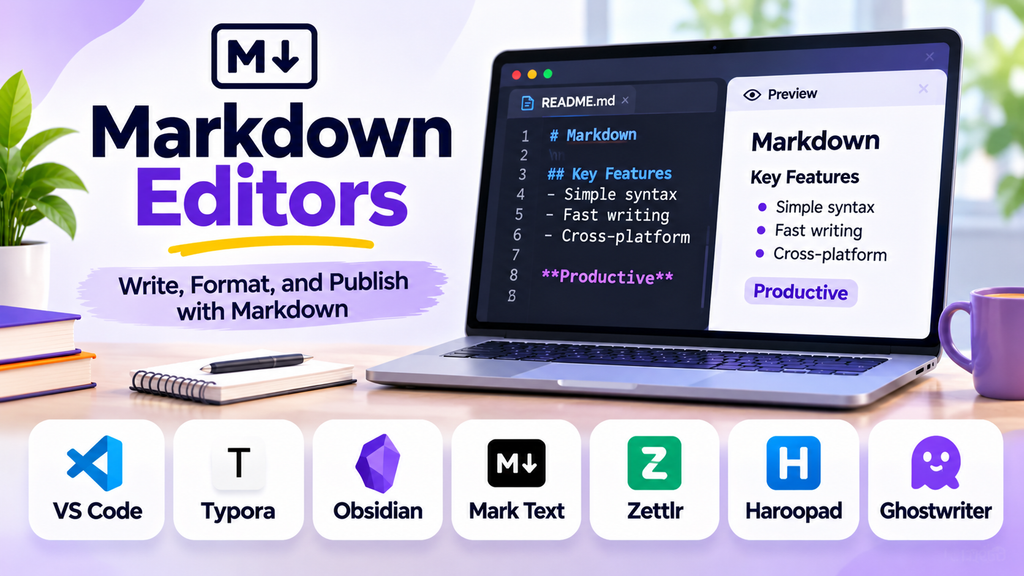
Markdown editors help users write and format content using a lightweight markup language. Instead of relying entirely on formatting menus, writers use simple symbols to create headings, lists, links, quotations, and code blocks. The result is readable plain text that can be converted into web content, documentation, notes, and other formats.
Markdown is widely used by developers, technical writers, bloggers, documentation teams, and students. The right editor can make writing faster by combining a clean writing environment with live previews, syntax highlighting, file management, and export options.
What Is a Markdown Editor?
A Markdown editor is an application designed to create or edit files written in Markdown syntax, commonly saved with the .md or .markdown extension. Some editors display the raw syntax, while others provide a live preview or a split-screen view showing both the source and its formatted appearance.
For example, typing ## Project Overview creates a second-level heading in Markdown. A line beginning with a hyphen creates a bulleted list, while backticks can format inline code.
Markdown editors are commonly used for:
- Technical documentation and README files
- Blog posts and web publishing drafts
- Project notes and knowledge bases
- Software documentation and tutorials
- Meeting notes and research summaries
- Writing that needs to be portable across tools
Popular Markdown Editors
1. Visual Studio Code
Visual Studio Code is a flexible code editor with built-in Markdown editing and preview capabilities. Extensions can add linting, diagrams, formatting, and publishing workflows. It is especially useful for developers and technical writers who want Markdown alongside code and project files.
2. Typora
Typora offers a clean writing environment that presents Markdown with a more document-like appearance. Its interface is designed to reduce the visual distraction of raw markup while retaining Markdown’s simplicity. It can appeal to writers who prefer a focused editing experience.
3. Obsidian
Obsidian uses local Markdown files as the foundation for a linked knowledge base. Users can connect notes, organize folders, and extend functionality through plugins. It is a strong candidate for personal knowledge management, research, and long-term note collections.
4. MarkText
MarkText is an open-source Markdown editor focused on a distraction-reduced writing experience and live formatting. It may suit users who want a dedicated writing application rather than a full development environment. Check current maintenance status and compatibility before adopting it for an important workflow.
5. Zettlr
Zettlr is aimed at researchers, academic writers, and people managing longer writing projects. Its Markdown-based workflow can help organize documents and references. Users with specialized academic needs should verify that its citation and export features match their requirements.
6. iA Writer
iA Writer emphasizes focused writing, typography, and a minimal interface. Its Markdown-oriented approach can suit authors who want to concentrate on drafting rather than configuring a large workspace. Check platform support and export requirements before choosing it.
7. Ghostwriter
Ghostwriter is a distraction-free Markdown writing application with preview and writing-focused features. It can be useful for authors who prefer a simple desktop editor. Confirm operating-system compatibility and current project support for your environment.
8. Dillinger
Dillinger is a browser-based Markdown editor that provides a convenient way to write and preview Markdown without setting up a desktop development environment. It can be useful for quick drafts and lightweight editing, subject to current browser and integration support.
Markdown Editors Compared
| Editor | Best suited for | Key consideration |
|---|---|---|
| Visual Studio Code | Developers and technical documentation | Extensions and configuration |
| Typora | Focused document-style writing | Licensing and export needs |
| Obsidian | Linked notes and knowledge management | Plugin setup and file organization |
| MarkText | Dedicated Markdown writing | Current maintenance and compatibility |
| Zettlr | Research and long-form writing | Citation and academic workflows |
| iA Writer | Distraction-free drafting | Platform and subscription requirements |
| Ghostwriter | Simple desktop writing | Operating-system support |
| Dillinger | Quick browser-based editing | Browser workflow and integration needs |
Features, licensing, and supported platforms can change. Verify current product details before standardizing on an editor.
Essential Features to Look For
Live preview
A preview lets you check how headings, lists, tables, links, and code blocks will appear after rendering. Split-screen previews are particularly helpful for technical documents and complex formatting.
Syntax highlighting and editing assistance
Highlighting makes Markdown structures easier to identify. Linting and formatting tools can help maintain consistent spacing, heading levels, and document conventions.
File and folder management
For projects with many files, look for workspace navigation, search, tabs, and reliable handling of relative links and attachments.
Export and publishing
Depending on the editor, content may be exported to HTML, PDF, or other document formats. Check whether exports preserve tables, images, code blocks, and other formatting you rely on.
Extensions and integrations
Some workflows benefit from spell-checking, diagrams, version control, reference management, or publishing integrations. Add only the extensions that solve a real need, especially when working with sensitive content.
Portability and backups
One advantage of Markdown is that files are plain text and can be opened in many editors. Still, images, attachments, plugins, and application-specific features may not transfer automatically. Keep backups and test migration before changing tools.
How to Choose the Right Markdown Editor
For developers: Consider Visual Studio Code if you want Markdown, source code, version control, and extensions in one workspace.
For bloggers and content writers: Prioritize distraction-free writing, preview accuracy, spell-checking, and convenient export or publishing workflows.
For researchers: Look for citation support, long-document organization, cross-references, and export formats compatible with your submission process.
For personal knowledge management: Consider a local-file workflow with links, search, and optional plugins, such as the approach used by Obsidian.
For occasional Markdown tasks: A lightweight or browser-based editor may be sufficient if you do not need advanced project features.
Markdown Best Practices
- Use heading levels in a logical order.
- Keep headings descriptive and concise.
- Use blank lines to separate paragraphs and blocks.
- Add meaningful link text instead of vague phrases.
- Use fenced code blocks for code and specify a language when appropriate.
- Keep tables simple so they remain readable on small screens.
- Preview the rendered document before publishing.
- Store images and attachments in a clear folder structure.
- Back up important files and use version control when appropriate.
Consistent Markdown improves readability and makes documents easier to maintain across editors and publishing systems.
Common Mistakes to Avoid
- Mixing heading levels inconsistently
- Forgetting blank lines around lists or code blocks
- Assuming every editor supports the same Markdown extensions
- Using complex tables that are difficult to read on mobile
- Relying on application-specific features without checking portability
- Publishing without checking links, images, and rendered formatting
Frequently Asked Questions
Is Markdown difficult to learn?
No. Basic Markdown uses a small set of symbols for headings, lists, links, emphasis, and code. Most users can learn the essentials quickly through practice.
What is the difference between a Markdown editor and a word processor?
A word processor typically emphasizes direct formatting through a visual interface. A Markdown editor focuses on lightweight text syntax, often with a preview that shows the rendered result. Some Markdown editors offer a more visual writing experience.
Can Markdown be converted to PDF or HTML?
Many Markdown tools support export or conversion to formats such as HTML and PDF. The available options and rendering quality depend on the editor and any additional software it uses.
Is Markdown suitable for technical documentation?
Yes. It is widely used for README files, guides, tutorials, and other technical documents because it is lightweight, readable, and compatible with version-control workflows.
Can I edit Markdown files without an internet connection?
Many desktop Markdown editors work offline. Browser-based tools may require connectivity or have limited offline functionality, so check the editor’s requirements if offline access matters.
Conclusion
Markdown editors offer a practical way to create portable, structured content without the overhead of traditional document formatting. Visual Studio Code, Typora, Obsidian, MarkText, Zettlr, iA Writer, Ghostwriter, and Dillinger serve different needs, from technical documentation and research to focused writing and quick edits.
