Upgrade & Secure Your Future with DevOps, SRE, DevSecOps, MLOps!
We spend hours scrolling social media and waste money on things we forget, but won’t spend 30 minutes a day earning certifications that can change our lives.
Master in DevOps, SRE, DevSecOps & MLOps by DevOps School!
Learn from Guru Rajesh Kumar and double your salary in just one year.
Introduction
Vector illustration tools help designers create artwork using scalable paths, shapes, curves, lines, typography, and editable objects instead of fixed pixels. This means logos, icons, brand graphics, app illustrations, infographics, packaging artwork, marketing visuals, and UI assets can be resized without losing quality.
Vector illustration matters more now because teams need design assets for websites, mobile apps, social media, video, print, product interfaces, documentation, and AI-assisted creative workflows. Modern tools are no longer only for professional illustrators. They now support freelancers, marketing teams, product designers, content creators, educators, and enterprise design teams.
Common use cases include:
- Logo and brand identity design
- Icon and illustration systems
- UI/UX graphics and product visuals
- Marketing banners and campaign assets
- Print-ready packaging, posters, and brochures
Buyers should evaluate:
- Drawing and path-editing depth
- Ease of use
- File format compatibility
- Collaboration features
- Export options
- AI-assisted design features
- Performance with large files
- Platform support
- Pricing model
- Security and admin controls
Best for: designers, illustrators, marketers, UI/UX teams, agencies, freelancers, creative studios, startups, SMBs, and enterprises that need scalable visual assets.
Not ideal for: users who only need basic photo editing, quick social posts, or simple template-based designs. In those cases, photo editors or lightweight design platforms may be easier.
Key Trends in Vector Illustration Tools
- AI-assisted illustration workflows are becoming more common, helping with shape generation, recoloring, background removal, image expansion, and creative variations.
- Collaboration-first design is growing as design teams work across marketing, product, engineering, and brand departments.
- Browser-based creative tools are becoming stronger, reducing dependency on heavy desktop-only software.
- Vector plus raster workflows are merging, allowing designers to combine illustrations, images, textures, and layouts in one place.
- Design system support is more important for teams creating reusable icons, components, and brand assets.
- Cloud storage and version control are becoming important for distributed teams.
- Cross-platform availability matters more because designers work across Windows, macOS, iPad, web, and mobile devices.
- Security and compliance expectations are rising, especially for enterprise design teams handling confidential product, brand, and campaign assets.
- Export flexibility remains critical, especially for SVG, PDF, PNG, EPS, and web-ready formats.
- Pricing pressure is increasing as users compare subscription tools, free tools, open-source tools, and one-time purchase options.
How We Selected These Tools
The tools in this list were selected using practical buyer-focused criteria:
- Market adoption and recognition among designers and creative teams
- Strength of vector drawing, path editing, typography, and export features
- Fit for different users, including freelancers, agencies, SMBs, and enterprises
- Platform availability across desktop, web, and mobile
- Collaboration and cloud workflow support
- Integration with design, marketing, and development ecosystems
- Performance for professional design files
- Learning curve and onboarding quality
- Security posture where publicly clear
- Long-term value based on pricing, community, and ecosystem maturity
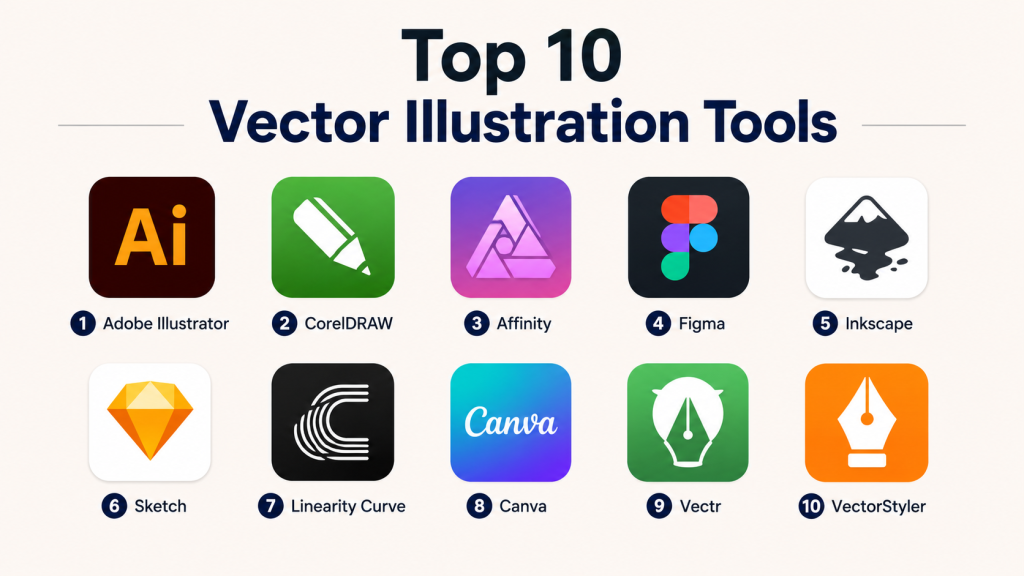
Top 10 Vector Illustration Tools
#1 — Adobe Illustrator
Short description: Adobe Illustrator is one of the most recognized professional vector illustration tools for logos, icons, packaging, branding, typography, and complex artwork. It is widely used by agencies, enterprise creative teams, and professional designers.
Key Features
- Advanced pen, path, curve, and shape tools
- Strong typography and text-on-path support
- Professional logo and brand design workflows
- Wide export support including SVG, PDF, PNG, and EPS
- Integration with Adobe Creative Cloud
- AI-assisted creative features in newer workflows
- Strong print and production design support
Pros
- Industry-standard tool with deep professional features
- Excellent for branding, illustration, and print-ready artwork
- Strong ecosystem with tutorials, plugins, and creative integrations
Cons
- Subscription pricing may be expensive for some users
- Learning curve can be high for beginners
- Can feel heavy for simple vector tasks
Platforms / Deployment
Windows / macOS / iPad
Cloud / Desktop
Security & Compliance
Adobe enterprise plans commonly include admin controls, identity management, and security features. Specific compliance details vary by plan.
SOC 2 / ISO 27001 / HIPAA: Not publicly stated for Illustrator specifically.
Integrations & Ecosystem
Adobe Illustrator works best inside the Adobe ecosystem and connects well with creative, publishing, animation, and marketing workflows.
- Adobe Photoshop
- Adobe InDesign
- Adobe After Effects
- Adobe Express
- Creative Cloud Libraries
- Plugin marketplace
Support & Community
Adobe has strong documentation, tutorials, community forums, training resources, and enterprise support options. The learning ecosystem is one of the strongest in the category.
#2 — CorelDRAW
Short description: CorelDRAW is a professional vector design suite used for illustration, signage, print design, layout, branding, and production graphics. It is popular among print shops, sign makers, and commercial design teams.
Key Features
- Vector illustration and layout tools
- Strong print production workflows
- Page layout and typography support
- Color management features
- File format compatibility
- Templates and design assets
- Tools for signage and commercial graphics
Pros
- Strong choice for print, signage, and production design
- Good balance of illustration and page layout
- Mature toolset for professional users
Cons
- Interface may feel less modern to some users
- Pricing can be high for casual users
- Collaboration features are not as strong as cloud-first tools
Platforms / Deployment
Windows / macOS / Web options may vary
Desktop / Cloud-assisted
Security & Compliance
Not publicly stated.
Integrations & Ecosystem
CorelDRAW supports common creative and production workflows, especially for print and signage environments.
- PDF workflows
- Print production systems
- Font management workflows
- Asset libraries
- File import/export formats
- Commercial printing workflows
Support & Community
CorelDRAW has documentation, tutorials, customer support, and a long-standing professional user base. Community strength is solid, especially in print and signage markets.
#3 — Affinity
Short description: Affinity is a professional creative design platform used for vector illustration, photo editing, and layout workflows. It is suitable for designers who want strong creative tools without depending fully on traditional subscription software.
Key Features
- Vector drawing and illustration tools
- Pixel and vector workflow support
- Professional typography and layout features
- Smooth performance for many design tasks
- Export support for common design formats
- Canva ecosystem connection
- Useful for branding, marketing, and digital assets
Pros
- Strong value for professional designers
- Good performance and clean interface
- Useful for both vector and broader creative work
Cons
- Enterprise collaboration features may be limited compared with cloud-first tools
- Some workflows differ from Adobe tools
- Plugin ecosystem is smaller than Adobe Illustrator
Platforms / Deployment
Windows / macOS
Desktop / Cloud-assisted
Security & Compliance
Not publicly stated.
Integrations & Ecosystem
Affinity is useful for designers who want a connected creative workflow across illustration, image editing, and layout.
- Canva workflow connection
- PDF export
- SVG export
- Print-ready file workflows
- Creative asset workflows
- Cross-app design workflow
Support & Community
Affinity has growing documentation, tutorials, community resources, and a strong base of independent designers and creative professionals.
#4 — Figma
Short description: Figma is a collaborative design platform widely used for UI design, product design, vector graphics, design systems, and team-based creative workflows. It is especially strong for browser-based collaboration.
Key Features
- Browser-based vector editing
- Real-time collaboration
- Components and design systems
- Figma Draw and illustration workflows
- Prototyping and UI design features
- Developer handoff tools
- Plugins and community templates
Pros
- Excellent for team collaboration
- Strong for UI, product, and digital design assets
- Works well across departments and remote teams
Cons
- Not as deep as Illustrator for advanced illustration and print work
- Some advanced features may require higher plans
- Cloud dependency may not suit every organization
Platforms / Deployment
Web / Windows / macOS
Cloud
Security & Compliance
Figma provides enterprise-grade security controls and has publicly stated SOC 2 Type II and ISO 27001-related security posture for its platform. Plan-level features may vary.
Integrations & Ecosystem
Figma has one of the strongest modern design ecosystems for product teams.
- FigJam
- Developer handoff workflows
- Plugin marketplace
- Design system libraries
- Slack-style team workflows
- Product and engineering collaboration tools
Support & Community
Figma has strong documentation, a large community, templates, plugins, learning content, and enterprise support options.
#5 — Inkscape
Short description: Inkscape is a free and open-source vector graphics editor used for illustration, icons, diagrams, logos, and SVG-based design. It is a strong option for users who want capable vector tools without paid licensing.
Key Features
- SVG-native vector editing
- Path, shape, node, and curve tools
- Text and typography support
- Object alignment and transformation
- Extension support
- Cross-platform desktop availability
- Free and open-source licensing
Pros
- Free and open-source
- Strong SVG support
- Good for students, hobbyists, and budget-conscious teams
Cons
- Interface can feel less polished than premium tools
- Collaboration features are limited
- Performance may vary with complex files
Platforms / Deployment
Windows / macOS / Linux
Desktop / Self-hosted not applicable
Security & Compliance
Not publicly stated.
Integrations & Ecosystem
Inkscape works well in open design and SVG workflows.
- SVG workflows
- PDF export
- Open-source extensions
- Font tools
- Web graphics workflows
- Linux creative workflows
Support & Community
Inkscape has strong community support, documentation, forums, tutorials, and open-source contributor activity.
#6 — Sketch
Short description: Sketch is a design tool known for UI design, vector-based interface design, symbols, reusable components, and digital product workflows. It is especially popular among macOS-based design teams.
Key Features
- Vector-based UI design
- Symbols and reusable components
- Design system workflows
- Prototyping support
- Developer handoff
- Plugin ecosystem
- Cloud collaboration features
Pros
- Strong for UI and product design
- Clean macOS-native experience
- Mature design system support
Cons
- Primarily macOS-focused
- Not ideal for advanced print illustration
- Collaboration is not as universal as browser-first tools
Platforms / Deployment
macOS / Web viewer and collaboration features
Hybrid
Security & Compliance
Not publicly stated.
Integrations & Ecosystem
Sketch has a strong UI design ecosystem and supports many product design workflows.
- Plugin ecosystem
- Design handoff tools
- Cloud sharing
- Design systems
- Prototyping workflows
- Export workflows
Support & Community
Sketch has strong documentation, tutorials, community resources, and a long history in digital product design.
#7 — Linearity Curve
Short description: Linearity Curve is a vector design tool focused on illustration, marketing visuals, branding, and creative content creation. It is suitable for designers who want a modern interface and flexible vector workflow.
Key Features
- Vector illustration tools
- Shape and path editing
- Templates and design assets
- Marketing and social media design workflows
- Cross-device creative support
- Export options
- Modern interface for faster design work
Pros
- Easy to learn compared with heavier tools
- Good for marketing and creative assets
- Modern workflow for individual creators
Cons
- May not match Illustrator for deep professional production
- Enterprise controls may be limited
- Advanced print workflows may not be the main focus
Platforms / Deployment
macOS / iPad / iPhone / Web options may vary
Cloud-assisted
Security & Compliance
Not publicly stated.
Integrations & Ecosystem
Linearity Curve fits creative content and marketing workflows.
- Social design workflows
- Export formats
- Asset libraries
- Brand visuals
- Creative templates
- Mobile creative workflows
Support & Community
Documentation and learning resources are available. Community strength is growing, especially among digital creators and marketers.
#8 — Canva
Short description: Canva is a browser-based design platform used for marketing graphics, social media visuals, presentations, simple illustrations, brand kits, and team-based content creation. It is not a pure professional vector editor, but it is useful for fast visual production.
Key Features
- Template-based design
- Basic vector and shape tools
- Brand kit support
- Team collaboration
- AI-assisted design features
- Huge asset library
- Easy publishing and export workflows
Pros
- Very easy for non-designers
- Fast for marketing and social content
- Strong collaboration and template workflows
Cons
- Not ideal for advanced vector illustration
- Less control than professional vector editors
- Some assets and features depend on paid plans
Platforms / Deployment
Web / iOS / Android / Windows / macOS
Cloud
Security & Compliance
Canva offers team and enterprise controls, but specific compliance details vary by plan.
SOC 2 / ISO 27001 / HIPAA: Not publicly stated here.
Integrations & Ecosystem
Canva works well for marketing, content, and brand teams.
- Brand kits
- Social media publishing workflows
- Presentation workflows
- Stock assets
- Team templates
- Canva ecosystem integrations
Support & Community
Canva has strong help resources, tutorials, templates, onboarding content, and a large user community.
#9 — Vectr
Short description: Vectr is a simple vector graphics tool for users who need lightweight illustration, icons, diagrams, and basic web graphics. It is best for beginners or quick vector editing.
Key Features
- Simple vector editing
- Shape and text tools
- Web-based access
- Basic export options
- Lightweight interface
- Beginner-friendly workflow
- Useful for quick graphics
Pros
- Easy to use
- Good for basic vector work
- Lightweight compared with professional tools
Cons
- Limited advanced illustration features
- Not ideal for professional production design
- Smaller ecosystem and community
Platforms / Deployment
Web / Desktop availability may vary
Cloud
Security & Compliance
Not publicly stated.
Integrations & Ecosystem
Vectr is mainly useful for simple graphics and lightweight workflows.
- Web graphics
- Basic exports
- Simple diagrams
- Lightweight collaboration
- Beginner design workflows
Support & Community
Support and community resources are more limited compared with larger tools. Suitable for simple use cases.
#10 — VectorStyler
Short description: VectorStyler is a professional vector graphics editor focused on detailed illustration, typography, path editing, effects, and advanced drawing control. It is suitable for designers who want deep vector editing outside mainstream suites.
Key Features
- Advanced vector drawing tools
- Detailed path and shape editing
- Typography tools
- Effects and appearance controls
- Professional export options
- Desktop-based workflow
- Good for precision illustration
Pros
- Strong feature depth for vector professionals
- Useful for detailed illustration control
- Alternative to larger commercial suites
Cons
- Smaller market presence
- Learning resources may be less extensive
- Collaboration features are limited
Platforms / Deployment
Windows / macOS
Desktop
Security & Compliance
Not publicly stated.
Integrations & Ecosystem
VectorStyler supports professional vector workflows but has a smaller ecosystem than Adobe or Figma.
- SVG workflows
- PDF workflows
- Print-ready exports
- Typography workflows
- Vector effects
- Desktop design pipelines
Support & Community
Support is available, but community size and third-party learning resources are smaller than mainstream tools.
Comparison Table
| Tool Name | Best For | Platform(s) Supported | Deployment | Standout Feature | Public Rating |
|---|---|---|---|---|---|
| Adobe Illustrator | Professional illustration and branding | Windows, macOS, iPad | Cloud / Desktop | Deep professional vector toolset | N/A |
| CorelDRAW | Print, signage, and production design | Windows, macOS | Desktop / Cloud-assisted | Strong print production workflow | N/A |
| Affinity | Professional design at strong value | Windows, macOS | Desktop / Cloud-assisted | Vector, photo, and layout workflow | N/A |
| Figma | Collaborative UI and product design | Web, Windows, macOS | Cloud | Real-time team collaboration | N/A |
| Inkscape | Free open-source vector editing | Windows, macOS, Linux | Desktop | SVG-native open-source editor | N/A |
| Sketch | macOS UI and design systems | macOS, Web viewer | Hybrid | Symbols and design system workflow | N/A |
| Linearity Curve | Modern creative illustration | macOS, iPad, iPhone | Cloud-assisted | Fast creative vector workflow | N/A |
| Canva | Marketing and template-based visuals | Web, iOS, Android, Windows, macOS | Cloud | Easy templates and brand assets | N/A |
| Vectr | Simple beginner vector graphics | Web, desktop availability varies | Cloud | Lightweight vector editing | N/A |
| VectorStyler | Advanced vector control | Windows, macOS | Desktop | Detailed vector editing features | N/A |
Evaluation & Scoring of Vector Illustration Tools
| Tool Name | Core (25%) | Ease (15%) | Integrations (15%) | Security (10%) | Performance (10%) | Support (10%) | Value (15%) | Weighted Total |
|---|---|---|---|---|---|---|---|---|
| Adobe Illustrator | 10 | 7 | 10 | 8 | 9 | 10 | 7 | 8.85 |
| CorelDRAW | 9 | 7 | 8 | 6 | 8 | 8 | 7 | 7.75 |
| Affinity | 8 | 8 | 7 | 5 | 8 | 7 | 9 | 7.60 |
| Figma | 8 | 9 | 10 | 9 | 8 | 9 | 8 | 8.65 |
| Inkscape | 7 | 6 | 6 | 4 | 7 | 8 | 10 | 6.95 |
| Sketch | 8 | 8 | 8 | 6 | 8 | 8 | 7 | 7.65 |
| Linearity Curve | 7 | 9 | 6 | 5 | 7 | 6 | 8 | 6.95 |
| Canva | 6 | 10 | 9 | 7 | 8 | 8 | 8 | 7.80 |
| Vectr | 5 | 9 | 4 | 4 | 6 | 5 | 8 | 5.95 |
| VectorStyler | 8 | 6 | 5 | 4 | 7 | 5 | 7 | 6.35 |
These scores are comparative, not absolute. A higher score does not always mean the tool is best for every user. For example, Canva scores high for ease of use, while Illustrator scores high for professional vector depth. Enterprise teams should weigh security, admin controls, and integrations more heavily. Freelancers may care more about value, speed, and export quality.
Which Vector Illustration Tool Is Right for You?
Solo / Freelancer
Freelancers should choose based on budget, learning curve, and client file requirements. Adobe Illustrator is best when clients expect industry-standard files. Affinity is strong for professional work with good value. Inkscape is useful when cost is the biggest concern.
SMB
Small businesses usually need fast content creation, brand assets, and easy collaboration. Canva is strong for marketing teams. Figma is better for product and UI teams. Affinity or CorelDRAW can work well for in-house designers handling brand and print assets.
Mid-Market
Mid-market teams need stronger collaboration, asset consistency, and integration with business workflows. Figma is strong for product design teams. Adobe Illustrator is better for advanced creative production. Canva can support non-design teams that need approved templates.
Enterprise
Enterprises should evaluate admin controls, identity management, audit needs, file governance, security posture, and support tiers. Adobe Illustrator and Figma are often strong enterprise choices, depending on whether the need is creative production or collaborative product design.
Budget vs Premium
Choose Inkscape if you need a free open-source option. Choose Affinity if you want strong professional value. Choose Adobe Illustrator or CorelDRAW if premium production features matter more than cost.
Feature Depth vs Ease of Use
Adobe Illustrator, CorelDRAW, and VectorStyler offer stronger depth. Canva, Vectr, and Linearity Curve are easier for beginners. Figma balances ease with team collaboration.
Integrations & Scalability
Figma and Adobe Illustrator are stronger for scalable team workflows. Canva is useful for marketing operations. Sketch works well in macOS-based product design environments.
Security & Compliance Needs
Enterprise buyers should prioritize Figma and Adobe enterprise plans where security controls are clearer. For tools with limited public compliance information, ask vendors directly about SSO, MFA, RBAC, audit logs, encryption, and data retention.
Frequently Asked Questions
What is vector illustration software?
Vector illustration software lets users create graphics using editable lines, curves, shapes, and paths. These graphics can be resized without losing quality, making them ideal for logos, icons, and professional design assets.
Which vector illustration tool is best for professionals?
Adobe Illustrator is often the strongest choice for advanced professional illustration, branding, and production design. CorelDRAW is also strong for print, signage, and commercial graphics.
Which tool is best for beginners?
Canva, Vectr, and Linearity Curve are easier for beginners. They offer simpler interfaces and faster workflows than advanced professional tools.
Is Inkscape good enough for professional work?
Inkscape can be used for serious vector work, especially SVG-based graphics. However, some professional teams may still prefer Illustrator, CorelDRAW, or Affinity for production workflows and compatibility.
What is the best tool for UI design?
Figma and Sketch are strong choices for UI design. Figma is especially useful for real-time collaboration and design systems.
Are AI features important in vector illustration tools?
AI features are useful for speeding up repetitive tasks, generating ideas, editing images, and creating variations. However, strong drawing control, export quality, and file compatibility are still more important for professional vector work.
What are common mistakes when choosing vector software?
Common mistakes include choosing only by price, ignoring file compatibility, not checking export needs, overlooking team collaboration, and failing to test performance with real design files.
How much do vector illustration tools cost?
Pricing varies widely. Some tools are free, some use subscriptions, and some offer one-time or plan-based pricing. If pricing is unclear, treat it as Varies / N/A and confirm directly before buying.
Can I switch from Illustrator to another tool?
Yes, but switching requires testing file compatibility, export quality, fonts, effects, and team workflows. Complex Illustrator files may not always transfer perfectly.
Which tool is best for marketing teams?
Canva is strong for marketing teams that need fast branded content. Adobe Illustrator is better when the team needs custom professional artwork.
Which tool is best for enterprises?
Figma and Adobe Illustrator are strong enterprise candidates, depending on the workflow. Enterprises should validate admin controls, SSO, audit logs, compliance, and support before purchase.
Are browser-based vector tools reliable?
Browser-based tools are reliable for many modern workflows, especially collaboration and lightweight design. For very complex files, desktop tools may still offer better control and performance.
Conclusion
Vector illustration tools are not one-size-fits-all. Adobe Illustrator remains a strong choice for professional illustration and brand production. CorelDRAW is practical for print and signage. Affinity offers strong value for professional creative work. Figma is excellent for collaborative product and UI design. Inkscape is a capable free option, while Canva helps non-designers and marketing teams create visuals quickly.
