Upgrade & Secure Your Future with DevOps, SRE, DevSecOps, MLOps!
We spend hours scrolling social media and waste money on things we forget, but won’t spend 30 minutes a day earning certifications that can change our lives.
Master in DevOps, SRE, DevSecOps & MLOps by DevOps School!
Learn from Guru Rajesh Kumar and double your salary in just one year.
Introduction
Screen recording software helps users capture activity on their computer, browser, mobile screen, webcam, microphone, or system audio. In simple words, it lets you record what is happening on your screen and turn it into a video for training, tutorials, demos, support, product walkthroughs, online courses, meetings, and documentation.
Screen recording matters now because teams are working across remote, hybrid, and global environments. Instead of explaining the same process again and again, users can record a short video and share it with clients, employees, students, or team members. Modern tools now include AI summaries, automatic captions, editing, cloud sharing, privacy controls, and integrations with workplace apps.
Common use cases include:
- Product demos and software tutorials
- Employee training and onboarding
- Customer support walkthroughs
- Online course creation
- Bug reporting and QA feedback
- Meeting summaries and async team updates
Buyers should evaluate:
- Recording quality
- Audio and webcam support
- Editing tools
- Cloud sharing
- Privacy controls
- AI captions and summaries
- Integrations
- Storage limits
- Team management
- Pricing and value
Best for: trainers, educators, product teams, customer support teams, marketers, software companies, freelancers, creators, HR teams, and remote teams.
Not ideal for: users who only need one-time basic recording. In that case, built-in tools on Windows, macOS, or mobile devices may be enough.
Key Trends in Screen Recording Software
- AI summaries are becoming common so viewers can quickly understand long recordings.
- Automatic captions are now expected for accessibility, training, and global team communication.
- Async video communication is growing because teams want fewer meetings and faster explanations.
- Browser-based recording is becoming more popular because users want fast recording without heavy installation.
- Privacy controls matter more as teams record client data, internal tools, dashboards, and product information.
- Screen recording plus editing is becoming one workflow with trimming, blur, callouts, zoom effects, and annotations.
- Integrations with Slack, Teams, Notion, Jira, GitHub, and helpdesk tools are important for daily business use.
- Cloud storage and shareable links are now standard for team-based recording workflows.
- Enterprise buyers expect admin controls such as SSO, user management, access permissions, and audit features.
- Creator-friendly tools now include templates, webcam overlays, branding, and simple export presets.
How We Selected These Tools
The tools were selected based on real-world usefulness across creators, businesses, support teams, educators, product teams, and enterprises.
Selection factors included:
- Market adoption and user recognition
- Recording quality and reliability
- Ease of use for beginners and teams
- Editing and annotation features
- Cloud sharing and collaboration options
- AI features such as captions, summaries, and transcription
- Platform support across web, desktop, and mobile
- Integration ecosystem
- Security and privacy controls where available
- Fit for freelancers, SMBs, mid-market teams, and enterprises
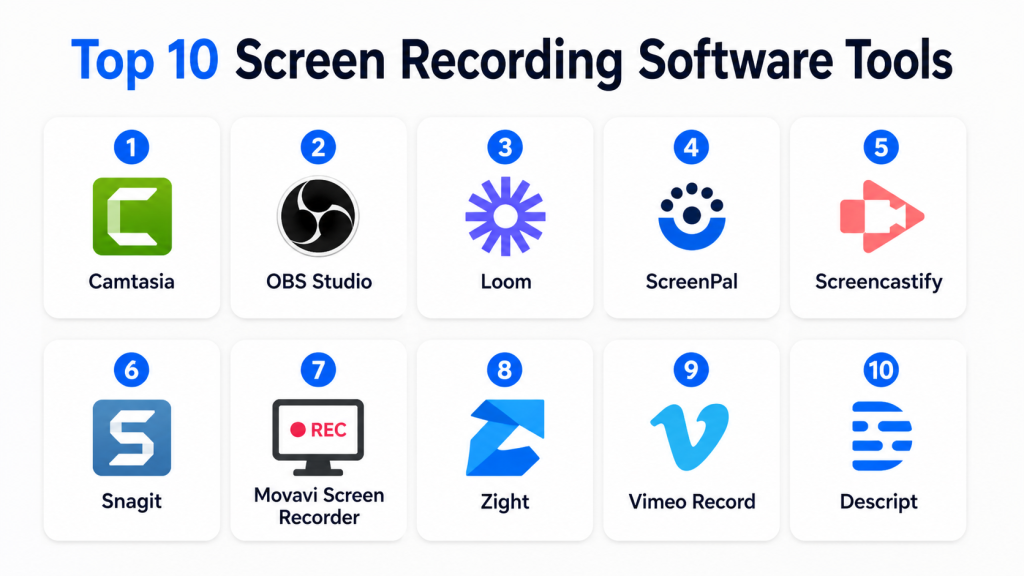
Top 10 Screen Recording Software Tools
#1 — Camtasia
Short description: Camtasia is a screen recording and video editing tool built for tutorials, training videos, demos, and educational content. It is best for users who need both recording and polished editing in one place.
Key Features
- Screen and webcam recording
- Built-in video editor
- Cursor effects and callouts
- Templates and themes
- Audio editing tools
- Captions and annotations
- Export options for training and marketing videos
Pros
- Strong editing tools for training content
- Beginner-friendly compared with complex video editors
- Good for polished tutorials and course videos
Cons
- Paid tool, so it may feel expensive for casual users
- Not ideal for live streaming
- Large projects may need strong hardware
Platforms / Deployment
Windows / macOS
Desktop deployment
Security & Compliance
Not publicly stated.
Integrations & Ecosystem
Camtasia works well for training, education, and business video workflows.
- PowerPoint import
- Learning content workflows
- Local file export
- Cloud sharing options depending on plan
- Template libraries
- Audio and visual asset support
Support & Community
Camtasia has strong documentation, tutorials, onboarding resources, and a large learning-focused community.
#2 — OBS Studio
Short description: OBS Studio is a free and open-source screen recording and live streaming tool. It is widely used by creators, streamers, educators, gamers, and technical users who want flexible recording control.
Key Features
- Screen, window, and camera capture
- Live streaming support
- Scene-based recording setup
- Audio mixer
- Plugin ecosystem
- Custom recording settings
- Multi-source capture
Pros
- Free and open-source
- Very flexible for advanced users
- Strong for streaming and recording
Cons
- Learning curve can be high for beginners
- No built-in advanced video editor
- Setup may take time for professional results
Platforms / Deployment
Windows / macOS / Linux
Desktop deployment
Security & Compliance
Not publicly stated.
Integrations & Ecosystem
OBS Studio has a strong open-source ecosystem and works with many streaming and recording workflows.
- Streaming platforms
- Audio plugins
- Virtual camera tools
- Capture cards
- Scene plugins
- Community extensions
Support & Community
OBS has a large global community, strong documentation, forums, tutorials, and plugin support.
#3 — Loom
Short description: Loom is a cloud-based screen recording tool focused on async communication. It is useful for product demos, team updates, customer support, onboarding, and quick internal explanations.
Key Features
- Screen, webcam, and microphone recording
- Shareable video links
- Viewer comments and reactions
- AI-assisted summaries and titles depending on plan
- Team workspace features
- Browser extension and desktop app
- Basic editing and trimming
Pros
- Very easy to use
- Excellent for async team communication
- Fast sharing without manual exporting
Cons
- Advanced editing is limited
- Cloud storage depends on plan
- Not ideal for highly polished video production
Platforms / Deployment
Web / Windows / macOS / iOS / Android
Cloud deployment
Security & Compliance
Business and enterprise plans may include admin and access controls. Specific compliance details vary by plan.
SOC 2, ISO 27001, HIPAA: Not publicly stated here.
Integrations & Ecosystem
Loom fits well into modern team communication workflows.
- Slack
- Google Workspace
- Microsoft Teams
- Jira
- Notion
- CRM and helpdesk workflows
Support & Community
Loom provides documentation, onboarding resources, help articles, and support options depending on the plan.
#4 — ScreenPal
Short description: ScreenPal is a screen recording and video creation tool for educators, trainers, creators, and business users. It is designed for simple recording, editing, hosting, and sharing.
Key Features
- Screen and webcam recording
- Simple video editor
- Screenshot capture
- Captions and overlays
- Cloud hosting options
- Stock media and music options depending on plan
- Education-friendly workflows
Pros
- Easy for teachers and trainers
- Good mix of recording and editing
- Affordable for many small users
Cons
- Not as advanced as professional video editors
- Interface may feel basic for high-end creators
- Some useful features require paid plans
Platforms / Deployment
Web / Windows / macOS / iOS / Android
Cloud-supported desktop and web workflow
Security & Compliance
Not publicly stated.
Integrations & Ecosystem
ScreenPal works well for education, training, and simple business video workflows.
- Learning management workflows
- Cloud hosting
- Video sharing
- Captions
- Screenshot tools
- Classroom content workflows
Support & Community
ScreenPal offers help resources, tutorials, documentation, and support options depending on the plan.
#5 — Screencastify
Short description: Screencastify is a browser-based screen recorder popular with educators, students, trainers, and lightweight business users. It is especially useful for recording quick lessons, tutorials, and classroom videos.
Key Features
- Browser-based screen recording
- Webcam and microphone support
- Simple trimming and editing
- Easy sharing
- Education-focused workflows
- Viewer engagement options depending on plan
- Simple recording from Chrome
Pros
- Very easy for teachers and students
- Works well for quick browser-based recording
- Good for classroom and training use
Cons
- Not suitable for advanced editing
- Browser-based workflow may not fit every user
- Feature depth depends on plan
Platforms / Deployment
Web / Chrome-based workflow
Cloud deployment
Security & Compliance
Not publicly stated.
Integrations & Ecosystem
Screencastify is strongest in education and browser-based workflows.
- Google Workspace
- Classroom-style workflows
- Cloud storage workflows
- Browser recording
- Student assignments
- Simple sharing
Support & Community
Screencastify has education-focused documentation, onboarding materials, and support resources.
#6 — Snagit
Short description: Snagit is a screen capture and screen recording tool focused on quick visual communication. It is useful for documentation, support, training, screenshots, short videos, and process explanation.
Key Features
- Screenshot capture
- Screen recording
- Image annotation
- Scrolling capture
- Simple video trimming
- Templates for documentation
- Quick sharing options
Pros
- Excellent for screenshots and documentation
- Easy for business users
- Good for short support and training videos
Cons
- Not built for long-form video editing
- Limited advanced screen recording features
- Paid license may not suit casual users
Platforms / Deployment
Windows / macOS
Desktop deployment
Security & Compliance
Not publicly stated.
Integrations & Ecosystem
Snagit works well for documentation and knowledge-sharing workflows.
- Documentation tools
- Image editing workflows
- File export
- Cloud sharing options depending on setup
- Training content workflows
- Support ticket workflows
Support & Community
Snagit has strong documentation, tutorials, support resources, and a practical business-user community.
#7 — Movavi Screen Recorder
Short description: Movavi Screen Recorder is a simple desktop tool for recording screen activity, webcam, audio, tutorials, webinars, and online meetings. It is best for users who want a lightweight recording tool without complex setup.
Key Features
- Screen recording
- Webcam recording
- System audio and microphone capture
- Scheduled recording
- Basic trimming
- Screenshot capture
- Export to common video formats
Pros
- Easy to use
- Good for webinars and simple tutorials
- Lightweight compared with advanced video suites
Cons
- Limited advanced editing
- Not ideal for large team collaboration
- Some features depend on product edition
Platforms / Deployment
Windows / macOS
Desktop deployment
Security & Compliance
Not publicly stated.
Integrations & Ecosystem
Movavi works mainly as a standalone screen recording tool.
- Local file export
- Webcam workflows
- Webinar recording
- Basic editing
- Screenshot capture
- Video conversion workflows
Support & Community
Movavi provides product documentation, help resources, and customer support options depending on purchase plan.
#8 — Zight
Short description: Zight is a visual communication platform for screen recording, screenshots, GIFs, and quick sharing. It is useful for product teams, support teams, sales teams, and remote teams that need fast visual explanations.
Key Features
- Screen recording
- Screenshot capture
- GIF creation
- Webcam support
- Cloud sharing
- Annotations and markup
- Team collaboration features
Pros
- Good for quick visual communication
- Useful for customer support and product feedback
- Simple sharing for remote teams
Cons
- Not a full professional video editor
- Storage and team features depend on plan
- May be more than needed for one-time users
Platforms / Deployment
Web / Windows / macOS / iOS
Cloud deployment
Security & Compliance
Business plans may include team controls. Specific compliance details are not confidently stated here.
SOC 2, ISO 27001, HIPAA: Not publicly stated.
Integrations & Ecosystem
Zight fits well with product, engineering, and support communication workflows.
- Slack
- Jira
- Helpdesk workflows
- Cloud sharing
- Screenshot workflows
- Team communication tools
Support & Community
Zight provides help resources, documentation, and customer support options depending on the plan.
#9 — Vimeo Record
Short description: Vimeo Record is a screen and webcam recording tool connected with Vimeo’s video hosting and sharing ecosystem. It is useful for creators, marketers, trainers, and teams that already use video hosting workflows.
Key Features
- Screen and webcam recording
- Shareable video links
- Cloud hosting
- Viewer access controls depending on plan
- Basic trimming and sharing
- Team video workflows
- Video library support
Pros
- Good for users already using Vimeo
- Simple recording and sharing
- Useful for business video hosting workflows
Cons
- Editing depth is limited
- Best value depends on Vimeo plan
- Not ideal for advanced recording customization
Platforms / Deployment
Web / Browser-based workflow
Cloud deployment
Security & Compliance
Security controls vary by Vimeo plan.
SOC 2, ISO 27001, HIPAA: Not publicly stated here.
Integrations & Ecosystem
Vimeo Record works best when connected to video hosting, review, and sharing workflows.
- Vimeo video library
- Team sharing
- Embed workflows
- Marketing video workflows
- Review and approval workflows
- Cloud hosting
Support & Community
Vimeo provides product support, help resources, tutorials, and plan-based support options.
#10 — Descript
Short description: Descript is a video and audio editing platform that also supports screen recording. It is useful for creators, marketers, podcasters, trainers, and teams that want transcript-based editing and AI-assisted content workflows.
Key Features
- Screen recording
- Transcript-based editing
- AI voice and audio tools depending on plan
- Captions and subtitles
- Video editing
- Filler word removal
- Collaboration features
Pros
- Excellent for editing recorded explanations
- Strong AI-assisted workflow
- Useful for creators and training teams
Cons
- Not focused only on screen recording
- Learning workflow may feel different from traditional editors
- Some AI and collaboration features depend on plan
Platforms / Deployment
Web / Windows / macOS
Cloud-supported desktop workflow
Security & Compliance
Business and enterprise controls vary by plan.
SOC 2, ISO 27001, HIPAA: Not publicly stated here.
Integrations & Ecosystem
Descript fits well into creator, marketing, podcasting, and training workflows.
- Cloud collaboration
- Audio editing
- Caption workflows
- Video publishing workflows
- Transcript export
- Team review workflows
Support & Community
Descript has documentation, tutorials, onboarding resources, and an active creator community.
Comparison Table
| Tool Name | Best For | Platform(s) Supported | Deployment | Standout Feature | Public Rating |
|---|---|---|---|---|---|
| Camtasia | Training videos and tutorials | Windows, macOS | Desktop | Recording plus full editing | N/A |
| OBS Studio | Streamers and technical users | Windows, macOS, Linux | Desktop | Free open-source recording and streaming | N/A |
| Loom | Async team communication | Web, Windows, macOS, iOS, Android | Cloud | Fast link-based video sharing | N/A |
| ScreenPal | Educators and trainers | Web, Windows, macOS, iOS, Android | Cloud-supported | Simple recording and editing | N/A |
| Screencastify | Teachers and students | Web | Cloud | Browser-based classroom recording | N/A |
| Snagit | Documentation and support | Windows, macOS | Desktop | Screenshot plus short recording | N/A |
| Movavi Screen Recorder | Simple desktop recording | Windows, macOS | Desktop | Easy webinar and screen capture | N/A |
| Zight | Product and support teams | Web, Windows, macOS, iOS | Cloud | Screenshots, GIFs, and video sharing | N/A |
| Vimeo Record | Video hosting users | Web | Cloud | Recording with video hosting workflow | N/A |
| Descript | Creators and content teams | Web, Windows, macOS | Cloud-supported | Transcript-based editing | N/A |
Evaluation & Scoring of Screen Recording Software
| Tool Name | Core (25%) | Ease (15%) | Integrations (15%) | Security (10%) | Performance (10%) | Support (10%) | Value (15%) | Weighted Total (0–10) |
|---|---|---|---|---|---|---|---|---|
| Camtasia | 9 | 8 | 7 | 6 | 8 | 8 | 7 | 7.75 |
| OBS Studio | 9 | 6 | 8 | 6 | 9 | 8 | 10 | 8.15 |
| Loom | 8 | 10 | 9 | 8 | 8 | 8 | 7 | 8.35 |
| ScreenPal | 7 | 9 | 7 | 6 | 7 | 7 | 8 | 7.40 |
| Screencastify | 6 | 9 | 7 | 6 | 7 | 7 | 7 | 7.00 |
| Snagit | 7 | 9 | 7 | 6 | 8 | 8 | 7 | 7.45 |
| Movavi Screen Recorder | 7 | 8 | 5 | 5 | 7 | 6 | 7 | 6.60 |
| Zight | 7 | 9 | 8 | 7 | 7 | 7 | 7 | 7.45 |
| Vimeo Record | 6 | 8 | 7 | 7 | 7 | 7 | 6 | 6.90 |
| Descript | 8 | 8 | 8 | 7 | 7 | 8 | 7 | 7.65 |
The scores are comparative and should not be treated as final buying advice. A tool with a lower score may still be the best choice for a specific use case. OBS Studio scores strongly for flexibility and value, but beginners may prefer Loom, Snagit, or ScreenPal. Enterprise teams should test security, admin controls, integrations, storage, and sharing workflows before choosing.
Which Screen Recording Software Tool Is Right for You?
Solo / Freelancer
Solo users usually need simple recording, fast editing, and affordable pricing. OBS Studio is a strong choice for users who want free and flexible recording. Camtasia is better for polished tutorials. Loom is better for quick client explanations. Descript is useful for creators who want transcript-based editing.
SMB
Small businesses need simple tools for training, support, demos, and internal communication. Loom, ScreenPal, Snagit, and Camtasia are practical options. If the team creates documentation, Snagit is very useful. If the team creates training videos, Camtasia or ScreenPal may be better.
Mid-Market
Mid-market teams need collaboration, user management, integrations, and consistent sharing. Loom, Zight, Descript, and Vimeo Record can be useful depending on the workflow. Product and support teams may prefer Zight. Marketing and content teams may prefer Descript or Vimeo Record.
Enterprise
Enterprise buyers should focus on admin controls, access permissions, security, cloud storage, compliance documentation, and integration with workplace tools. Loom, Zight, Vimeo Record, and Descript may fit enterprise communication workflows depending on plan. For controlled local recording, Camtasia or OBS Studio may also be useful.
Budget vs Premium
For free or low-cost needs, OBS Studio is a strong option. For premium polished training videos, Camtasia is better. For cloud sharing and team communication, Loom and Zight may provide more business value.
Feature Depth vs Ease of Use
Choose OBS Studio for deep recording control. Choose Camtasia for recording plus editing. Choose Loom for ease of sharing. Choose Snagit for screenshots and quick videos. Choose Descript if transcript-based editing matters.
Integrations & Scalability
Teams should check whether the tool connects with Slack, Teams, Jira, Notion, LMS platforms, cloud storage, helpdesk tools, and project management systems. Integration quality can save time when recordings are part of daily workflows.
Security & Compliance Needs
Security-focused teams should review SSO, MFA, RBAC, audit logs, encryption, admin controls, storage location, retention settings, and compliance documentation. Do not assume compliance unless it is clearly confirmed for your plan.
Frequently Asked Questions
1. What is screen recording software?
Screen recording software records your screen, webcam, microphone, and sometimes system audio. It is used to create tutorials, demos, training videos, support guides, and async updates.
2. Which screen recording software is best for beginners?
Loom, ScreenPal, Snagit, Screencastify, and Movavi Screen Recorder are beginner-friendly. They offer simple recording workflows without complex setup.
3. Which tool is best for professional training videos?
Camtasia is a strong option for professional training videos because it combines recording, editing, callouts, templates, and export options. ScreenPal can also work well for education and training.
4. Is OBS Studio good for screen recording?
Yes, OBS Studio is powerful and free. It is excellent for recording and streaming, but it may take more time to learn than simpler tools.
5. What pricing models are common?
Common pricing models include free plans, one-time licenses, monthly subscriptions, annual subscriptions, team plans, and enterprise pricing. Some tools also charge based on storage, AI features, or user seats.
6. What are common mistakes when choosing screen recording software?
Common mistakes include ignoring audio quality, choosing a tool without editing features, overlooking privacy settings, and selecting a tool that does not fit team sharing workflows.
7. Is cloud-based screen recording safe?
Cloud-based recording can be safe when proper access controls, permissions, and privacy settings are used. Teams should review storage, sharing, encryption, and admin controls before adoption.
8. Can screen recording software support large teams?
Yes, many tools support teams through workspaces, permissions, sharing controls, and integrations. Enterprise buyers should verify SSO, user management, audit controls, and support options.
9. What integrations should buyers look for?
Useful integrations include Slack, Microsoft Teams, Google Workspace, Jira, Notion, LMS platforms, helpdesk tools, cloud storage, and project management tools.
10. How hard is it to switch screen recording tools?
Switching is usually easy for basic recording, but harder if your team has many stored videos, shared links, branded templates, comments, folders, and training libraries.
11. Do I need editing features in screen recording software?
If you create tutorials, training videos, or customer-facing content, editing features are very useful. For quick internal updates, simple trimming may be enough.
12. What are good alternatives to paid screen recording tools?
OBS Studio, built-in Windows recording tools, built-in macOS recording tools, and basic browser recorders can be useful alternatives for simple recording needs.
Conclusion
Screen recording software has become a practical tool for modern work, learning, support, and content creation. The best tool depends on your use case. OBS Studio is powerful and free for advanced users. Camtasia is excellent for polished tutorials and training videos. Loom is strong for async team communication. Snagit is useful for documentation and short visual explanations. Descript is valuable for creators who want transcript-based editing.
