Upgrade & Secure Your Future with DevOps, SRE, DevSecOps, MLOps!
We spend hours scrolling social media and waste money on things we forget, but won’t spend 30 minutes a day earning certifications that can change our lives.
Master in DevOps, SRE, DevSecOps & MLOps by DevOps School!
Learn from Guru Rajesh Kumar and double your salary in just one year.
Introduction
Password managers help individuals and businesses store, create, share, and manage passwords securely. Instead of remembering many passwords or saving them in spreadsheets, users keep credentials inside an encrypted vault and access them with one strong master password or secure authentication method.
Password managers matter because teams now use many SaaS tools, cloud systems, admin portals, banking apps, developer tools, and customer platforms. Weak passwords, reused passwords, shared credentials, and unmanaged secrets can create serious security risks.
Common use cases include employee password storage, secure credential sharing, privileged account protection, family password management, contractor access, and business password policy enforcement.
Buyers should evaluate encryption model, MFA, SSO support, admin controls, audit logs, password sharing, device support, recovery options, breach monitoring, compliance readiness, and pricing.
Best for: Individuals, freelancers, SMBs, IT teams, security teams, agencies, enterprises, remote teams, and companies managing many shared accounts.
Not ideal for: Teams that already use fully passwordless identity systems, organizations needing only secrets management for infrastructure, or businesses that require advanced privileged access management instead of general password storage.
Key Trends in Password Managers
- Passkeys and passwordless login are becoming major additions to traditional password vaults.
- Business password managers are moving closer to identity security with SSO, SCIM, MFA, and directory integration.
- Credential sharing controls are becoming more important for agencies, IT teams, and remote workforces.
- Dark web and breach monitoring are now expected in many business plans.
- Device-wide support across browser, desktop, and mobile is becoming a baseline requirement.
- Admin visibility and audit logs are important for compliance and security reviews.
- Zero-knowledge encryption models remain a key buyer consideration.
- Developer and DevOps teams increasingly separate password managers from secrets management tools.
- AI-assisted security guidance may help users identify weak, reused, or risky credentials.
- Compliance-friendly reporting is becoming more important for regulated companies.
How We Selected These Tools
The tools below were selected using practical business and security evaluation criteria:
- Market recognition and common usage.
- Strength of password vault and credential sharing features.
- Security controls such as MFA, SSO, encryption, RBAC, and audit logs.
- Support for individuals, families, SMBs, and enterprises.
- Ease of use across browsers, desktops, and mobile apps.
- Admin controls for business password governance.
- Integrations with identity providers, directories, and business tools.
- Security monitoring features such as breach alerts and password health.
- Documentation, onboarding quality, and support availability.
- Overall value compared with usability and feature depth.
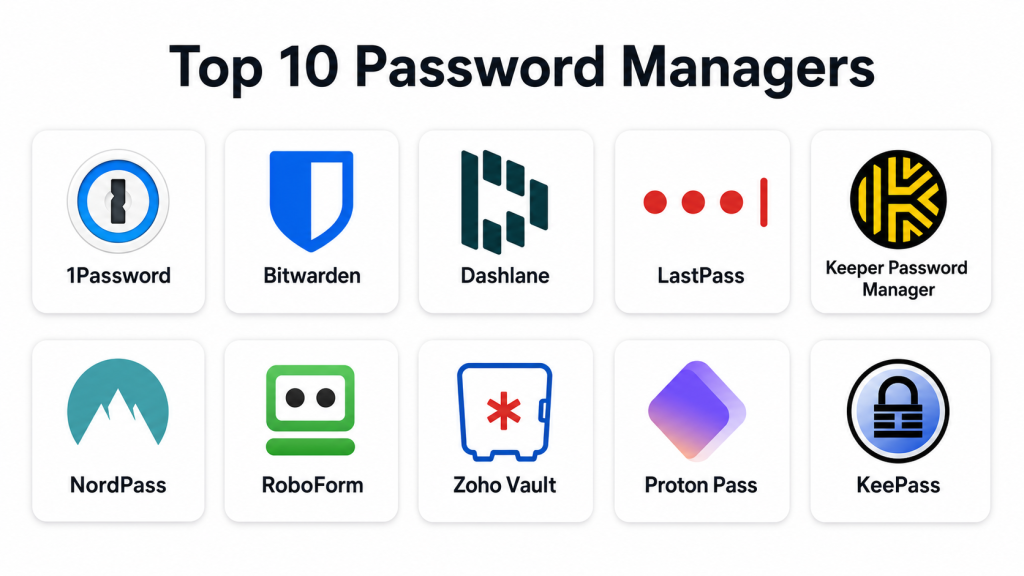
Top 10 Password Managers
#1 — 1Password
Short description: 1Password is a popular password manager for individuals, families, teams, and enterprises. It helps users store passwords, passkeys, secure notes, credit cards, documents, and shared credentials in encrypted vaults. It is known for strong usability, business controls, and cross-platform support. 1Password is a strong fit for companies that want a balance of security, ease of use, and team collaboration.
Key Features
- Encrypted password vaults.
- Secure password and item sharing.
- Support for passkeys and MFA workflows.
- Admin controls for teams and businesses.
- Watchtower alerts for weak or exposed credentials.
- Browser extensions and mobile apps.
- SSO and directory integration options for businesses.
Pros
- Very user-friendly for individuals and teams.
- Strong business features without feeling overly complex.
- Good cross-platform experience.
Cons
- Advanced business controls may require higher plans.
- Not a full privileged access management replacement.
- Some enterprise setup may need IT planning.
Platforms / Deployment
Web / Windows / macOS / Linux / iOS / Android / Cloud
Security & Compliance
MFA, encryption, audit logs, RBAC, SSO/SAML for business plans, SOC 2: commonly supported. Other compliance details may vary by plan and agreement.
Integrations & Ecosystem
1Password works well across business, browser, and identity workflows. It is commonly used by remote teams, agencies, SaaS companies, and security-conscious organizations.
- Browser extensions.
- Desktop and mobile apps.
- SSO providers.
- Directory tools.
- Developer workflows.
- Business admin controls.
Support & Community
1Password provides strong documentation, onboarding guides, business support, and an active user community.
#2 — Bitwarden
Short description: Bitwarden is a widely used password manager known for open-source transparency, flexible plans, and strong cross-platform support. It serves individuals, families, teams, and enterprises. Bitwarden supports cloud-hosted and self-hosted deployment options, making it attractive for technical teams. It is a strong choice for buyers who value affordability, openness, and control.
Key Features
- Open-source password manager.
- Cloud and self-hosted options.
- Secure vault sharing.
- MFA and SSO options for business plans.
- Browser, desktop, and mobile support.
- Password generator and vault health reports.
- Directory and enterprise policy options.
Pros
- Good value for individuals and businesses.
- Open-source model improves transparency.
- Self-hosting option is useful for technical teams.
Cons
- Interface may feel less polished than some premium tools.
- Self-hosting requires internal technical ownership.
- Advanced business setup may need configuration effort.
Platforms / Deployment
Web / Windows / macOS / Linux / iOS / Android / Cloud / Self-hosted / Hybrid
Security & Compliance
MFA, encryption, audit logs, RBAC, SSO/SAML for business plans, SOC 2: commonly supported. Other compliance details should be validated during procurement.
Integrations & Ecosystem
Bitwarden integrates with common business and identity environments and is popular with technical users.
- Browser extensions.
- Desktop and mobile apps.
- SSO providers.
- Directory services.
- CLI and developer tools.
- Self-hosted infrastructure.
Support & Community
Bitwarden has strong documentation, active open-source community support, and business support options depending on plan.
#3 — Dashlane
Short description: Dashlane is a password manager focused on simple password security, credential monitoring, and business-friendly password management. It is useful for individuals, small businesses, and teams that want an easy interface with strong security guidance. Dashlane helps users generate passwords, monitor password health, and share credentials securely. It is best for teams that value simplicity and fast adoption.
Key Features
- Password vault and autofill.
- Password health insights.
- Secure sharing.
- Dark web monitoring.
- MFA support.
- Admin dashboard for business plans.
- SSO options for business use cases.
Pros
- Easy to use for non-technical users.
- Good password health visibility.
- Useful for small teams and business users.
Cons
- Advanced enterprise depth may be limited compared with IAM-focused platforms.
- Some features depend on plan.
- Not designed for infrastructure secrets management.
Platforms / Deployment
Web / Windows / macOS / iOS / Android / Cloud
Security & Compliance
MFA, encryption, audit logs, SSO/SAML for business plans: commonly supported. Specific certifications should be validated during evaluation.
Integrations & Ecosystem
Dashlane fits well into business password management workflows where simplicity and password hygiene are priorities.
- Browser extensions.
- Desktop and mobile apps.
- SSO workflows.
- Admin dashboards.
- Security reporting.
- Business credential sharing.
Support & Community
Dashlane provides documentation, onboarding resources, customer support, and business support options depending on plan.
#4 — LastPass
Short description: LastPass is a long-established password manager for individuals, families, and businesses. It provides password vaults, autofill, sharing, MFA options, and admin controls. LastPass is commonly considered by teams that want a familiar password management solution with business features. Buyers should evaluate it carefully based on current security requirements, governance needs, and trust expectations.
Key Features
- Password vault and autofill.
- Secure credential sharing.
- MFA support.
- Admin console for business users.
- Password generator.
- Security dashboard.
- SSO and directory integration options for business plans.
Pros
- Familiar product category name.
- Offers business and individual plans.
- Broad platform support.
Cons
- Buyers may need careful security due diligence.
- Some advanced features may require business tiers.
- Trust and incident history should be evaluated by security teams.
Platforms / Deployment
Web / Windows / macOS / Linux / iOS / Android / Cloud
Security & Compliance
MFA, encryption, audit logs, SSO/SAML for business plans: commonly supported. Specific certifications and current security documentation should be validated during procurement.
Integrations & Ecosystem
LastPass supports common business password management and identity workflows.
- Browser extensions.
- Mobile apps.
- Business admin console.
- SSO providers.
- Directory integrations.
- Security reporting tools.
Support & Community
LastPass provides documentation, support resources, and business support depending on plan. Community discussion is broad due to long market presence.
#5 — Keeper Password Manager
Short description: Keeper is a password manager and security platform for individuals, businesses, MSPs, and enterprises. It provides encrypted password storage, secure sharing, privileged access-related features, dark web monitoring, and admin controls. Keeper is often used by security-conscious teams that want strong governance around credentials. It is a good fit for SMBs and enterprises needing structured password security.
Key Features
- Encrypted password vault.
- Secure sharing and role controls.
- Admin dashboard and policy enforcement.
- Dark web monitoring options.
- MFA support.
- Secrets and privileged credential options.
- Enterprise reporting and audit logs.
Pros
- Strong business and enterprise security controls.
- Good fit for teams needing credential governance.
- Broad device and platform support.
Cons
- Feature packaging may require careful review.
- Advanced modules may increase cost.
- Some users may need onboarding for full value.
Platforms / Deployment
Web / Windows / macOS / Linux / iOS / Android / Cloud
Security & Compliance
MFA, encryption, audit logs, RBAC, SSO/SAML for enterprise plans, SOC 2, ISO 27001: commonly supported. Other compliance details may vary.
Integrations & Ecosystem
Keeper works well in business security ecosystems and supports teams that need more than basic vault storage.
- Browser extensions.
- Desktop and mobile apps.
- SSO providers.
- Directory services.
- SIEM workflows.
- MSP and enterprise admin tools.
Support & Community
Keeper provides documentation, onboarding resources, enterprise support, and business support options.
#6 — NordPass
Short description: NordPass is a password manager for individuals, families, and businesses. It focuses on simple password storage, secure sharing, password health, and breach monitoring. NordPass is useful for teams that want a clean user experience and straightforward adoption. It is best for small to mid-sized teams looking for practical password security without heavy complexity.
Key Features
- Password vault and autofill.
- Secure password sharing.
- Password health monitoring.
- Data breach scanner options.
- MFA support.
- Business admin panel.
- Cross-platform apps and browser extensions.
Pros
- Simple interface and easy adoption.
- Good fit for small teams.
- Practical password health features.
Cons
- May not match deeper enterprise IAM platforms.
- Advanced integrations may be limited compared with larger vendors.
- Some security and admin features depend on plan.
Platforms / Deployment
Web / Windows / macOS / Linux / iOS / Android / Cloud
Security & Compliance
MFA, encryption, admin controls: commonly supported. Specific certifications and compliance details should be validated during procurement.
Integrations & Ecosystem
NordPass supports common password management workflows across devices and browsers.
- Browser extensions.
- Desktop apps.
- Mobile apps.
- Business admin panel.
- Password health tools.
- Secure sharing workflows.
Support & Community
NordPass provides documentation, support resources, and business support options. Community presence is moderate.
#7 — RoboForm
Short description: RoboForm is a password manager known for password storage, form filling, secure sharing, and cross-platform access. It is useful for individuals, families, and small businesses that want dependable password management with strong form-filling capabilities. RoboForm has been used for many years and remains a practical option for users who value simple credential handling. It is suitable for cost-conscious buyers.
Key Features
- Password vault and autofill.
- Strong form-filling capabilities.
- Secure sharing.
- Password generator.
- MFA support.
- Business admin features.
- Cross-device sync.
Pros
- Strong form-filling experience.
- Good value for many users.
- Suitable for individuals and small teams.
Cons
- Interface may feel less modern than some competitors.
- Enterprise ecosystem may be less extensive.
- Advanced security governance may be limited.
Platforms / Deployment
Web / Windows / macOS / Linux / iOS / Android / Cloud
Security & Compliance
MFA, encryption, admin controls: commonly supported. Specific compliance certifications are not publicly stated for all use cases.
Integrations & Ecosystem
RoboForm is focused on practical password storage and form filling across common devices and browsers.
- Browser extensions.
- Desktop apps.
- Mobile apps.
- Business sharing workflows.
- Form filling.
- Password generator.
Support & Community
RoboForm provides documentation, help resources, and customer support. Community strength is moderate.
#8 — Zoho Vault
Short description: Zoho Vault is a business password manager designed for teams that need secure password sharing, user management, and admin controls. It is especially useful for organizations already using Zoho’s business software ecosystem. Zoho Vault supports role-based access, password policies, audit trails, and integration with business workflows. It is a practical option for SMBs and growing companies.
Key Features
- Business password vault.
- Secure password sharing.
- Role-based access control.
- Password policies and admin controls.
- Audit trails and activity reports.
- SSO integration options.
- Team and user management.
Pros
- Good fit for Zoho ecosystem users.
- Practical for SMB and team password sharing.
- Strong admin features for business use.
Cons
- Best value may be for existing Zoho customers.
- Interface and workflows may require adjustment.
- Some advanced enterprise needs may require validation.
Platforms / Deployment
Web / iOS / Android / Cloud
Security & Compliance
MFA, encryption, audit logs, RBAC, SSO/SAML options: commonly supported. Specific compliance details should be validated during evaluation.
Integrations & Ecosystem
Zoho Vault fits naturally into Zoho’s wider suite and also supports common business identity workflows.
- Zoho applications.
- SSO providers.
- Browser extensions.
- Team sharing workflows.
- Admin and reporting tools.
- Business productivity systems.
Support & Community
Zoho provides documentation, support resources, and business support options. Zoho’s broader ecosystem has a large user base.
#9 — Proton Pass
Short description: Proton Pass is a password manager from Proton, focused on privacy-oriented password and identity protection. It supports password storage, email aliases, secure sharing, and cross-device access. Proton Pass is useful for individuals and teams that value privacy, encrypted services, and simple password management. It is best for users already interested in Proton’s privacy ecosystem.
Key Features
- Password vault and autofill.
- Email alias support.
- Secure sharing.
- Passkey support.
- Cross-platform apps and extensions.
- Privacy-focused design.
- Business and individual options.
Pros
- Strong privacy-oriented positioning.
- Useful email alias feature.
- Good fit for Proton ecosystem users.
Cons
- Business ecosystem is still less mature than older enterprise tools.
- Advanced enterprise admin depth may require validation.
- Integrations may be more limited than larger business platforms.
Platforms / Deployment
Web / Windows / macOS / Linux / iOS / Android / Cloud
Security & Compliance
Encryption and MFA options are commonly supported. Specific enterprise compliance details should be validated during procurement.
Integrations & Ecosystem
Proton Pass works well with Proton’s privacy-focused ecosystem and common browser/mobile workflows.
- Browser extensions.
- Desktop and mobile apps.
- Proton ecosystem.
- Email aliases.
- Passkey workflows.
- Secure sharing.
Support & Community
Proton provides documentation, support resources, and an active privacy-focused user community.
#10 — KeePass
Short description: KeePass is an open-source password manager that stores credentials in an encrypted local database. It is popular with technical users who want full control over password storage without relying on a cloud service. KeePass is flexible, lightweight, and supported by a wide ecosystem of compatible tools and plugins. It is best for users comfortable managing their own vault files, backups, and synchronization.
Key Features
- Open-source password database.
- Local encrypted vault storage.
- Strong password generator.
- Plugin ecosystem.
- Portable usage options.
- Flexible database control.
- No required cloud dependency.
Pros
- Free and open-source.
- Strong local control.
- Useful for technical users and offline-first workflows.
Cons
- Not as user-friendly for non-technical teams.
- Sync and sharing require manual setup or third-party tools.
- Business admin controls are limited compared with commercial tools.
Platforms / Deployment
Windows / Linux / macOS through compatible versions / Self-hosted or local
Security & Compliance
Encryption is supported. SSO/SAML, audit logs, RBAC, and business compliance controls are not built in like enterprise cloud password managers.
Integrations & Ecosystem
KeePass has a strong open-source ecosystem, but integrations depend heavily on plugins and compatible clients.
- Plugins.
- Compatible mobile apps.
- Browser integration through extensions.
- Local file sync workflows.
- Offline password databases.
- Technical user workflows.
Support & Community
KeePass has community documentation and open-source support. Formal enterprise support is not the same as commercial password managers.
Comparison Table
| Tool Name | Best For | Platform(s) Supported | Deployment | Standout Feature | Public Rating |
|---|---|---|---|---|---|
| 1Password | Individuals, teams, and enterprises | Web / Windows / macOS / Linux / iOS / Android | Cloud | Strong usability and business controls | N/A |
| Bitwarden | Open-source and value-focused users | Web / Windows / macOS / Linux / iOS / Android | Cloud / Self-hosted / Hybrid | Open-source flexibility | N/A |
| Dashlane | Simple password security for teams | Web / Windows / macOS / iOS / Android | Cloud | Password health and ease of use | N/A |
| LastPass | General password management | Web / Windows / macOS / Linux / iOS / Android | Cloud | Broad familiarity and business features | N/A |
| Keeper Password Manager | Security-focused businesses | Web / Windows / macOS / Linux / iOS / Android | Cloud | Strong admin and governance controls | N/A |
| NordPass | Small teams and privacy-aware users | Web / Windows / macOS / Linux / iOS / Android | Cloud | Simple password health workflows | N/A |
| RoboForm | Form filling and basic password management | Web / Windows / macOS / Linux / iOS / Android | Cloud | Strong form-filling capability | N/A |
| Zoho Vault | SMBs and Zoho ecosystem users | Web / iOS / Android | Cloud | Business password sharing | N/A |
| Proton Pass | Privacy-focused individuals and teams | Web / Windows / macOS / Linux / iOS / Android | Cloud | Email aliases and privacy focus | N/A |
| KeePass | Technical users and offline control | Windows / Linux / macOS-compatible | Local / Self-managed | Open-source local vault | N/A |
Evaluation & Scoring of Password Managers
| Tool Name | Core (25%) | Ease (15%) | Integrations (15%) | Security (10%) | Performance (10%) | Support (10%) | Value (15%) | Weighted Total (0–10) |
|---|---|---|---|---|---|---|---|---|
| 1Password | 9 | 9 | 9 | 9 | 9 | 9 | 8 | 8.80 |
| Bitwarden | 9 | 8 | 8 | 9 | 8 | 8 | 10 | 8.65 |
| Dashlane | 8 | 9 | 7 | 8 | 8 | 8 | 8 | 8.05 |
| LastPass | 8 | 8 | 8 | 7 | 8 | 8 | 7 | 7.70 |
| Keeper Password Manager | 9 | 8 | 8 | 9 | 8 | 8 | 8 | 8.30 |
| NordPass | 8 | 9 | 7 | 8 | 8 | 8 | 8 | 8.05 |
| RoboForm | 7 | 8 | 6 | 7 | 8 | 7 | 8 | 7.30 |
| Zoho Vault | 8 | 8 | 8 | 8 | 8 | 8 | 8 | 8.00 |
| Proton Pass | 8 | 8 | 7 | 8 | 8 | 7 | 8 | 7.75 |
| KeePass | 7 | 5 | 6 | 8 | 7 | 6 | 10 | 7.00 |
These scores are comparative and should be used as a starting point. A higher score does not automatically mean the tool is best for every user or company. A technical team may prefer Bitwarden or KeePass, while a business team may prefer 1Password, Keeper, Dashlane, or Zoho Vault. Always test usability, sharing, recovery, admin controls, and integrations before making a final decision.
Which Password Manager Tool Is Right for You?
Solo / Freelancer
Solo users and freelancers should prioritize ease of use, browser support, mobile access, password generation, and secure notes. 1Password, Bitwarden, Dashlane, NordPass, Proton Pass, RoboForm, and KeePass can all work depending on preference.
If you want simple cloud sync, choose a modern cloud password manager. If you want full local control, KeePass may be suitable.
SMB
SMBs need secure sharing, admin controls, MFA, user onboarding, and password health reporting. 1Password, Bitwarden, Dashlane, Keeper, NordPass, and Zoho Vault are strong options.
Small businesses should avoid sharing passwords through chat, email, spreadsheets, or browsers without admin control.
Mid-Market
Mid-market teams should look for SSO, SCIM, RBAC, audit logs, team vaults, breach monitoring, and policy enforcement. 1Password, Keeper, Bitwarden, Dashlane, Zoho Vault, and LastPass may be considered.
At this stage, password management should become part of a larger access security program.
Enterprise
Enterprises should focus on governance, compliance, audit trails, identity integrations, user lifecycle automation, support quality, and reporting. 1Password, Keeper, Bitwarden Enterprise, Dashlane Business, and Zoho Vault can be evaluated.
Large enterprises may also need privileged access management or secrets management tools in addition to a password manager.
Budget vs Premium
Budget-conscious users may prefer Bitwarden, KeePass, RoboForm, or Zoho Vault. Premium buyers may prefer 1Password, Keeper, Dashlane, or business-focused plans with stronger admin features.
The right choice depends on whether you need individual password storage or business-grade governance.
Feature Depth vs Ease of Use
1Password and Dashlane are strong for ease of use. Keeper and Bitwarden offer deeper business controls. KeePass offers flexibility but requires more technical effort.
Choose ease of use when user adoption is the main challenge. Choose feature depth when security and admin control are more important.
Integrations & Scalability
Businesses should check SSO, directory sync, SCIM, browser extensions, mobile apps, admin console, reporting, and API availability. 1Password, Bitwarden, Keeper, Dashlane, and Zoho Vault are stronger options for growing teams.
Scalability should include number of users, number of shared vaults, admin roles, audit needs, and onboarding workflows.
Security & Compliance Needs
Security-sensitive teams should evaluate encryption model, MFA, SSO, audit logs, RBAC, account recovery, breach alerts, and compliance documentation. Regulated organizations should request formal security documents during evaluation.
Password managers are helpful, but they should be supported by security training, MFA, access reviews, and strong offboarding processes.
Frequently Asked Questions
What is a password manager?
A password manager stores passwords, secure notes, and credentials inside an encrypted vault. Users access the vault with a master password or secure authentication method.
Are password managers safe?
Password managers can improve security when configured properly. Users should enable MFA, use a strong master password, and avoid reusing passwords.
How much do password managers cost?
Pricing varies by individual, family, team, and enterprise plans. Many tools charge per user per month, while some offer free or open-source options.
What is the biggest mistake when using a password manager?
The biggest mistake is using a weak master password or not enabling MFA. Another common mistake is storing passwords but not fixing reused or weak credentials.
Can businesses share passwords safely?
Yes, business password managers allow controlled sharing through team vaults, permissions, and access policies. This is safer than email, chat, or spreadsheets.
What is the difference between a password manager and SSO?
A password manager stores and manages passwords. SSO lets users log in once to access multiple apps. Many businesses use both together.
Do password managers support passkeys?
Many modern password managers support or are adding passkey features. Buyers should confirm passkey support before choosing a tool.
Is an open-source password manager better?
Open-source tools like Bitwarden and KeePass can be excellent for transparency and control. However, support, usability, and admin features should also be considered.
Can password managers help with compliance?
They can support compliance by improving access control, password hygiene, audit visibility, and secure sharing. Formal compliance still depends on broader company processes.
When should a company switch password managers?
A company should switch if the current tool lacks admin controls, SSO, audit logs, secure sharing, user adoption, support quality, or compliance readiness.
Are browser password managers enough?
Browser password managers may be fine for personal use, but businesses usually need stronger admin controls, sharing, reporting, and policy enforcement.
How should teams implement a password manager?
Teams should start with a pilot, define sharing rules, enable MFA, import passwords carefully, train users, clean weak passwords, and review access regularly.
Conclusion
Password managers are essential for reducing password reuse, improving credential security, and helping teams manage access more safely. The best tool depends on user type, company size, security needs, budget, and technical maturity. 1Password is strong for usability and business adoption. Bitwarden is excellent for value and open-source flexibility. Keeper is strong for security-focused businesses. Dashlane and NordPass are simple for fast adoption. Zoho Vault fits many SMBs, especially Zoho users. Proton Pass is attractive for privacy-focused users, while KeePass works best for technical users who want local control. The best next step is to shortlist two or three tools, test them with real users, validate sharing and MFA, review admin controls, and confirm security requirements before rollout.
