Upgrade & Secure Your Future with DevOps, SRE, DevSecOps, MLOps!
We spend hours scrolling social media and waste money on things we forget, but won’t spend 30 minutes a day earning certifications that can change our lives.
Master in DevOps, SRE, DevSecOps & MLOps by DevOps School!
Learn from Guru Rajesh Kumar and double your salary in just one year.
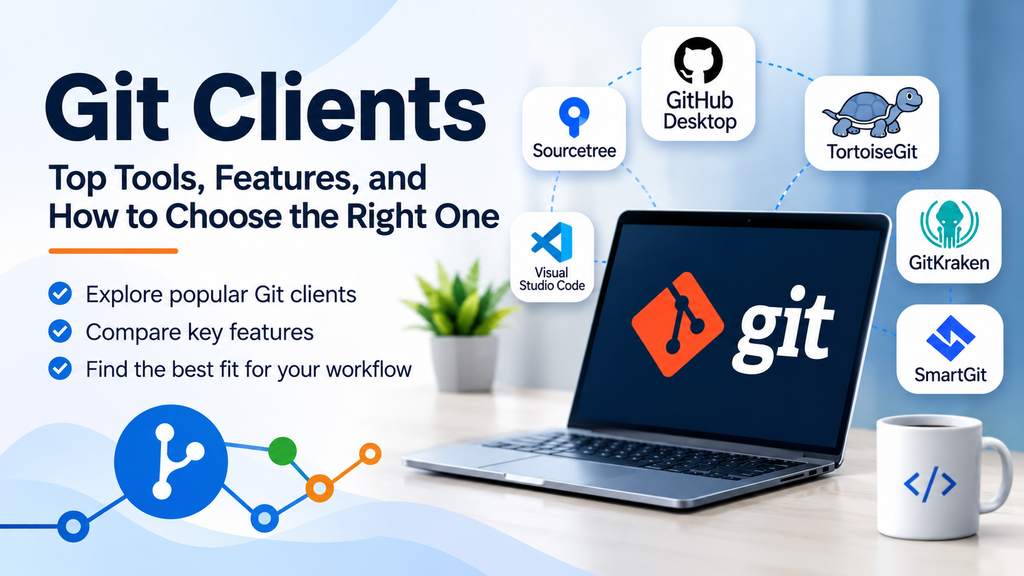
Git Clients: Top Tools, Features, and How to Choose the Right One
Git clients are software applications that help developers interact with Git repositories through a graphical interface or command-line environment. They make it easier to manage source code changes, create branches, review commit history, resolve merge conflicts, and collaborate with other developers. Instead of remembering every Git command, users can perform many everyday version control tasks through visual controls.
Git is widely used in modern software development, and Git clients help beginners and experienced developers manage repositories more efficiently. The right client depends on your operating system, preferred workflow, team requirements, and the complexity of your projects.
What Is a Git Client?
A Git client is an application or interface used to perform Git version control operations. It connects users to local repositories and, when configured, remote repositories hosted on platforms such as GitHub, GitLab, Bitbucket, or Azure Repos.
Git clients generally fall into two categories:
- Graphical Git clients provide visual interfaces for staging changes, inspecting commit history, managing branches, and resolving conflicts.
- Command-line Git tools let users run Git commands directly in a terminal, offering flexibility and automation for advanced workflows.
Many developers use both approaches: a graphical client for visualizing repository history and a terminal for scripting or specialized operations.
Why Are Git Clients Important?
Git clients can simplify common version control tasks and help teams maintain consistent workflows. Key benefits include:
- Visual change tracking: Review modified, added, and deleted files before committing.
- Easier branching: Create, switch, merge, and delete branches with fewer manual steps.
- Commit history visualization: Understand how changes evolved over time.
- Merge conflict assistance: Identify conflicting files and open tools to resolve differences.
- Remote repository access: Fetch, pull, push, and manage connections to shared repositories.
- Productivity: Reduce repetitive command entry for common tasks.
- Learning support: Help new developers understand Git concepts through visual representations.
Top Git Clients
1. GitHub Desktop
GitHub Desktop is a free graphical Git client designed to make repository management accessible. It provides a visual workflow for reviewing changes, committing updates, managing branches, and synchronizing repositories.
Key features:
- View changed files and code differences.
- Create commits with descriptive messages.
- Create and switch branches.
- Push and pull changes from remote repositories.
- Integrate with GitHub workflows.
Best for: Beginners and developers who primarily work with GitHub repositories.
2. Sourcetree
Sourcetree is a graphical Git client from Atlassian. It provides visual tools for understanding branches, commits, merges, and repository history.
Key features:
- Visual branch and commit graphs.
- Stage selected changes interactively.
- Manage branches and merge operations.
- Connect to supported remote Git hosting services.
- Inspect repository history and differences.
Best for: Developers who prefer a visual history view and teams working with Atlassian products.
3. GitKraken Client
GitKraken Client is a graphical Git client focused on visual repository management and collaboration workflows.
Key features:
- Visual commit and branch graphs.
- Branch creation and merge workflows.
- Conflict resolution assistance.
- Integrations with supported hosting and issue-tracking services.
- Repository management through a graphical interface.
Best for: Developers who want a visual Git workflow across multiple repositories and branches.
4. Tower
Tower is a graphical Git client for macOS and Windows. It offers a polished interface for common and advanced Git operations.
Key features:
- Visual commit history and branch management.
- Interactive staging and commit editing.
- Support for common Git workflows.
- Conflict resolution features.
- Undo and recovery assistance for supported operations.
Best for: Developers who want a dedicated desktop Git client with advanced workflow features.
5. Fork
Fork is a desktop Git client for macOS and Windows that provides visual tools for repository history, branching, and code changes.
Key features:
- Commit and branch visualization.
- Interactive staging.
- Merge conflict assistance.
- Repository browsing and file history.
- Support for common local and remote Git operations.
Best for: Developers looking for a focused desktop client for everyday Git work.
6. TortoiseGit
TortoiseGit integrates Git operations into the Windows File Explorer context menu. Rather than relying on a separate full-screen application, users can access many version control functions directly from folders and files.
Key features:
- Context-menu Git operations.
- File and directory status overlays.
- Commit, update, pull, and push actions.
- Difference and log viewers.
- Integration with supported merge tools.
Best for: Windows users who prefer file-explorer-based version control operations.
7. Visual Studio Code Source Control
Visual Studio Code includes built-in source control features for Git, allowing developers to manage changes without leaving their code editor.
Key features:
- View and stage file changes.
- Create commits and synchronize changes.
- Switch branches and inspect history with supported extensions.
- Review code differences alongside the editor.
- Extend functionality through Git-related extensions.
Best for: Developers who want Git features integrated directly into their coding environment.
8. Command-Line Git
The official Git command-line tools allow users to manage repositories directly from a terminal. Although not a graphical client, the command line remains a core option for precise control and automation.
Key features:
- Access to Git commands and configuration.
- Support for scripting and automation.
- Advanced branching, rebasing, and history operations.
- Compatibility with most Git hosting platforms.
- Broad availability across operating systems.
Best for: Developers who need fine-grained control, automation, or advanced version control workflows.
Comparison of Popular Git Clients
| Git client | Interface | Main strength |
|---|---|---|
| GitHub Desktop | Graphical | Straightforward GitHub workflows |
| Sourcetree | Graphical | Visual branch and commit history |
| GitKraken Client | Graphical | Visual repository management |
| Tower | Graphical | Advanced desktop workflows |
| Fork | Graphical | Focused, efficient repository management |
| TortoiseGit | Windows Explorer integration | File and folder context-menu actions |
| VS Code Source Control | Editor-integrated | Git operations alongside code editing |
| Command-Line Git | Terminal | Control and automation |
Availability, pricing, and integration features can change, so check each tool’s official documentation before selecting it for a team.
How to Choose the Right Git Client
Choosing a Git client depends on how you work and what your project requires.
- Consider your experience level. Beginners may prefer a straightforward interface, while experienced developers may need advanced history and branch controls.
- Check your operating system. Confirm that the client supports your desktop environment and required versions.
- Review hosting integrations. Ensure it works with your team’s remote repository provider.
- Evaluate merge conflict tools. If your team frequently works on shared files, compare the available conflict-resolution workflow.
- Consider editor integration. Developers who spend most of their time in an IDE or code editor may prefer built-in source control.
- Assess cost and licensing. Review whether the features you need are free, paid, or restricted by a plan.
- Test your daily workflow. Try staging, committing, branching, reviewing history, and resolving a sample conflict before standardizing on a client.
Best Practices When Using Git Clients
- Write clear commit messages that explain the purpose of each change.
- Review the staged changes before committing.
- Fetch or pull remote updates regularly according to team practices.
- Use feature branches when appropriate.
- Review differences carefully before merging.
- Resolve conflicts deliberately instead of accepting changes without inspection.
- Avoid committing passwords, API keys, or other sensitive data.
- Learn the underlying Git concepts so you can troubleshoot when the graphical interface is insufficient.
- Follow the team’s branch protection, code review, and release procedures.
Git Clients and Team Collaboration
Git clients help developers work with remote repositories and collaborate through shared branches, commits, and code reviews. A client may simplify pushing code or opening a hosting platform, but team policies and review workflows are generally configured on the hosting platform itself.
For example, a developer might use GitHub Desktop or VS Code to commit a change, push the branch to GitHub, and then create a pull request for review. Teams using GitLab, Bitbucket, or Azure Repos can follow comparable workflows with their chosen client and hosting service.
Conclusion
Git clients make version control more approachable by providing graphical, editor-integrated, or command-line ways to manage repositories. GitHub Desktop, Sourcetree, GitKraken Client, Tower, Fork, TortoiseGit, and Visual Studio Code each serve different workflows, while command-line Git remains valuable for advanced control and automation.
The best choice depends on your operating system, preferred interface, team hosting platform, and the complexity of your development process. Choose a client that makes everyday tasks clear, supports your team’s workflow, and helps you manage code changes safely and consistently.
