Upgrade & Secure Your Future with DevOps, SRE, DevSecOps, MLOps!
We spend hours scrolling social media and waste money on things we forget, but won’t spend 30 minutes a day earning certifications that can change our lives.
Master in DevOps, SRE, DevSecOps & MLOps by DevOps School!
Learn from Guru Rajesh Kumar and double your salary in just one year.
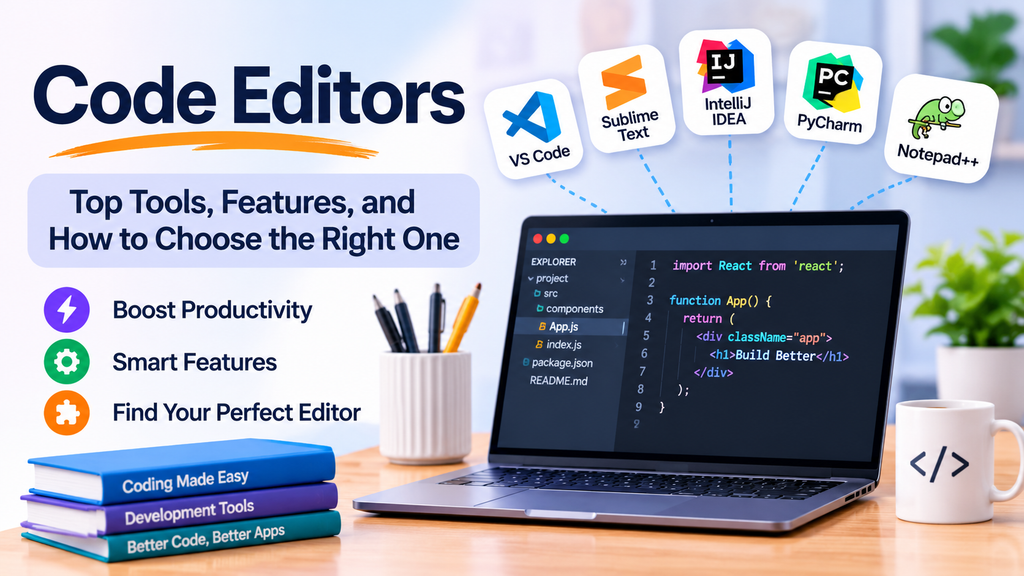
Code Editors: Top Tools, Features, and How to Choose the Right One
Code editors are essential tools for software developers because they provide a dedicated environment for writing, editing, and organizing source code. They help developers work with programming languages, identify syntax errors, format code, and improve productivity through features such as autocomplete, extensions, and version control integration.
From lightweight text editors to advanced development environments, code editors support many programming languages and project types. Choosing the right editor depends on your preferred language, operating system, project complexity, and development workflow.
What Is a Code Editor?
A code editor is an application designed to create and modify source code. Unlike a basic text editor, it typically offers programming-focused features such as syntax highlighting, code completion, indentation, search and replace, and error highlighting.
Some code editors are lightweight and focus on fast editing, while others support debugging, extensions, integrated terminals, and source control. Although code editors and integrated development environments (IDEs) overlap, IDEs generally provide a broader set of built-in development tools.
Why Are Code Editors Important?
Code editors help developers write readable, consistent, and maintainable code. Their benefits include:
- Syntax highlighting: Makes programming structures easier to recognize.
- Code completion: Suggests keywords, functions, variables, and other symbols.
- Error detection: Highlights certain syntax errors and potential issues.
- Formatting support: Helps maintain consistent code style.
- Search and navigation: Makes it easier to find symbols, files, and references.
- Extensions: Adds language support, themes, linting, and other capabilities.
- Version control integration: Helps developers review and manage code changes.
- Productivity: Reduces repetitive tasks and simplifies common editing workflows.
Top Code Editors
1. Visual Studio Code
Visual Studio Code (VS Code) is a popular, cross-platform source code editor from Microsoft. It supports many programming languages through built-in capabilities and extensions.
Key features:
- Syntax highlighting and intelligent code completion.
- Extensions for languages, frameworks, and development tools.
- Integrated terminal and debugging support.
- Git source control integration.
- Customizable themes, settings, and keyboard shortcuts.
Best for: Web developers, beginners, and professionals who want a flexible editor with a large extension ecosystem.
2. Sublime Text
Sublime Text is a lightweight code editor known for its speed and responsive interface. It provides powerful text navigation and editing features for working with source files.
Key features:
- Fast startup and editing performance.
- Multiple selections and simultaneous editing.
- Command palette and keyboard-driven workflows.
- Syntax highlighting for numerous languages.
- Customization through packages and settings.
Best for: Developers who value speed, minimal interface clutter, and efficient text manipulation.
3. Notepad++
Notepad++ is a free source code and text editor for Windows. It is lightweight and suitable for editing scripts, configuration files, logs, and source code.
Key features:
- Syntax highlighting and code folding.
- Tabbed document editing.
- Search and replace across files.
- Macro support for repetitive editing tasks.
- Plugins for additional functionality.
Best for: Windows users who need a fast, practical editor for scripts and smaller coding tasks.
4. Vim
Vim is a highly configurable, keyboard-focused text editor that runs in terminal and graphical environments. Its modal editing model enables experienced users to perform complex editing operations efficiently.
Key features:
- Modal editing and extensive keyboard shortcuts.
- Powerful search and text manipulation.
- Macros and customizable mappings.
- Plugins and configuration options.
- Availability across many operating systems.
Best for: Developers who prefer keyboard-driven workflows, terminal-based editing, and extensive customization.
5. GNU Emacs
GNU Emacs is an extensible text editor that can be customized for programming, writing, file management, and other workflows through its built-in features and extension system.
Key features:
- Extensive customization through Emacs Lisp.
- Syntax highlighting and programming modes.
- Search, navigation, and text transformation tools.
- Package ecosystem for additional features.
- Support for terminal and graphical use.
Best for: Developers who want a highly extensible environment tailored to their workflows.
6. Zed
Zed is a modern code editor designed around speed, collaboration, and a streamlined developer experience. Its capabilities and platform support evolve over time, so users should check the official documentation for current requirements.
Key features:
- Performance-focused editing experience.
- Collaborative editing capabilities.
- Language intelligence and code navigation.
- Git-related workflows.
- A modern, minimal interface.
Best for: Developers looking for a modern editor with performance and collaboration features.
7. Brackets
Brackets was created with web design and front-end development in mind, with features aimed at editing HTML, CSS, and JavaScript. Before selecting it for a new project, check its current maintenance status and compatibility with your environment.
Key features historically included:
- Live preview workflows for web pages.
- HTML, CSS, and JavaScript editing support.
- Inline editing for related styles and rules.
- Extensions for additional functionality.
Best for: Users maintaining existing Brackets-based workflows or exploring lightweight web-editing tools, subject to current support availability.
8. Bluefish
Bluefish is a lightweight editor aimed at programmers and web developers. It supports multiple markup and programming languages and focuses on efficient editing rather than providing a full IDE experience.
Key features:
- Support for many programming and markup languages.
- Search and replace tools.
- Project and file management features.
- Snippets and editing assistance.
- A lightweight desktop application.
Best for: Web developers and programmers who want a lightweight editor for source files and markup.
Comparison of Popular Code Editors
| Editor | Main strength | Suitable for |
|---|---|---|
| Visual Studio Code | Extensions and integrated tools | General-purpose development |
| Sublime Text | Speed and text manipulation | Fast, focused editing |
| Notepad++ | Lightweight Windows editing | Scripts and configuration files |
| Vim | Keyboard-driven editing | Terminal and advanced workflows |
| GNU Emacs | Deep customization | Extensible developer workflows |
| Zed | Modern performance and collaboration | Developers seeking a newer editor |
| Brackets | Web-focused editing history | Existing web-editing workflows |
| Bluefish | Lightweight source editing | Programming and markup files |
How to Choose the Right Code Editor
Selecting a code editor requires considering your daily development needs.
- Identify your programming languages. Confirm that the editor supports the languages and frameworks you use.
- Consider performance. A lightweight editor may be preferable on older hardware or for quick file edits.
- Evaluate extensions. Check whether the editor supports the linters, formatters, debuggers, and integrations you need.
- Review version control support. Built-in Git integration can make reviewing and managing changes more convenient.
- Check customization. Themes, keyboard shortcuts, and settings can help the editor fit your working style.
- Consider collaboration needs. If you pair program or edit code with others, look for appropriate collaboration features.
- Review licensing and platform support. Verify current costs, operating system compatibility, and maintenance status before standardizing on a tool.
Best Practices for Using Code Editors
- Use consistent formatting and follow the project’s style guidelines.
- Configure language-specific linters and formatters when appropriate.
- Learn keyboard shortcuts for frequent actions.
- Keep the editor and trusted extensions updated.
- Install extensions only from sources you trust.
- Use version control and review changes before committing.
- Avoid storing passwords, API keys, or sensitive data in source files.
- Keep editor configuration consistent across a team where practical.
- Use debugging and testing tools rather than relying only on visual inspection.
Code Editors and Development Workflows
Code editors often integrate with tools for version control, testing, debugging, containers, and continuous integration. For example, a developer can write code in VS Code, inspect changes through Git, run tests in an integrated terminal, and use extensions to connect to language servers or development environments.
The editor is only one part of the development workflow. A good setup combines an editor with suitable testing, security, build, and deployment tools to support reliable software delivery.
Conclusion
Code editors help developers write, navigate, and maintain source code more efficiently. Visual Studio Code offers a versatile extension-based environment, while Sublime Text and Notepad++ provide focused editing experiences. Vim and GNU Emacs appeal to users who value keyboard-driven control and deep customization, while Zed offers a modern alternative with collaboration-oriented capabilities.
The best editor is the one that supports your programming languages, fits your workflow, and provides the right balance of speed, features, and maintainability. Evaluate a few options with your actual project before choosing the editor you will use every day.
