Upgrade & Secure Your Future with DevOps, SRE, DevSecOps, MLOps!
We spend hours scrolling social media and waste money on things we forget, but won’t spend 30 minutes a day earning certifications that can change our lives.
Master in DevOps, SRE, DevSecOps & MLOps by DevOps School!
Learn from Guru Rajesh Kumar and double your salary in just one year.
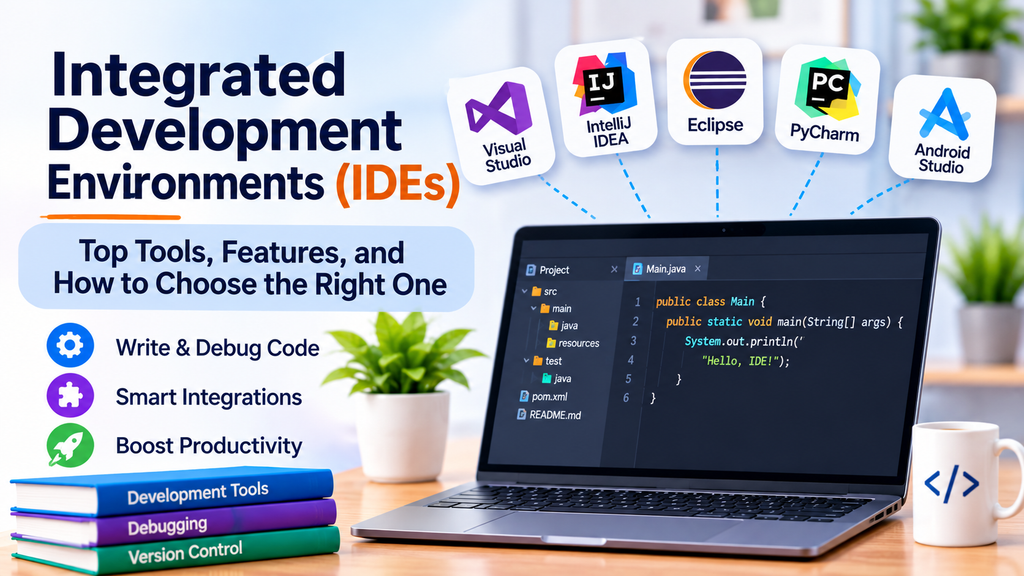
Integrated Development Environments (IDEs): Top Tools, Features, and How to Choose the Right One
Integrated Development Environments (IDEs) are software applications that bring essential programming tools together in one workspace. They help developers write, edit, run, test, and debug code without constantly switching between separate applications. By combining a code editor, compiler or interpreter integrations, debugging tools, and project management features, IDEs can make software development more organized and efficient.
From web and mobile applications to enterprise software, data science, and game development, IDEs support a wide range of programming languages and workflows. Choosing the right environment depends on the language, framework, project requirements, team preferences, and available hardware.
What Is an Integrated Development Environment?
An Integrated Development Environment is an application that combines several software development capabilities into a unified interface. Instead of configuring every tool independently, developers can use an IDE to edit code, run applications, inspect errors, and debug program behavior.
Common IDE components include:
- Code editor with syntax highlighting and code completion.
- Compiler, interpreter, or build-tool integration.
- Debugger for inspecting application behavior.
- Project and file navigation tools.
- Testing and execution support.
- Version control integration.
- Extensions and plugins for additional languages and workflows.
Not every IDE includes all these features by default. Capabilities often depend on installed plugins, language extensions, project configuration, and the product edition.
Why Are IDEs Important?
IDEs help developers manage complex coding tasks by bringing frequently used tools into one environment. Their benefits include:
- Productivity: Reduce the need to switch between separate applications.
- Code intelligence: Provide completion suggestions, navigation, and contextual information.
- Debugging: Set breakpoints, inspect variables, and step through code.
- Testing: Run tests and review results from within the development environment.
- Project organization: Navigate source files, dependencies, and project structures.
- Version control: Review changes and perform common Git operations.
- Consistency: Support team conventions through shared configurations and plugins.
Top Integrated Development Environments
1. Visual Studio
Visual Studio is Microsoft’s full-featured IDE, particularly associated with .NET, C#, and Windows application development. It also supports other languages and development workflows through its tooling and extensions.
Key features:
- Advanced code editing and IntelliSense.
- Integrated debugging and diagnostic tools.
- Build and test integration.
- Git and repository workflow support.
- Project templates and extensions.
Best for: Developers building .NET applications, Windows software, and enterprise solutions within the Microsoft ecosystem.
2. IntelliJ IDEA
IntelliJ IDEA is a JetBrains IDE widely used for Java and JVM-based development. It provides code analysis, navigation, refactoring, and debugging capabilities that help developers manage larger codebases.
Key features:
- Intelligent code completion and inspections.
- Refactoring and code navigation.
- Debugging and testing integration.
- Build-tool support for common Java projects.
- Plugin support for additional development needs.
Best for: Java developers and teams working on complex JVM applications.
3. PyCharm
PyCharm is a JetBrains IDE designed for Python development. It provides tools for editing, running, testing, and debugging Python applications.
Key features:
- Python code completion and inspections.
- Debugging and test-runner integration.
- Virtual environment and interpreter management.
- Support for common Python frameworks and tools.
- Database and web-development capabilities depending on edition.
Best for: Python developers working on web applications, automation, data-related projects, and backend services.
4. Eclipse IDE
Eclipse is an extensible development environment known for Java development and a broad plugin ecosystem. It can be customized to support different languages and project types.
Key features:
- Java editing and code navigation.
- Debugging and testing integrations.
- Plugin-based customization.
- Project and build management support.
- Tools for enterprise and application development.
Best for: Java developers and teams that value an extensible, plugin-driven environment.
5. NetBeans
Apache NetBeans is an open-source IDE that supports Java and several other programming languages through its features and extensions.
Key features:
- Code editing and navigation.
- Project templates and build integration.
- Debugging tools.
- Support for Java and selected web-development workflows.
- Refactoring and code completion capabilities.
Best for: Students, Java developers, and teams seeking an open-source development environment.
6. Android Studio
Android Studio is Google’s official IDE for Android application development. It is based on the IntelliJ platform and provides tools for building, testing, and profiling Android applications.
Key features:
- Android project templates and build tools.
- Layout design and preview tools.
- Android Emulator integration.
- Debugging and performance profiling.
- Support for Kotlin and Java Android development.
Best for: Developers creating and maintaining Android applications.
7. Xcode
Xcode is Apple’s development environment for creating applications for Apple platforms, including iOS, iPadOS, macOS, watchOS, and tvOS.
Key features:
- Swift and Objective-C development support.
- Interface design and previews.
- Simulator integration.
- Debugging and performance tools.
- Build, signing, and distribution workflows.
Best for: Developers building applications for Apple’s operating systems. Xcode requires macOS.
8. JetBrains Rider
JetBrains Rider is a cross-platform .NET IDE that supports C# and related development workflows. It combines code analysis, navigation, refactoring, and debugging features.
Key features:
- C# code completion and inspections.
- Debugging and unit testing integration.
- Refactoring and code navigation.
- Support for .NET project workflows.
- Tools for supported game-development and web-development projects.
Best for: .NET developers who want a cross-platform IDE with advanced code analysis.
9. Arduino IDE
Arduino IDE is a development environment for writing, compiling, and uploading programs to compatible Arduino boards and supported hardware.
Key features:
- Code editing for Arduino sketches.
- Compilation and upload workflows.
- Serial Monitor and related debugging assistance.
- Board and library management.
- Support for prototyping embedded projects.
Best for: Students, hobbyists, and developers building electronics and embedded prototypes with supported Arduino hardware.
10. Qt Creator
Qt Creator is an IDE designed for application development with the Qt framework. It supports coding, building, debugging, and designing interfaces for supported desktop and embedded applications.
Key features:
- C++ and Qt development support.
- Code navigation and refactoring.
- Build-system integration.
- Debugging tools.
- Interface design support for suitable Qt projects.
Best for: Developers building cross-platform desktop applications or embedded software with Qt.
Comparison of Popular IDEs
| IDE | Primary focus | Best suited for |
|---|---|---|
| Visual Studio | .NET and Microsoft development | Enterprise and Windows applications |
| IntelliJ IDEA | Java and JVM | Backend and enterprise Java projects |
| PyCharm | Python | Python applications and automation |
| Eclipse | Java and extensible development | Plugin-based development workflows |
| NetBeans | Java and selected other languages | Learning and open-source projects |
| Android Studio | Android applications | Android mobile development |
| Xcode | Apple platforms | iOS and macOS applications |
| JetBrains Rider | .NET and C# | Cross-platform .NET projects |
| Arduino IDE | Embedded prototyping | Supported Arduino boards |
| Qt Creator | Qt and C++ | Cross-platform and embedded applications |
IDE vs. Code Editor
A code editor primarily focuses on writing and editing source code. An IDE generally combines code editing with additional development capabilities such as debugging, building, testing, and project management.
For example, Visual Studio Code is a code editor that can be extended with language and debugging tools, while Visual Studio is a full IDE. The distinction is not absolute because modern editors and IDEs increasingly share features.
How to Choose the Right IDE
- Identify your language and framework. Choose an IDE with strong support for your main technology stack.
- Evaluate debugging and testing tools. Confirm that the environment supports the way you build and test applications.
- Check project compatibility. Review support for your build system, libraries, SDKs, and deployment targets.
- Consider performance. Large IDEs can require significant memory and processing power.
- Review extensions. Make sure the IDE supports the integrations your workflow requires.
- Compare licensing and editions. Some features may require a paid plan or commercial license.
- Check team compatibility. Shared configurations and common tools can simplify onboarding and collaboration.
- Try a real project. Evaluate the IDE using the tasks you perform every day rather than choosing only by feature lists.
Best Practices for Using IDEs
- Keep the IDE and trusted plugins updated.
- Configure code formatting and linting consistently.
- Learn debugging shortcuts and use breakpoints effectively.
- Run tests regularly and investigate failures promptly.
- Use version control to track source changes.
- Avoid storing credentials and secrets in source code or project settings committed to repositories.
- Disable unnecessary plugins if they affect performance.
- Follow project conventions for builds, dependencies, and code reviews.
- Use the IDE’s navigation and refactoring features to make larger changes safely.
IDEs in Modern Software Development
IDEs increasingly connect with Git repositories, automated tests, container tools, cloud services, and CI/CD systems. Developers can edit code, run local checks, debug problems, and prepare changes for review from a unified workspace.
However, a local IDE does not replace shared build pipelines, repository policies, or production monitoring. Teams should combine IDE capabilities with automated testing, code review, security checks, and controlled release processes to maintain software quality.
Conclusion
Integrated Development Environments bring essential coding, debugging, testing, and project tools into a single workspace. Visual Studio, IntelliJ IDEA, PyCharm, Eclipse, NetBeans, Android Studio, Xcode, Rider, Arduino IDE, and Qt Creator each support different languages and development needs.
The best IDE depends on your technology stack, target platform, project complexity, budget, and preferred workflow. By choosing an environment that fits these requirements and using it alongside sound testing and version control practices, developers can work more efficiently and maintain higher-quality software.
