Upgrade & Secure Your Future with DevOps, SRE, DevSecOps, MLOps!
We spend hours scrolling social media and waste money on things we forget, but won’t spend 30 minutes a day earning certifications that can change our lives.
Master in DevOps, SRE, DevSecOps & MLOps by DevOps School!
Learn from Guru Rajesh Kumar and double your salary in just one year.
Introduction
Screen capture tools help users take screenshots, capture selected areas, record visual references, annotate images, blur sensitive data, and share visual information quickly. In simple words, these tools make it easier to show what is happening on a screen instead of explaining everything through long text.
Screen capture matters now because modern teams depend on fast visual communication. Product teams use screenshots for bug reports, support teams use them for customer guidance, marketers use them for documentation, and trainers use them for step-by-step learning material. Many tools now include cloud sharing, AI-assisted annotation, OCR, privacy blur, workflow integrations, and team libraries.
Common use cases include:
- Bug reporting and QA documentation
- Customer support screenshots
- Training guides and tutorials
- Product documentation
- Design feedback and review
- Internal process documentation
Buyers should evaluate:
- Screenshot quality
- Annotation tools
- Scrolling capture
- OCR and text extraction
- Blur and privacy controls
- Cloud sharing
- Team collaboration
- Integrations
- Platform support
- Pricing and value
Best for: product teams, QA engineers, customer support teams, technical writers, marketers, educators, remote teams, consultants, and creators.
Not ideal for: users who only need occasional basic screenshots. Built-in screenshot tools on Windows, macOS, iOS, Android, or browsers may be enough for simple personal use.
Key Trends in Screen Capture Tools
- AI-assisted annotation is growing with smarter callouts, auto-highlights, and suggested explanations.
- OCR and text extraction are becoming standard for users who need to copy text from screenshots.
- Privacy-first capture is more important because teams often capture dashboards, customer data, internal tools, and business systems.
- Cloud sharing is replacing manual file attachments for faster collaboration and feedback.
- Scrolling capture is now expected for long web pages, dashboards, documents, and reports.
- Integration with workflow tools is becoming essential for Jira, Slack, Teams, Notion, helpdesks, and documentation platforms.
- Screenshot plus short video capture is becoming common as users want one tool for both quick images and visual recordings.
- Team libraries and asset management are growing for support, training, and documentation teams.
- Browser-based capture tools are gaining adoption because they reduce installation friction.
- Security controls are now part of buying decisions for businesses that share screenshots externally.
How We Selected These Tools
The tools were selected based on practical use across individuals, small teams, enterprises, documentation teams, support teams, and product organizations.
Selection factors included:
- Recognition and adoption among business and creator users
- Screenshot capture quality and flexibility
- Annotation, blur, cropping, and markup features
- Scrolling screenshot capability
- Cloud sharing and collaboration options
- OCR or text recognition where relevant
- Integration with workplace and development tools
- Suitability for personal, SMB, and enterprise use
- Platform availability across Windows, macOS, web, and mobile
- Overall value compared with feature depth
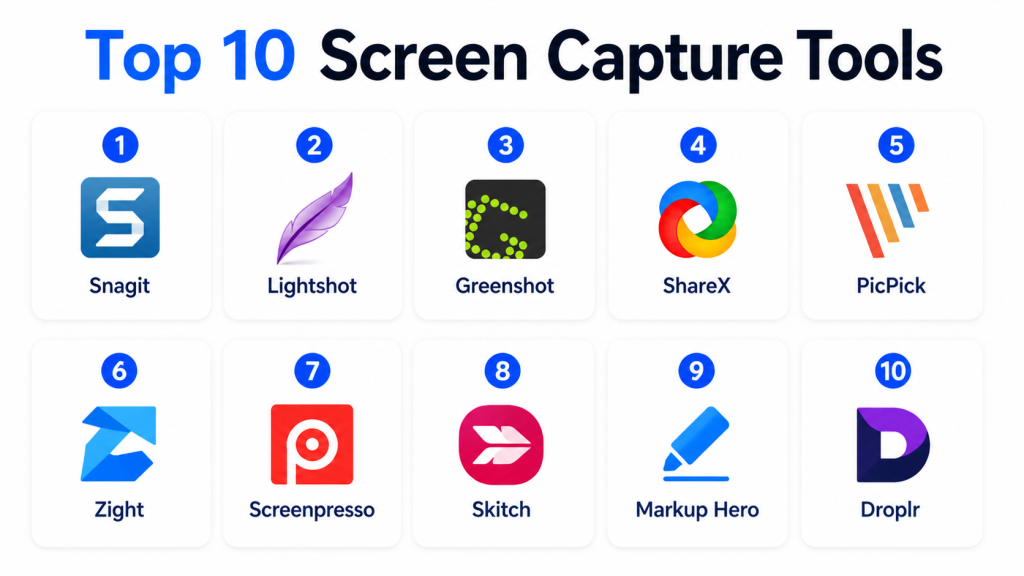
Top 10 Screen Capture Tools
#1 — Snagit
Short description: Snagit is a professional screen capture and visual communication tool used for screenshots, annotations, documentation, and short recordings. It is best for business users, trainers, technical writers, and support teams.
Key Features
- Full-screen, window, region, and scrolling capture
- Annotation, arrows, callouts, and shapes
- OCR text extraction
- Blur and simplify tools
- Screenshot templates
- Short screen recording
- Image editing and documentation support
Pros
- Strong all-around tool for professional documentation
- Easy for non-technical business users
- Useful for both screenshots and short videos
Cons
- Paid tool, so it may not suit casual users
- Not designed for advanced video editing
- Collaboration features are not as deep as cloud-first platforms
Platforms / Deployment
Windows / macOS
Desktop deployment
Security & Compliance
Not publicly stated.
Integrations & Ecosystem
Snagit fits well into business documentation and support workflows.
- Documentation tools
- Training content workflows
- Cloud sharing options depending on setup
- Image export workflows
- Support ticket workflows
- Screen recording workflows
Support & Community
Snagit has strong documentation, tutorials, help resources, onboarding content, and a mature user community.
#2 — Lightshot
Short description: Lightshot is a lightweight screenshot tool for quickly capturing, editing, and sharing screenshots. It is best for users who want a simple, fast, and minimal capture workflow.
Key Features
- Quick area selection capture
- Basic annotation tools
- Simple editing interface
- Fast save and copy options
- Search similar images feature
- Lightweight desktop workflow
- Easy sharing options
Pros
- Very simple and fast
- Easy for casual screenshot needs
- Lightweight compared with advanced tools
Cons
- Limited advanced editing features
- Not ideal for enterprise documentation workflows
- Security and compliance details are limited
Platforms / Deployment
Windows / macOS
Desktop deployment
Security & Compliance
Not publicly stated.
Integrations & Ecosystem
Lightshot is mainly a simple standalone screenshot utility.
- Local screenshot saving
- Basic sharing workflows
- Browser-style quick capture
- Simple image editing
- Copy-to-clipboard workflows
- Image search workflow
Support & Community
Support and documentation are basic compared with larger commercial tools. Community usage is broad, but enterprise-level support is limited.
#3 — Greenshot
Short description: Greenshot is a lightweight screenshot tool popular among Windows users who need quick capture, annotation, and export options. It is useful for developers, testers, documentation teams, and general business users.
Key Features
- Region, window, and full-screen capture
- Annotation and highlighting tools
- Export to file, clipboard, printer, or apps
- Lightweight performance
- Open-source availability
- Simple editor
- Plugin-style export options
Pros
- Lightweight and practical
- Good for technical and business users
- Strong value for basic and moderate screenshot needs
Cons
- Interface feels less modern than newer tools
- Cloud collaboration is limited
- Advanced OCR and team features are not the main focus
Platforms / Deployment
Windows / macOS availability may vary
Desktop deployment
Security & Compliance
Not publicly stated.
Integrations & Ecosystem
Greenshot supports practical export workflows for documentation and productivity.
- Clipboard workflows
- Local file saving
- Printer export
- Email workflows
- Office-style documentation workflows
- Plugin-based export options
Support & Community
Greenshot has community documentation and open-source user support. Enterprise support is limited compared with paid business platforms.
#4 — ShareX
Short description: ShareX is a free and open-source screen capture and productivity tool with advanced capture, annotation, upload, and automation options. It is best for power users, developers, QA teams, and technical users.
Key Features
- Full-screen, region, window, and scrolling capture
- GIF and screen recording support
- Annotation and image editing
- OCR support
- Workflow automation
- Many upload destination options
- Custom hotkeys and task settings
Pros
- Very powerful and free
- Excellent for technical users
- Highly customizable capture workflows
Cons
- Interface can feel complex for beginners
- Windows-focused workflow
- Business support and compliance details are limited
Platforms / Deployment
Windows
Desktop deployment
Security & Compliance
Not publicly stated.
Integrations & Ecosystem
ShareX has a strong technical ecosystem for advanced capture and upload workflows.
- Image hosting workflows
- OCR tools
- Custom upload destinations
- File automation
- GIF creation
- Screen recording workflows
Support & Community
ShareX has active community support, documentation, and open-source development. Formal enterprise support is not the main focus.
#5 — PicPick
Short description: PicPick is a screen capture and image editing tool for business users, designers, educators, and general productivity users. It combines screenshot capture with image editing, color picker, ruler, and other visual tools.
Key Features
- Full-screen, window, region, and scrolling capture
- Built-in image editor
- Color picker and pixel ruler
- Annotation tools
- Whiteboard-style tools
- Effects and image adjustments
- Export and sharing options
Pros
- Good balance of capture and editing
- Useful for design and documentation tasks
- Easy enough for everyday business users
Cons
- Not as collaboration-focused as cloud-first tools
- Advanced enterprise controls are limited
- Interface may feel traditional for some users
Platforms / Deployment
Windows
Desktop deployment
Security & Compliance
Not publicly stated.
Integrations & Ecosystem
PicPick is useful for visual productivity and documentation workflows.
- Local file export
- Office-style workflows
- Email sharing
- Image editing
- Design reference workflows
- Productivity utilities
Support & Community
PicPick provides documentation and support resources. Community support exists, though it is smaller than some larger tools.
#6 — Zight
Short description: Zight is a visual communication platform for screenshots, screen recordings, GIFs, and cloud sharing. It is useful for support teams, product teams, sales teams, and remote teams.
Key Features
- Screenshot capture
- Screen recording
- GIF creation
- Annotation and markup
- Cloud sharing links
- Team collaboration features
- Workspace-based content sharing
Pros
- Good for fast team communication
- Useful for support and product feedback
- Combines screenshots, GIFs, and video
Cons
- Advanced image editing is limited
- Some team features depend on paid plans
- Not ideal for users who only need local screenshots
Platforms / Deployment
Web / Windows / macOS / iOS
Cloud deployment
Security & Compliance
Business plans may include team controls. Specific compliance details are not confidently stated here.
SOC 2, ISO 27001, HIPAA: Not publicly stated.
Integrations & Ecosystem
Zight fits well into modern collaboration and support workflows.
- Slack
- Jira
- Helpdesk workflows
- Cloud sharing
- Product feedback workflows
- Team communication tools
Support & Community
Zight provides help resources, documentation, onboarding content, and customer support options depending on plan.
#7 — Screenpresso
Short description: Screenpresso is a screen capture and recording tool for screenshots, documentation, and training content. It is useful for business users, trainers, testers, and documentation teams.
Key Features
- Screenshot and screen recording
- Scrolling capture
- Built-in image editor
- Annotation and callouts
- Document generation support
- Workspace history
- Export and sharing options
Pros
- Good for documentation workflows
- Combines capture, editing, and recording
- Useful for step-by-step guides
Cons
- Interface may feel less modern than newer tools
- Collaboration options are limited compared with cloud tools
- Some features require paid editions
Platforms / Deployment
Windows
Desktop deployment
Security & Compliance
Not publicly stated.
Integrations & Ecosystem
Screenpresso supports productivity and documentation workflows.
- Local file export
- Document creation workflows
- Image annotation
- Video capture
- Cloud sharing options depending on setup
- Training content workflows
Support & Community
Screenpresso provides documentation, support resources, and learning content. Community size is moderate.
#8 — Skitch
Short description: Skitch is a simple screenshot and annotation tool associated with quick visual markup workflows. It is best for users who need fast arrows, notes, and visual feedback rather than advanced editing.
Key Features
- Screenshot capture
- Simple annotation tools
- Arrows, shapes, and text
- Cropping and markup
- Quick sharing workflow
- Lightweight editing
- Visual feedback support
Pros
- Simple and easy to use
- Good for quick visual explanation
- Useful for basic annotation needs
Cons
- Limited advanced functionality
- Not ideal for enterprise workflows
- Platform and support availability may vary
Platforms / Deployment
macOS / Varies / N/A
Desktop / App-based deployment
Security & Compliance
Not publicly stated.
Integrations & Ecosystem
Skitch is mainly useful for quick annotation and simple visual feedback.
- Screenshot markup
- Local export
- Basic sharing
- Visual notes
- Feedback workflows
- Simple image communication
Support & Community
Support and active development visibility are limited compared with modern full-featured platforms. Use case fit should be tested before adoption.
#9 — Markup Hero
Short description: Markup Hero is a web-based screenshot and annotation tool designed for fast visual communication. It is useful for teams that need to capture, mark up, organize, and share screenshots online.
Key Features
- Screenshot capture
- Web-based annotation
- Shareable links
- Image organization
- Markup history
- Team collaboration options
- Browser-friendly workflow
Pros
- Easy web-based sharing
- Good for feedback and collaboration
- Useful for remote teams and documentation
Cons
- Not as deep as desktop screenshot editors
- Advanced workflows may require paid plans
- Offline use is limited compared with desktop tools
Platforms / Deployment
Web / Browser-based workflow
Cloud deployment
Security & Compliance
Not publicly stated.
Integrations & Ecosystem
Markup Hero works well for cloud-first annotation and sharing.
- Browser capture workflows
- Team feedback
- Cloud sharing links
- Documentation workflows
- Remote collaboration
- Image organization
Support & Community
Markup Hero provides help resources and product documentation. Community size is smaller than long-established tools.
#10 — Droplr
Short description: Droplr is a cloud-based screenshot, screen recording, and file-sharing tool for teams. It is useful for support, sales, marketing, product teams, and remote collaboration.
Key Features
- Screenshot capture
- Screen recording
- GIF creation
- Cloud sharing
- Short links
- Team content management
- Annotation tools
Pros
- Good for quick sharing across teams
- Combines screenshots, recordings, and file sharing
- Useful for support and sales workflows
Cons
- Not focused on advanced image editing
- Cloud storage and team features depend on plan
- May not be needed for simple local screenshots
Platforms / Deployment
Web / Windows / macOS
Cloud deployment
Security & Compliance
Team and business controls may vary by plan.
SOC 2, ISO 27001, HIPAA: Not publicly stated.
Integrations & Ecosystem
Droplr is designed for fast sharing and collaboration.
- Team sharing workflows
- Cloud file sharing
- Support workflows
- Sales enablement workflows
- Short link sharing
- Visual communication workflows
Support & Community
Droplr provides help resources, documentation, and support options depending on the plan.
Comparison Table
| Tool Name | Best For | Platform(s) Supported | Deployment | Standout Feature | Public Rating |
|---|---|---|---|---|---|
| Snagit | Documentation and business screenshots | Windows, macOS | Desktop | Professional capture and annotation | N/A |
| Lightshot | Fast simple screenshots | Windows, macOS | Desktop | Lightweight quick capture | N/A |
| Greenshot | Developers and productivity users | Windows, macOS availability may vary | Desktop | Lightweight open-source capture | N/A |
| ShareX | Power users and technical teams | Windows | Desktop | Advanced free capture automation | N/A |
| PicPick | Business users and visual productivity | Windows | Desktop | Capture plus image editing utilities | N/A |
| Zight | Support and product teams | Web, Windows, macOS, iOS | Cloud | Screenshot, GIF, and video sharing | N/A |
| Screenpresso | Documentation and training teams | Windows | Desktop | Step-by-step capture workflow | N/A |
| Skitch | Quick visual annotation | macOS, Varies / N/A | App-based | Simple markup and feedback | N/A |
| Markup Hero | Remote teams and web annotation | Web | Cloud | Browser-based markup sharing | N/A |
| Droplr | Team sharing and visual communication | Web, Windows, macOS | Cloud | Screenshot and file sharing links | N/A |
Evaluation & Scoring of Screen Capture Tools
| Tool Name | Core (25%) | Ease (15%) | Integrations (15%) | Security (10%) | Performance (10%) | Support (10%) | Value (15%) | Weighted Total (0–10) |
|---|---|---|---|---|---|---|---|---|
| Snagit | 9 | 9 | 7 | 6 | 9 | 9 | 7 | 8.10 |
| Lightshot | 5 | 10 | 5 | 4 | 8 | 5 | 8 | 6.45 |
| Greenshot | 7 | 8 | 6 | 5 | 8 | 6 | 9 | 7.10 |
| ShareX | 10 | 6 | 8 | 5 | 9 | 7 | 10 | 8.15 |
| PicPick | 8 | 8 | 6 | 5 | 8 | 7 | 8 | 7.30 |
| Zight | 7 | 9 | 8 | 7 | 8 | 7 | 7 | 7.65 |
| Screenpresso | 8 | 8 | 6 | 5 | 8 | 7 | 7 | 7.10 |
| Skitch | 5 | 9 | 5 | 4 | 7 | 5 | 7 | 6.00 |
| Markup Hero | 6 | 9 | 7 | 6 | 7 | 6 | 7 | 6.90 |
| Droplr | 7 | 8 | 8 | 6 | 7 | 7 | 7 | 7.20 |
These scores are comparative, not absolute. A tool with a lower score may still be the best option for a narrow use case. ShareX scores high for power users, while Snagit is stronger for professional documentation. Cloud tools like Zight, Markup Hero, and Droplr are useful when sharing and collaboration matter more than deep local editing.
Which Screen Capture Tool Is Right for You?
Solo / Freelancer
Solo users should choose based on speed, budget, and editing needs. Lightshot is good for quick simple screenshots. ShareX is strong for advanced free workflows. Snagit is better if you create professional documentation or client-facing guides.
SMB
Small businesses often need screenshots for support, training, internal documentation, and marketing feedback. Snagit, PicPick, Zight, and Screenpresso are practical options. If the team shares screenshots often, cloud-based tools like Zight or Droplr may save time.
Mid-Market
Mid-market teams need consistency, collaboration, and integrations. Product teams may prefer Zight or Droplr. Documentation teams may prefer Snagit or Screenpresso. Technical teams may prefer ShareX because of automation and flexibility.
Enterprise
Enterprise buyers should focus on access control, security, admin management, data retention, sharing permissions, and support. Snagit, Zight, and Droplr may fit depending on internal requirements. Teams handling sensitive screenshots should review privacy controls carefully.
Budget vs Premium
For free or low-cost needs, ShareX, Greenshot, and Lightshot are strong options. For premium business documentation, Snagit offers more polished features. For team sharing, Zight, Markup Hero, and Droplr may provide better workflow value.
Feature Depth vs Ease of Use
Choose ShareX if you want deep customization. Choose Snagit if you want strong features with better usability. Choose Lightshot or Skitch if you want simple markup. Choose Zight or Markup Hero if cloud sharing matters most.
Integrations & Scalability
Teams should check integrations with Slack, Jira, Teams, helpdesk tools, documentation platforms, cloud storage, and project management tools. The more often screenshots are used in daily workflows, the more integrations matter.
Security & Compliance Needs
Security-focused buyers should review blur tools, sharing permissions, access controls, password protection, SSO, MFA, RBAC, audit logs, encryption, storage policies, and compliance documents. Do not assume compliance unless the vendor clearly confirms it.
Frequently Asked Questions
1. What are screen capture tools?
Screen capture tools help users take screenshots, capture selected areas, annotate images, blur sensitive data, and share visual information. Some tools also support scrolling capture, OCR, GIFs, and short recordings.
2. What is the difference between screen capture and screen recording?
Screen capture usually means taking still screenshots. Screen recording captures video of screen activity. Many modern tools support both, but their depth varies.
3. Which screen capture tool is best for beginners?
Lightshot, Snagit, Markup Hero, and Skitch are beginner-friendly options. They offer simple capture and annotation workflows without too much setup.
4. Which tool is best for technical users?
ShareX is a strong choice for technical users because it supports advanced capture methods, automation, OCR, upload workflows, and custom settings.
5. Which screen capture tool is best for documentation?
Snagit and Screenpresso are strong options for documentation. They include annotation, step-by-step capture, templates, and editing features useful for training and support content.
6. What pricing models are common?
Common pricing models include free tools, one-time licenses, subscriptions, team plans, and enterprise plans. Cloud-based tools may also charge based on users, storage, or sharing features.
7. What are common mistakes when choosing a screen capture tool?
Common mistakes include ignoring privacy controls, choosing a tool without scrolling capture, overlooking team sharing needs, and selecting a tool that is too complex for everyday users.
8. Are cloud-based screen capture tools safe?
Cloud-based tools can be safe when access controls, permissions, encryption, and sharing rules are properly configured. Businesses should review security settings before sharing sensitive screenshots.
9. Can screen capture tools scale for teams?
Yes, some tools support team workspaces, shared libraries, permissions, and integrations. Teams should evaluate admin controls, storage, user management, and support before adoption.
10. What integrations should buyers look for?
Useful integrations include Slack, Microsoft Teams, Jira, helpdesk tools, documentation platforms, cloud storage, project management tools, and browser extensions.
11. Is OCR important in screen capture tools?
OCR is useful when users need to copy text from screenshots. It is helpful for documentation, research, support, data extraction, and productivity workflows.
12. What are good alternatives to paid screen capture tools?
Built-in Windows, macOS, browser, and mobile screenshot tools can be enough for basic needs. Free tools like ShareX, Greenshot, and Lightshot are also useful alternatives.
Conclusion
Screen capture tools are simple on the surface, but they can have a big impact on communication, support, training, QA, and documentation quality. The best tool depends on how you work. Snagit is strong for polished documentation. ShareX is excellent for technical users who want control and automation. Lightshot is useful for quick screenshots. Zight, Markup Hero, and Droplr are better for cloud sharing and team workflows. Screenpresso and PicPick offer practical desktop capture features for business users
