Upgrade & Secure Your Future with DevOps, SRE, DevSecOps, MLOps!
We spend hours scrolling social media and waste money on things we forget, but won’t spend 30 minutes a day earning certifications that can change our lives.
Master in DevOps, SRE, DevSecOps & MLOps by DevOps School!
Learn from Guru Rajesh Kumar and double your salary in just one year.
Introduction
Secure File Transfer Clients help users move files safely between local systems and remote servers using protected transfer protocols such as SFTP, FTPS, SCP, WebDAV, and sometimes cloud storage connections. In simple words, these tools allow developers, IT teams, agencies, administrators, and business users to upload, download, edit, sync, and manage files without depending on unsafe plain FTP.
Secure file transfer matters because teams regularly exchange website files, server logs, backups, application builds, media assets, client documents, and operational data. If file transfers are not protected, sensitive information can be exposed, modified, lost, or accessed by unauthorized users.
Common real-world use cases include website file uploads, server maintenance, log downloads, backup movement, secure client file exchange, remote folder sync, and managing files on cloud or hosting servers.
Buyers should evaluate protocol support, ease of use, platform availability, encryption support, SSH key handling, saved session security, scripting, automation, sync features, logging, transfer speed, and reliability.
Best for: developers, system administrators, web agencies, DevOps teams, hosting teams, IT support teams, freelancers, SMBs, and technical users who need secure server file access.
Not ideal for: organizations needing full managed file transfer governance, enterprise workflow automation, compliance dashboards, approval workflows, or business-user portals. In those cases, managed file transfer platforms or enterprise content tools may be better.
Key Trends in Secure File Transfer Clients
- Secure protocols are replacing plain FTP, with SFTP and FTPS becoming the expected baseline for professional file transfers.
- SSH key-based authentication is becoming more common, especially for developers, server admins, and cloud infrastructure teams.
- Cross-platform support matters more, because teams often use Windows, macOS, Linux, and remote cloud environments together.
- Automation and scripting are important for technical teams, especially for scheduled transfers, repeatable deployments, and backup workflows.
- Cloud storage connectivity is becoming useful, as teams want one client for servers, object storage, and remote file systems.
- Folder synchronization is a key feature, helping users keep local and remote directories aligned without manual upload and download work.
- Usability still matters, because many users want a simple drag-and-drop interface rather than only command-line tools.
- Security visibility is improving, with better logging, certificate checks, host key verification, and safer saved connection handling.
- Lightweight clients remain popular, especially for freelancers, web developers, and small teams that do not need full enterprise platforms.
- Enterprise teams are separating clients from governance, using secure clients for technical operations while using managed transfer platforms for audited business workflows.
How We Selected These Tools
The tools below were selected using a practical buyer-focused evaluation model:
- Strong recognition among developers, IT teams, system administrators, and secure file transfer users.
- Support for secure protocols such as SFTP, FTPS, SCP, WebDAV, or related secure transfer methods.
- Reliability for uploading, downloading, browsing, editing, and syncing remote files.
- Security posture signals such as SSH key support, encryption through secure protocols, host key validation, and secure session handling.
- Ease of use for both technical and semi-technical users.
- Cross-platform availability across Windows, macOS, Linux, and mobile where applicable.
- Automation, scripting, or synchronization support where relevant.
- Fit across freelancers, SMBs, agencies, technical teams, and enterprise IT users.
- Ecosystem strength, documentation quality, community adoption, and support resources.
- Practical value based on features, usability, stability, and long-term fit.
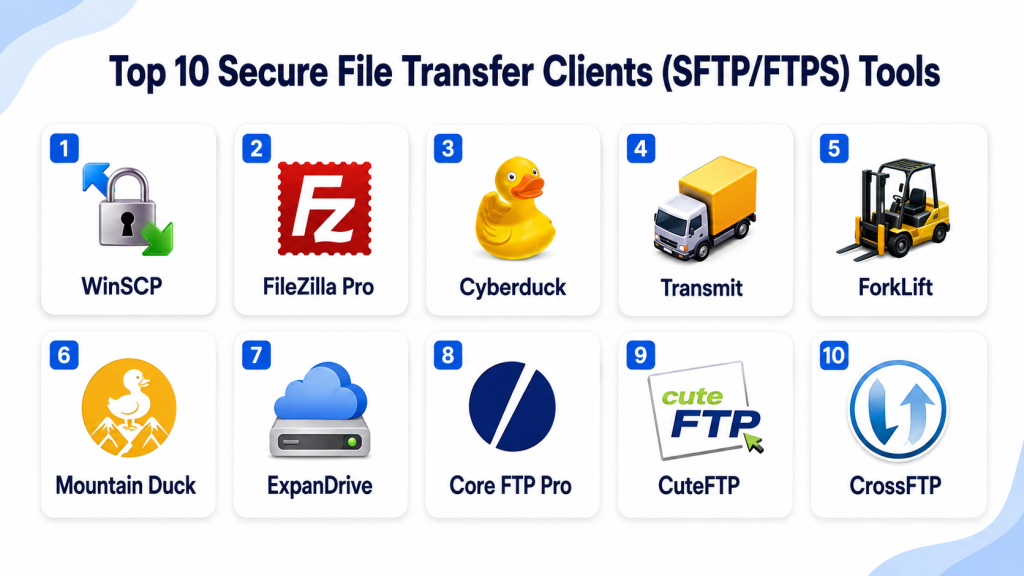
Top 10 Secure File Transfer Clients (SFTP/FTPS) Tools
#1 — WinSCP
Short description: WinSCP is a popular secure file transfer client for Windows users. It is widely used by system administrators, developers, and web teams for SFTP, SCP, FTPS, and file synchronization workflows.
Key Features
- SFTP, SCP, FTPS, FTP, and WebDAV support.
- Dual-pane file manager interface.
- Remote file editing and directory browsing.
- Folder synchronization and comparison features.
- Scripting and command-line automation.
- SSH key authentication support.
- Session saving and transfer queue management.
Pros
- Strong choice for Windows-based technical users.
- Good automation and scripting support.
- Mature, reliable, and widely known.
Cons
- Windows-focused, so not ideal for native macOS users.
- Interface may feel traditional compared with modern tools.
- Non-technical users may need guidance for advanced features.
Platforms / Deployment
Windows
Self-hosted desktop client
Security & Compliance
Supports secure transfer protocols, SSH key authentication, host key verification, encrypted transfer sessions, and saved session management. Compliance certifications are not publicly stated.
Integrations & Ecosystem
WinSCP is useful in technical environments where file transfers connect with servers, scripts, and deployment workflows.
- SSH servers
- Web hosting environments
- Windows scripting workflows
- Command-line automation
- PuTTY integration workflows
- Remote file editing tools
Support & Community
WinSCP has strong documentation, a large user community, active knowledge resources, and broad adoption among Windows administrators and developers.
#2 — FileZilla Pro
Short description: FileZilla Pro is a widely recognized file transfer client that supports secure server transfers and selected cloud storage connections. It is suitable for developers, agencies, hosting users, and teams needing a familiar FTP-style interface.
Key Features
- SFTP, FTPS, FTP, and cloud storage protocol support depending on edition.
- Drag-and-drop file transfer interface.
- Transfer queue and resume support.
- Site manager for saved connections.
- Directory comparison features.
- Cross-platform desktop support.
- Large file transfer handling.
Pros
- Familiar interface for many users.
- Cross-platform support across major desktop systems.
- Useful for both server and cloud transfer needs.
Cons
- Some advanced features depend on edition.
- Interface may feel basic for enterprise workflows.
- Governance and audit features are limited compared with managed transfer platforms.
Platforms / Deployment
Windows / macOS / Linux
Self-hosted desktop client
Security & Compliance
Supports secure transfer protocols such as SFTP and FTPS, encrypted sessions, and saved connection management. SSO, audit logs, RBAC, and compliance certifications are not publicly stated for typical client usage.
Integrations & Ecosystem
FileZilla Pro fits common web hosting, server administration, and cloud file transfer workflows.
- Web hosting servers
- SFTP servers
- FTPS servers
- Cloud storage services depending on edition
- Local file systems
- Development workflows
Support & Community
FileZilla has broad community recognition, documentation, help resources, and a large base of technical users.
#3 — Cyberduck
Short description: Cyberduck is a file transfer client for macOS and Windows with support for SFTP, FTP, WebDAV, and many cloud storage services. It is useful for users who want a clean interface and broad connection options.
Key Features
- SFTP, FTPS, FTP, and WebDAV support.
- Cloud storage connection support.
- Bookmark management for saved connections.
- External editor integration.
- File browsing and transfer queue.
- Encryption-focused companion workflows may vary.
- Cross-platform desktop availability.
Pros
- Clean and user-friendly interface.
- Strong cloud and server connection flexibility.
- Good choice for macOS users and creative teams.
Cons
- Automation features are not as deep as some technical tools.
- Large enterprise governance is limited.
- Performance may vary by connection type and workload.
Platforms / Deployment
Windows / macOS
Self-hosted desktop client
Security & Compliance
Supports secure transfer protocols, SSH key authentication for SFTP, encrypted transfer sessions, and host verification features. Compliance certifications are not publicly stated.
Integrations & Ecosystem
Cyberduck works well for users who manage files across hosting servers, cloud storage, and remote systems.
- SFTP servers
- WebDAV servers
- Cloud storage services
- External code editors
- Local desktop workflows
- Remote file systems
Support & Community
Cyberduck has documentation, user help resources, community familiarity, and strong recognition among macOS and Windows users.
#4 — Transmit
Short description: Transmit is a macOS file transfer client known for a polished interface, fast workflows, and support for server and cloud connections. It is a strong choice for designers, developers, agencies, and macOS-heavy teams.
Key Features
- SFTP, FTP, WebDAV, and cloud connection support.
- Dual-pane file management.
- Folder sync features.
- Batch transfer handling.
- Favorite servers and saved connections.
- Remote file browsing.
- macOS-focused user experience.
Pros
- Polished and intuitive macOS experience.
- Good fit for web developers and creative professionals.
- Useful server and cloud connection support.
Cons
- macOS-focused, not suitable for Windows-only teams.
- Not designed as an enterprise managed transfer platform.
- Advanced compliance governance is limited.
Platforms / Deployment
macOS
Self-hosted desktop client
Security & Compliance
Supports secure transfer protocols, encrypted sessions, and SSH-based workflows where applicable. Enterprise compliance certifications, SSO, RBAC, and full audit governance are not publicly stated.
Integrations & Ecosystem
Transmit fits macOS workflows where users need fast access to servers, cloud storage, and remote folders.
- SFTP servers
- Web hosting servers
- Cloud storage services
- macOS file workflows
- External editing workflows
- Creative production workflows
Support & Community
Transmit has product documentation, customer support resources, and strong recognition among macOS users, developers, and creative teams.
#5 — ForkLift
Short description: ForkLift is a macOS file manager and transfer client that supports remote server access, file synchronization, and dual-pane workflows. It is useful for power users who want local and remote file management in one tool.
Key Features
- SFTP, FTP, WebDAV, and cloud connection support.
- Dual-pane file management.
- Folder synchronization.
- Batch rename and file operations.
- Remote file browsing.
- Favorites and connection management.
- macOS-optimized workflow.
Pros
- Combines local file management and remote transfers.
- Strong dual-pane experience for power users.
- Useful for macOS technical and creative teams.
Cons
- macOS-only tool.
- May be more file-manager-oriented than simple transfer-focused users need.
- Enterprise governance features are limited.
Platforms / Deployment
macOS
Self-hosted desktop client
Security & Compliance
Supports secure transfer protocols such as SFTP and encrypted remote connections where configured. SSO, RBAC, audit logs, and compliance certifications are not publicly stated.
Integrations & Ecosystem
ForkLift fits users who want local file operations, server transfers, and remote folder management inside a macOS workflow.
- SFTP servers
- FTP/FTPS workflows
- WebDAV connections
- Cloud storage services
- macOS file system
- External file editing workflows
Support & Community
ForkLift provides documentation, support resources, and has a user base among macOS power users and developers.
#6 — Mountain Duck
Short description: Mountain Duck mounts remote servers and cloud storage as local drives, allowing users to work with SFTP, WebDAV, and cloud storage files directly from the file manager. It is useful for users who prefer mounted-drive workflows instead of traditional transfer windows.
Key Features
- Mounts remote storage as local drives.
- Supports SFTP, WebDAV, and cloud storage connections.
- Works with Finder and File Explorer.
- Offline file access and sync-like behavior.
- Bookmark and connection management.
- File locking support may vary by service.
- Cross-platform desktop support.
Pros
- Natural local-drive experience.
- Useful for users who dislike traditional FTP interfaces.
- Good for cloud and remote storage workflows.
Cons
- Mounted-drive workflows may need user training.
- Performance depends on network and remote service quality.
- Not a full managed transfer governance platform.
Platforms / Deployment
Windows / macOS
Self-hosted desktop client
Security & Compliance
Supports secure remote protocols such as SFTP and encrypted connections where supported by the remote service. Enterprise compliance certifications and audit controls are not publicly stated for normal client usage.
Integrations & Ecosystem
Mountain Duck is useful when users want remote files to appear like local files in their normal desktop environment.
- SFTP servers
- WebDAV servers
- Cloud storage services
- Windows File Explorer
- macOS Finder
- Desktop productivity workflows
Support & Community
Mountain Duck provides documentation, support resources, and benefits from familiarity among users who work with Cyberduck-style remote storage workflows.
#7 — ExpanDrive
Short description: ExpanDrive connects remote servers and cloud storage as network drives, helping users access SFTP, cloud, and remote files through local desktop tools. It is suitable for teams that need drive-style access to multiple storage systems.
Key Features
- Mounts remote storage as local drives.
- SFTP and cloud storage connectivity.
- Cross-platform desktop support.
- Background file transfer handling.
- Multi-account connection management.
- Support for remote file access from desktop apps.
- Team-friendly storage workflows depending on plan.
Pros
- Good for users who want local-drive-style remote access.
- Supports multiple storage and server connections.
- Useful for technical and creative workflows.
Cons
- Network quality affects user experience.
- Not ideal when full audit governance is required.
- Pricing and feature differences should be reviewed carefully.
Platforms / Deployment
Windows / macOS / Linux
Self-hosted desktop client
Security & Compliance
Supports encrypted transfer protocols where configured, including SFTP connections. SSO, RBAC, audit logs, and compliance certifications are not publicly stated for typical client use.
Integrations & Ecosystem
ExpanDrive fits remote-drive workflows across servers, cloud storage, and desktop applications.
- SFTP servers
- Cloud storage providers
- Local desktop apps
- File Explorer workflows
- Finder workflows
- Linux desktop workflows
Support & Community
ExpanDrive offers documentation, support resources, and product assistance. Community size is smaller than some traditional FTP clients but useful for mounted-drive users.
#8 — Core FTP Pro
Short description: Core FTP Pro is a Windows file transfer client that supports secure transfer protocols and practical remote file management. It is useful for Windows users who need SFTP, FTPS, site management, and scheduled transfer features.
Key Features
- SFTP, FTPS, FTP, and related transfer support.
- Site manager for saved connections.
- Drag-and-drop file transfer.
- File transfer scheduling in Pro edition.
- Transfer queue and resume support.
- Directory comparison and synchronization features.
- Remote file management.
Pros
- Practical secure file transfer tool for Windows users.
- Useful scheduling and transfer management features.
- Familiar interface for traditional FTP users.
Cons
- Windows-focused.
- Interface may feel traditional.
- Not designed for enterprise content governance.
Platforms / Deployment
Windows
Self-hosted desktop client
Security & Compliance
Supports secure protocols such as SFTP and FTPS, encrypted transfers, and connection management. Enterprise compliance certifications, SSO, and RBAC are not publicly stated.
Integrations & Ecosystem
Core FTP Pro fits Windows-based technical workflows for web hosting, server access, and scheduled file transfers.
- Web hosting servers
- SFTP servers
- FTPS servers
- Windows workflows
- Scheduled transfer jobs
- Remote directory management
Support & Community
Core FTP provides documentation and support resources. It has long-standing recognition among Windows FTP and secure transfer users.
#9 — CuteFTP
Short description: CuteFTP is a file transfer client used for FTP, FTPS, SFTP, and secure file management. It is suitable for Windows users who need a traditional transfer client with scripting and automation capabilities.
Key Features
- FTP, FTPS, and SFTP support.
- Transfer scheduling and automation features.
- Site management for saved connections.
- File transfer queue and resume support.
- Folder synchronization capabilities.
- Security-focused transfer options.
- Remote file editing support may vary by configuration.
Pros
- Useful for traditional secure file transfer workflows.
- Supports automation and scheduled transfers.
- Familiar interface for long-time FTP users.
Cons
- Windows-focused.
- May feel less modern than newer tools.
- Enterprise-grade governance features are limited.
Platforms / Deployment
Windows
Self-hosted desktop client
Security & Compliance
Supports secure transfer protocols including FTPS and SFTP. Encryption is protocol-based. Advanced compliance certifications, SSO, RBAC, and enterprise audit controls are not publicly stated for typical client usage.
Integrations & Ecosystem
CuteFTP fits users who need traditional server file transfer, scheduling, and secure upload/download workflows.
- SFTP servers
- FTPS servers
- Web hosting platforms
- Local Windows workflows
- Scheduled transfers
- Remote server file management
Support & Community
CuteFTP provides product documentation and support resources. It remains recognizable among users familiar with classic FTP client workflows.
#10 — CrossFTP
Short description: CrossFTP is a cross-platform file transfer client that supports secure file transfer protocols and cloud storage connections depending on edition. It is useful for users who need a familiar transfer interface across different operating systems.
Key Features
- FTP, FTPS, SFTP, and WebDAV support depending on edition.
- Cloud storage support depending on edition.
- Multi-tab interface.
- Archive browsing and transfer workflows.
- Transfer queue and resume support.
- Site manager for saved connections.
- Cross-platform desktop support.
Pros
- Works across multiple desktop operating systems.
- Useful for users handling both server and cloud transfers.
- Familiar interface for technical users.
Cons
- Interface may feel less polished than some premium tools.
- Advanced features may depend on edition.
- Enterprise governance capabilities are limited.
Platforms / Deployment
Windows / macOS / Linux
Self-hosted desktop client
Security & Compliance
Supports secure transfer protocols such as SFTP and FTPS depending on edition and configuration. Compliance certifications, SSO, RBAC, and enterprise audit controls are not publicly stated.
Integrations & Ecosystem
CrossFTP fits cross-platform file transfer workflows where users manage servers, remote folders, and cloud storage.
- SFTP servers
- FTPS servers
- WebDAV servers
- Cloud storage services
- Local file systems
- Multi-platform desktop workflows
Support & Community
CrossFTP provides documentation and support resources. Its community is smaller than the most widely used clients, but it remains useful for cross-platform transfer needs.
Comparison Table (Top 10)
| Tool Name | Best For | Platform(s) Supported | Deployment | Standout Feature | Public Rating |
|---|---|---|---|---|---|
| WinSCP | Windows admins and developers | Windows | Self-hosted desktop client | Strong scripting and SFTP automation | N/A |
| FileZilla Pro | Cross-platform server and cloud transfers | Windows, macOS, Linux | Self-hosted desktop client | Familiar interface with broad protocol support | N/A |
| Cyberduck | macOS and Windows users needing cloud/server access | Windows, macOS | Self-hosted desktop client | Clean interface with cloud storage support | N/A |
| Transmit | macOS developers and creative teams | macOS | Self-hosted desktop client | Polished macOS file transfer experience | N/A |
| ForkLift | macOS power users | macOS | Self-hosted desktop client | Dual-pane file management and transfers | N/A |
| Mountain Duck | Mounted remote drive workflows | Windows, macOS | Self-hosted desktop client | Remote servers mounted as local drives | N/A |
| ExpanDrive | Cross-platform mounted storage access | Windows, macOS, Linux | Self-hosted desktop client | Remote storage as network drives | N/A |
| Core FTP Pro | Windows secure transfer workflows | Windows | Self-hosted desktop client | Scheduled secure file transfers | N/A |
| CuteFTP | Traditional Windows FTP/SFTP users | Windows | Self-hosted desktop client | Secure transfer automation | N/A |
| CrossFTP | Cross-platform file transfer users | Windows, macOS, Linux | Self-hosted desktop client | Multi-platform server and cloud transfer support | N/A |
Evaluation & Scoring of Secure File Transfer Clients
| Tool Name | Core (25%) | Ease (15%) | Integrations (15%) | Security (10%) | Performance (10%) | Support (10%) | Value (15%) | Weighted Total (0–10) |
|---|---|---|---|---|---|---|---|---|
| WinSCP | 9 | 8 | 8 | 8 | 8 | 8 | 10 | 8.55 |
| FileZilla Pro | 8 | 8 | 8 | 8 | 8 | 8 | 8 | 8.00 |
| Cyberduck | 8 | 9 | 8 | 8 | 8 | 7 | 8 | 8.05 |
| Transmit | 8 | 9 | 8 | 8 | 9 | 8 | 7 | 8.15 |
| ForkLift | 8 | 8 | 7 | 8 | 8 | 7 | 7 | 7.60 |
| Mountain Duck | 8 | 8 | 8 | 8 | 8 | 7 | 7 | 7.75 |
| ExpanDrive | 8 | 8 | 8 | 8 | 8 | 7 | 7 | 7.75 |
| Core FTP Pro | 7 | 7 | 6 | 8 | 7 | 7 | 8 | 7.10 |
| CuteFTP | 7 | 7 | 6 | 8 | 7 | 7 | 7 | 6.95 |
| CrossFTP | 7 | 7 | 7 | 8 | 7 | 6 | 7 | 7.00 |
These scores are comparative and should be used as a practical decision guide, not as a universal ranking. WinSCP is strong for Windows automation, while Transmit is a strong macOS option. Mountain Duck and ExpanDrive are better for mounted-drive workflows, while Cyberduck and FileZilla Pro are useful for broad, general-purpose secure transfers.
Which Secure File Transfer Client Is Right for You?
Solo / Freelancer
Solo users usually need a simple, reliable client for uploading website files, downloading server logs, or managing client folders. FileZilla Pro, Cyberduck, WinSCP, and Transmit are practical choices depending on the operating system.
Windows freelancers may prefer WinSCP because it is reliable and strong for SFTP. macOS freelancers may prefer Transmit, Cyberduck, or ForkLift for a smoother desktop experience.
SMB
SMBs should look for easy setup, secure protocol support, saved connections, basic logging, stable transfers, and low training effort. FileZilla Pro, Cyberduck, WinSCP, Core FTP Pro, and Mountain Duck can fit many SMB workflows.
If the team works mainly through remote folders and wants files to appear like local drives, Mountain Duck or ExpanDrive may be better than traditional transfer clients.
Mid-Market
Mid-market teams often need repeatable transfers, better permission handling, documented processes, and consistent tool usage across departments. WinSCP is strong for automated Windows workflows, while FileZilla Pro and Cyberduck work well across platforms.
Teams should also define secure connection standards, password storage rules, SSH key policies, and internal file transfer procedures before broad rollout.
Enterprise
Enterprises should be careful when using desktop transfer clients for sensitive workflows. Tools such as WinSCP, Cyberduck, Transmit, and FileZilla Pro can be useful for technical users, but enterprise-wide business transfers may need managed file transfer platforms.
For enterprise IT, the best client depends on operating system standards, security policy, SSH key handling, logging needs, and support expectations.
Budget vs Premium
Budget-focused users often choose WinSCP, FileZilla, Cyberduck, or CrossFTP depending on platform and feature needs. Premium buyers may prefer Transmit, ForkLift, ExpanDrive, Mountain Duck, or commercial transfer clients where user experience, support, and workflow polish matter more.
The right budget decision should consider time saved, transfer reliability, security setup, user training, and automation needs.
Feature Depth vs Ease of Use
WinSCP offers strong depth for Windows users, especially with scripting and automation. Transmit, ForkLift, and Cyberduck are easier for many macOS users. Mountain Duck and ExpanDrive change the workflow entirely by making remote storage feel like a local drive.
A simple tool is often enough for manual transfers, but automation-heavy teams need scripting, logs, and repeatable configuration.
Integrations & Scalability
Secure file transfer clients usually integrate through protocols rather than app marketplaces. The most important integrations are SFTP servers, FTPS servers, cloud storage, local file systems, SSH keys, external editors, and automation scripts.
For scalable business workflows, teams should standardize naming rules, saved sessions, SSH key use, and transfer procedures.
Security & Compliance Needs
Security-focused buyers should evaluate SFTP and FTPS support, SSH key handling, host key verification, certificate validation, saved password protection, logging, and admin policy options. If the organization needs audit dashboards, approvals, DLP, or compliance reporting, a managed file transfer platform may be better than a desktop client alone.
Frequently Asked Questions (FAQs)
1. What is a secure file transfer client?
A secure file transfer client is a desktop or app-based tool used to upload, download, and manage files over secure protocols such as SFTP or FTPS. It helps users move files safely between local systems and remote servers.
2. What is the difference between SFTP and FTPS?
SFTP runs over SSH and is commonly used for secure server file transfer. FTPS is FTP secured with TLS. Both can protect data in transit, but they use different technical foundations.
3. Is plain FTP still safe to use?
Plain FTP is not recommended for sensitive data because it does not protect credentials or file transfers properly. SFTP or FTPS should be used whenever security matters.
4. Which tool is best for Windows users?
WinSCP is a strong Windows choice because it supports secure protocols, scripting, synchronization, and reliable remote file management. FileZilla Pro and Core FTP Pro are also practical Windows options.
5. Which tool is best for macOS users?
Transmit, Cyberduck, ForkLift, and Mountain Duck are strong macOS choices. The best option depends on whether the user wants a traditional transfer client, dual-pane file manager, or mounted-drive workflow.
6. Can secure file transfer clients automate transfers?
Yes, some tools support scripting, scheduled transfers, command-line use, or automation workflows. WinSCP is especially strong for Windows automation.
7. Are SFTP clients enough for enterprise compliance?
Not always. SFTP clients protect file transfer connections, but they may not provide enterprise governance, audit dashboards, approval workflows, or compliance reporting. Managed file transfer platforms may be required for those needs.
8. What should buyers check before choosing a tool?
Buyers should check protocol support, platform compatibility, SSH key handling, saved credential security, transfer reliability, automation features, logging, support, and ease of use.
9. Can these tools connect to cloud storage?
Some tools support cloud storage connections, especially FileZilla Pro, Cyberduck, Transmit, Mountain Duck, ExpanDrive, and CrossFTP depending on edition and configuration.
10. What are common secure transfer mistakes?
Common mistakes include using plain FTP, saving passwords insecurely, ignoring host key warnings, sharing credentials, skipping logs, and not testing failed transfer recovery.
Conclusion
Secure File Transfer Clients remain important for developers, system administrators, agencies, hosting teams, freelancers, and IT teams that need safe and reliable file movement between local systems and remote servers. The best tool depends on operating system, protocol needs, workflow style, automation requirements, security expectations, and user skill level. WinSCP is a strong Windows choice, FileZilla Pro and Cyberduck are useful general-purpose options, Transmit and ForkLift are strong for macOS users, while Mountain Duck and ExpanDrive are better for mounted-drive workflows. Core FTP Pro, CuteFTP, and CrossFTP remain practical for traditional secure transfer needs. The best next step is to shortlist two or three tools, test them with real SFTP and FTPS connections, validate SSH key handling, review credential storage, and confirm that the tool fits your daily file transfer workflow.
